if you are a site owner, you must check your email for a recovery link or use FTP/File Manager to deactivate plugins; if you are a site visitor, there is nothing you can do but wait and try refreshing later or contacting the owner via social media.
The Critical Error: Causes, Fixes, and Prevention
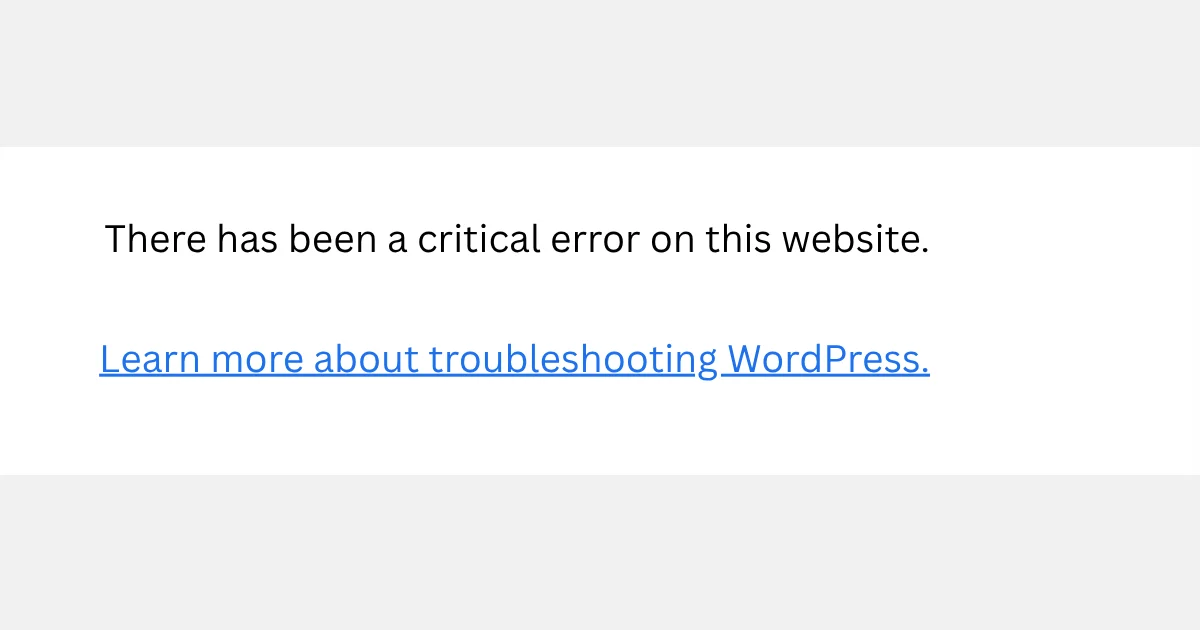
There is a specific, sinking feeling that every website owner knows. You’ve just finished a routine update, or perhaps you haven’t touched a thing in weeks, and you click over to your site to check your progress. Instead of your carefully curated homepage, you are met with a stark, unsettling white screen, or worse, the dreaded plain-text announcement: “There has been a critical error on this website.”
It’s the digital equivalent of walking into your office and finding the lights out, the doors locked, and the files scattered across the floor. For a brief moment, panic is a rational response. Your visitors are seeing a dead end, your SEO rankings are potentially stalling, and your hard work feels inaccessible. But take a deep breath. This error, while alarming, is not usually a terminal diagnosis. In the world of WordPress and web development, this message is actually a “fail-safe”, a sign that the system has caught a serious conflict and decided to shut down rather than display something broken or insecure to your users.
In this guide, we’re going to pull back the curtain on this error, understand why it happens, how to fix it, and, perhaps most importantly, how to stop it from ruining your peace of mind in the future.
What Actually Happened to Your Site?
At its core, “There has been a critical error on this website” is a PHP fatal error. PHP is the scripting language that powers most of the web, including WordPress. Think of it as the plumbing of your website. When you get this message, it means there is a “blockage” somewhere in that pipe. Your website’s engine (WordPress) reached a point in its execution where it encountered a command it couldn’t understand, a file that went missing, or a conflict between two different pieces of software that simply refuse to work together. Instead of trying to “guess” how to continue and potentially corrupting your data, the system chooses to halt.
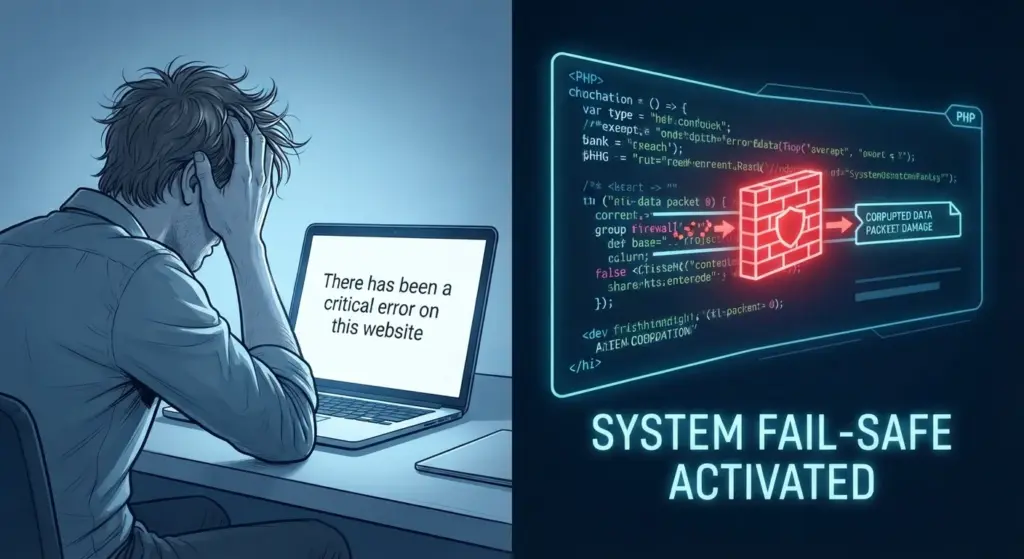
Immediate Action Items: Site Owner vs. Site User
When this error strikes, your role dictates your response.
For the Site Owner: Your priority is diagnostics. You are the only one with the keys to the back engine. You should immediately check your administrative email for a “Recovery Mode” link sent by WordPress. If that isn’t there, you must log into your hosting account’s File Manager or use FTP to manually deactivate the “plugins” folder. You are the mechanic in this scenario; you need to find the broken part and swap it out.
For the Site User: If you are a visitor stumbling upon this message, understand that the issue is entirely on the server-side. There is nothing wrong with your computer, your browser, or your internet connection. You cannot fix this. The best course of action is to wait an hour and refresh. If the site is vital for you, look for the brand’s social media handles (Twitter/X or Facebook) to see if they’ve acknowledged an outage. Do not attempt to re-submit forms or payments until the message clears.
Common Culprits: Why the System Crashed
If you’re looking for someone to blame, the list of suspects is usually quite short:
- Plugin Conflicts: This is the most common cause. You updated a plugin, and it no longer likes the theme you’re using or the version of PHP your server is running.
- Theme Issues: Much like plugins, themes are code. If an update to your site’s core conflicts with outdated theme files, the whole house can come down.
- PHP Incompatibility: Hosting providers occasionally update the version of PHP on their servers to improve speed and security. If your site’s code is written for an older, deprecated version, it may throw a tantrum.
- Memory Exhaustion: Sometimes, your site simply tries to do too much at once. If your server runs out of memory (RAM), it will quit midway through loading your page.
- Corrupt Core Files: In rare cases, a failed auto-update or a malicious actor might have damaged the fundamental files that make WordPress run.
The First Step: Don’t Panic, Check Your Mail
Before you start digging into code or calling your hosting support, check the administrative email address associated with your website. When WordPress hits a critical error, it doesn’t just sit there, it tries to help. It will often send an automated email to the site administrator. This email is a goldmine. It contains:
- A “Recovery Mode” link: This is a temporary way to get back into your dashboard even when the site is “down.”
- A specific error report: It will often explicitly name the file or the plugin that caused the crash.
If you have that email, you have your culprit. Disable the plugin or revert the theme it mentions, and you are likely back in business.
Troubleshooting When You’re Locked Out
If you didn’t get an email, or if the email wasn’t helpful, you’ll need to do a little detective work. You don’t need to be a professional developer to navigate these steps, but you will need access to your site’s files via FTP (File Transfer Protocol) or the File Manager in your hosting control panel.

For more granular details on navigating the file structure safely, you can refer to the official WordPress Troubleshooting guide.
The “Clean Slate” Strategy
If you suspect a plugin is the issue, you need to deactivate them. But if you can’t log in, how do you do it? Navigate to your site’s root directory in your File Manager. Find the /wp-content/ folder. Inside, you will see a folder named plugins. Rename it to plugins_old. By renaming the folder, you are effectively “hiding” all your plugins from WordPress. If the site loads now, you’ve proven that one of your plugins was the problem. You can then rename the folder back to plugins and go through them one by one to find the specific troublemaker.
The Theme Check
If the plugins weren’t the issue, the theme might be. Follow the same logic: Navigate to /wp-content/themes/. Find your active theme folder and rename it. WordPress will automatically revert to a default theme (like Twenty Twenty-Four). If your site loads after this, your theme was the cause.
Turning on the “Spotlight” (WP_DEBUG)
If you still haven’t found the problem, it’s time to ask the site to tell you exactly what’s wrong. You can do this by editing a file called wp-config.php located in your root directory. Look for the line that says: define( 'WP_DEBUG', false ); and change false to true. You can also add these lines below it to save the errors to a file instead of showing them on your screen:
define( 'WP_DEBUG_LOG', true );define( 'WP_DEBUG_DISPLAY', false );
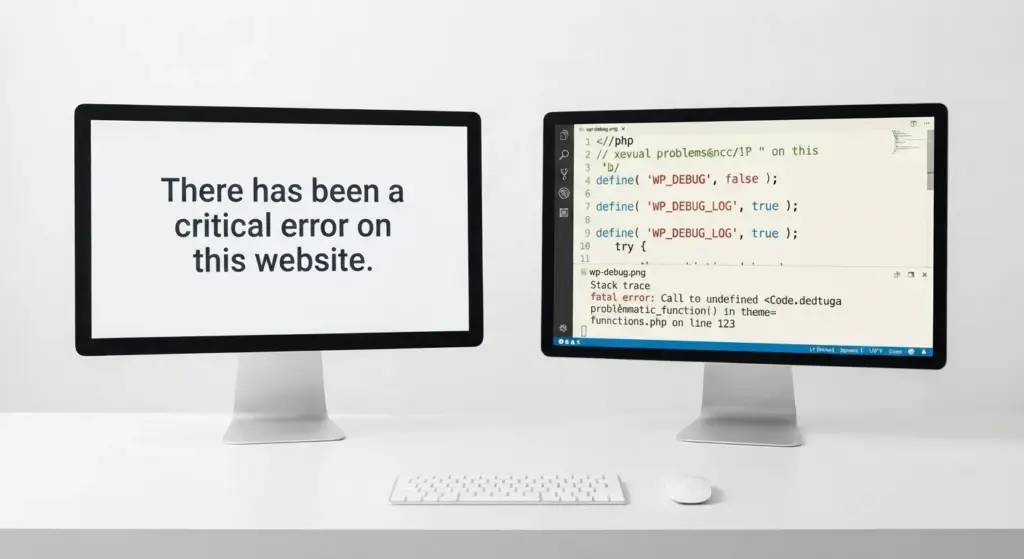
Once you save this and reload your site, a file named debug.log will appear in your wp-content folder. Open it, and scroll to the bottom. It will likely point to a specific line in a specific file. This is the “smoking gun” that will tell you exactly what needs to be fixed.
Advanced Fixes: Dealing with Database and Permissions
Sometimes, the error isn’t in the code, but in how the code talks to the server. If your debug.log mentions “Database connection failed” or “Permission denied,” you are dealing with a different beast.
Checking Database Credentials
Your website is essentially a bridge between your files and a database. If the bridge collapses, you get a critical error. Open your wp-config.php again and verify that the DB_NAME, DB_USER, and DB_PASSWORD match exactly what is listed in your hosting control panel. If you recently migrated sites or changed your hosting password, this is often where things go wrong.
Repairing the Database
If the credentials are correct but the site still won’t load, the database itself might be corrupted. You can add this line to wp-config.php: define('WP_ALLOW_REPAIR', true);. Once added, visit yourwebsite.com/wp-admin/maint/repair.php. Click “Repair Database.” Remember to remove that line from your config file once you are finished for security reasons.
Fixing File Permissions
If a plugin can’t “read” a file because the permissions are too strict, it might trigger a fatal error. Generally, folders should be set to 755 and files should be set to 644. You can change these through your FTP client or File Manager. Incorrect permissions often happen after a manual migration or a server-side security sweep by your host.
Increasing the PHP Memory Limit
Is your site simply “starving”? If your website is growing and you’re adding more complex features (like page builders or heavy e-commerce plugins), the default memory limit might not be enough. To increase it, add this line to your wp-config.php file:
define( 'WP_MEMORY_LIMIT', '256M' );
Note: Check with your host before doing this to ensure your plan allows for this much memory. If you are on a restricted shared hosting plan, they might override this setting, necessitating an upgrade to your hosting package.
Reinstalling Core Files
If the error persists after checking plugins and themes, your WordPress core files might be damaged. This sounds scary, but it’s a simple replacement process. Download a fresh copy of WordPress from WordPress.org. Unzip it and delete the wp-content folder and the wp-config-sample.php file from the new download (you don’t want to overwrite your own images and settings!). Then, upload the remaining files to your server, overwriting the old ones. This replaces the “engine” of your site without touching your actual content.
Prevention: Building a Robust Digital Home
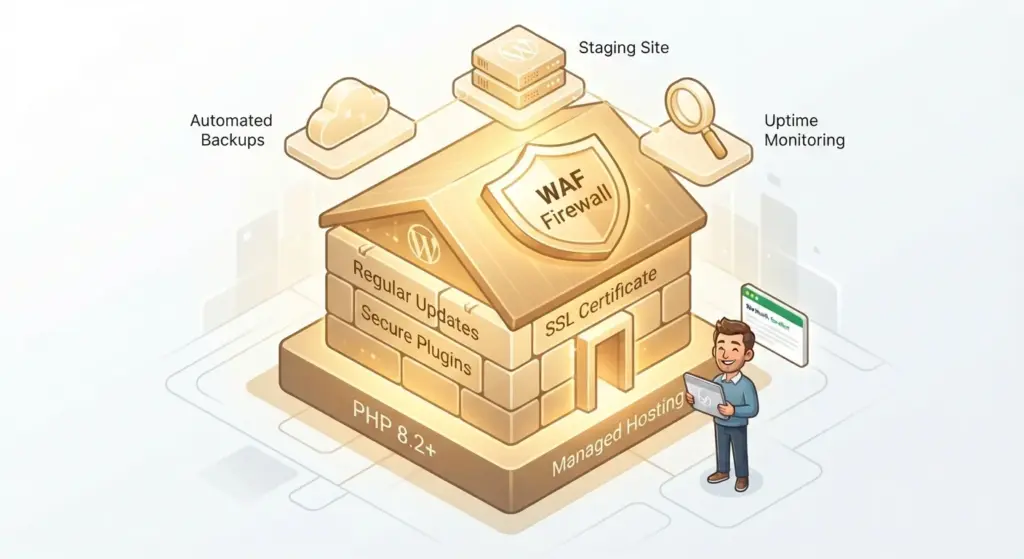
Nobody wants to spend their weekend fixing a broken website. While technical glitches can happen to anyone, you can drastically reduce the frequency of these “critical errors” by following a few best practices.
1. Maintain a Regular Backup Routine
This is the single most important rule of the internet. A backup is your “undo” button. Whether you use a plugin like UpdraftPlus or a service provided by your host, ensure you have automated daily backups stored in a location separate from your web server. If the worst happens, you can restore your site in minutes.
2. Update with Intention
“Update all” is tempting, but it’s often how errors start. Try to update one or two plugins at a time rather than everything at once. This way, if something breaks, you know exactly which update caused the conflict. Furthermore, refrain from updating themes or plugins immediately after a major WordPress core release. Waiting a week allows developers to patch any minor bugs that usually pop up.
3. Use a Staging Site
If your business depends on your website, you should never make major changes to the live version first. Most modern hosts offer a “Staging” feature. This creates a private clone of your site where you can test updates and new plugins. If the staging site breaks, no one sees it. If it works, you click one button to “Push to Live.”
4. Keep Your Environment Modern
Using an outdated version of PHP is a leading cause of fatal errors. Most hosting providers allow you to change your PHP version in your control panel. Aim to stay on the most recent stable version provided by your host. It’s better for your security, your site speed, and your error logs.
Monitoring for Silent Errors
Sometimes, errors are happening in the background before they become “critical.” Using a monitoring tool can alert you to trouble before the site goes down entirely. Services like UptimeRobot can ping your site every five minutes. If it returns a “500 Internal Server Error,” you’ll get an email immediately, often giving you enough lead time to fix the issue before the “Critical Error” message scares away your customers.
When to Call in the Experts
There is no shame in admitting that you’ve reached the end of your technical rope. If you’ve renamed your plugins, checked your logs, and you’re still seeing that wall of text, it’s time to reach out for help.
- Your Hosting Support: Often, they can see server-side errors that you cannot. They are usually very helpful, especially if the issue is a server configuration problem rather than a code problem.
- Developer Forums and Communities: Places like the WordPress support forums are filled with people who have seen every error imaginable. Searching for your specific error message there often leads to a quick fix.
- Professional Maintenance: If your website is a critical part of your income, consider hiring a professional. A maintenance service can handle updates, backups, and security monitoring, letting you focus on the actual content of your site rather than the plumbing.
If you find that constant troubleshooting is taking away from your actual work, outsourcing these tasks through WordPress maintenance plans can ensure your site stays healthy while you focus on your business.
The Importance of Clean Code and Lightweight Plugins
As you rebuild or maintain your site, keep efficiency in mind. A common reason for the “Critical Error” is “Bloat.” This is when a site has 40+ active plugins, many of which perform redundant tasks. Every plugin is a potential point of failure. Periodically audit your plugins. If you aren’t using a feature, delete the plugin. Don’t just deactivate it, delete the files entirely to keep your database and directory clean.
The Emotional Side: Why We Over-React to Errors
It’s worth mentioning that website errors aren’t just technical problems; they are emotional ones. We invest so much of our identity, our business, and our creativity into these digital spaces. When they go down, it feels like a personal failure.
It is important to remember that the internet is a complex, interconnected web of code written by thousands of different people. It is a miracle that it works as often as it does. A critical error is not an indictment of your skills or your brand; it is a momentary hiccup in a system that is constantly changing.
Whenever you feel that spike of anxiety, remind yourself:
- The data is likely still there; it’s just not being displayed.
- Every major website on the planet has crashed at some point.
- You have the tools to troubleshoot and the resources to find a solution.
The “Safe Mode” Mindset
Treat your website development with a “Safe Mode” mindset. This means assuming things might break and preparing for it. Keep your wp-config.php file backed up locally. Keep a list of your vital plugins. The more prepared you are for a crash, the less power the crash has over you.
Dealing with Malware and Security Errors
Sometimes a critical error isn’t a conflict between “good” plugins, but the result of a “bad” script. If you notice that the error occurred without you making any changes, and your debug.log shows strange file names in the wp-includes or uploads folder, you might have been hacked.
In this case, the standard troubleshooting might fail. You will need a security plugin like Wordfence or Sucuri to scan your files. Most of the time, malware injects code into your files that causes a syntax error, resulting in the critical error message. If your site is compromised, do not just fix the error, find the “backdoor” the hackers used, or they will simply break it again tomorrow.
Critical errors can sometimes stem from malicious activity, which is why it is essential to follow best practices on how to secure a WordPress site before vulnerabilities are exploited.
Optimizing Site Performance to Prevent Crashes
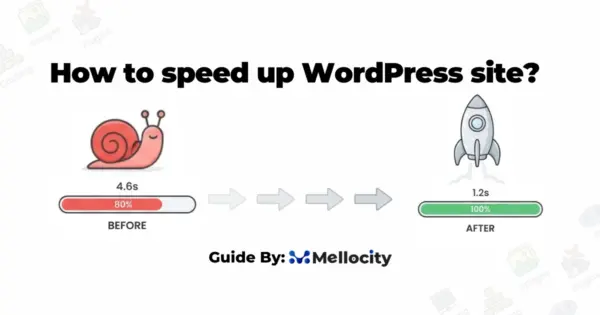
A fast site is often a stable site. When a server has to work less to deliver a page, it is less likely to hit a resource limit. Use caching plugins like WP Rocket or W3 Total Cache. Use a Content Delivery Network (CDN) like Cloudflare. These tools reduce the load on your server’s PHP engine, which in turn reduces the chances of a fatal error occurring during high traffic spikes.
Performance is a major pillar of what defines the user experience, but remember that what makes a good website extends to clean design and intuitive navigation, not just uptime.
Wrapping Up: From Panic to Resolution
“There has been a critical error on this website” is never a welcome message, but it is a manageable one. By staying calm, using the diagnostic tools available to you, and keeping a steady hand on your backups and updates, you can turn a moment of panic into a routine maintenance task.
The web is a living thing. It grows, it shifts, and sometimes, it needs a little help to get back on its feet. Treat your website like a garden, water it (keep it updated), prune it (remove unused plugins), and occasionally, when things aren’t looking quite right, get your hands in the soil to see what’s going on underneath.
You’ve got this. Whether you are the owner fixing the pipes or the user waiting for the lights to come back on, understanding the nature of these digital glitches takes the fear out of the white screen. Your site will be back up, running, and ready for your visitors before you know it. Keep your cool, check your logs, and remember that every problem has a solution.