What Is FTP and Why Does It Still Matter?
FTP stands for File Transfer Protocol, a standardized network protocol used to transfer files between computers over TCP/IP networks. First proposed in a 1971 MIT whitepaper, FTP was designed to enable reliable file exchanges between heterogeneous systems—computers with different operating systems, directory structures, and file architectures.
Despite being over 50 years old, FTP remains relevant in 2026 for several reasons:
- Legacy system integration: Many industrial devices, embedded systems, and older servers still rely exclusively on FTP.
- Web development workflows: Developers frequently use FTP to upload website files to hosting servers.
- Backup and replication: Organizations use FTP for automated backup routines and data replication between locations.
- B2B data exchanges: Some industries, particularly finance and logistics, still depend on FTP for partner file transfers.
However, FTP’s age also means it carries significant security limitations that modern businesses must address. Understanding what is FTP—including its strengths, weaknesses, and alternatives—is critical for anyone responsible for digital infrastructure.
How FTP Works:
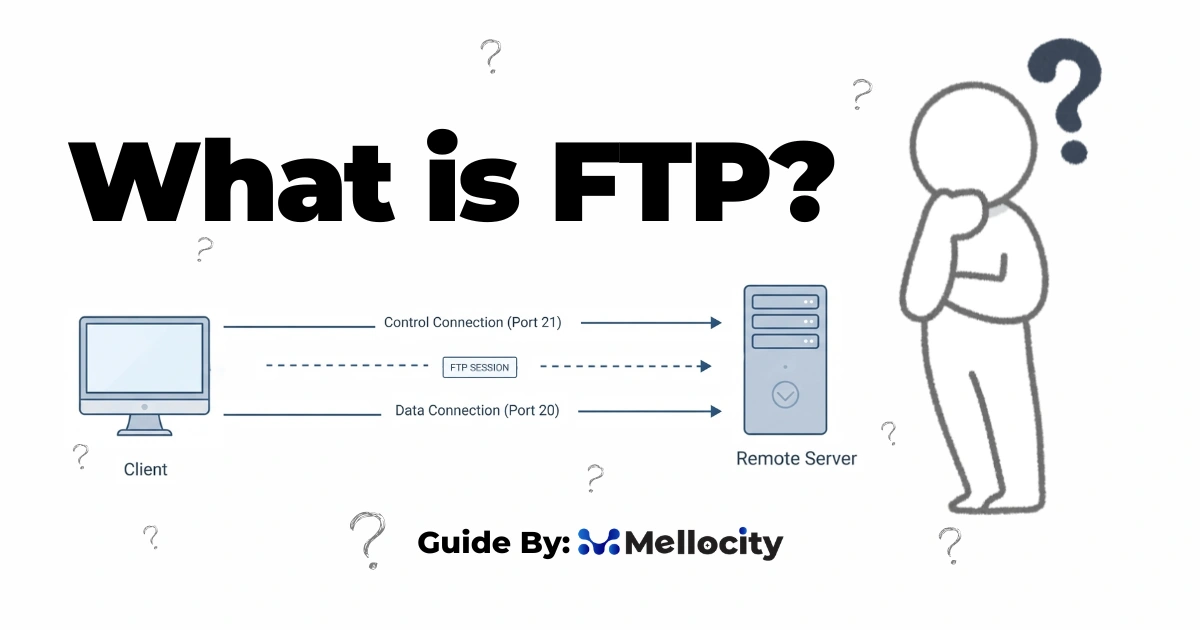
Unlike most modern protocols that use a single connection, FTP operates using two parallel TCP channels. This dual-channel design is fundamental to understanding both FTP’s capabilities and its complexities.
The Control Connection (Port 21)
The control connection handles all commands and responses between the client and server. When you initiate an FTP session, your client connects to the server’s port 21 and keeps this connection open for the entire duration of the session.
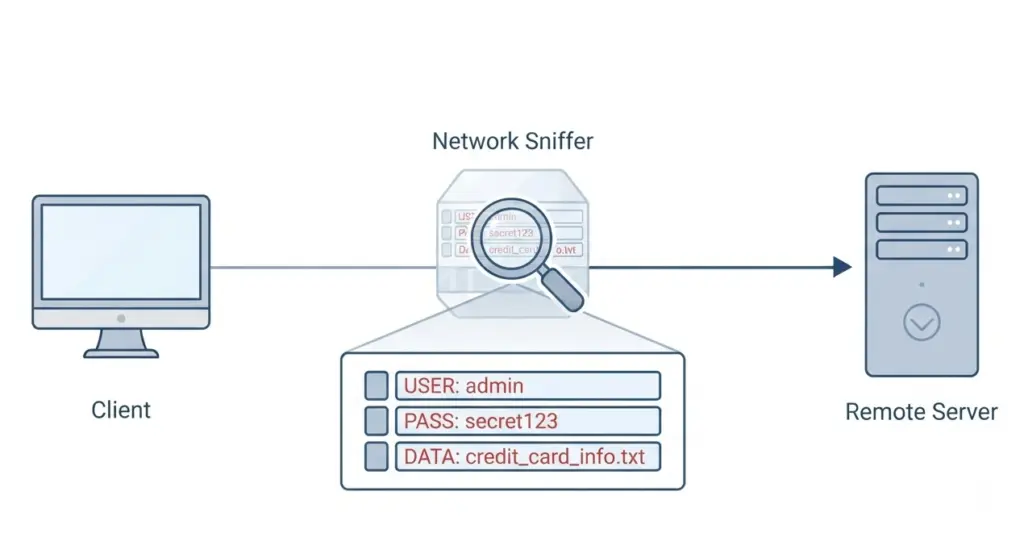
All authentication (username and password), directory navigation commands, and file operation requests travel over this channel as plain, readable text. This is where the security vulnerability originates: credentials and commands are transmitted unencrypted.
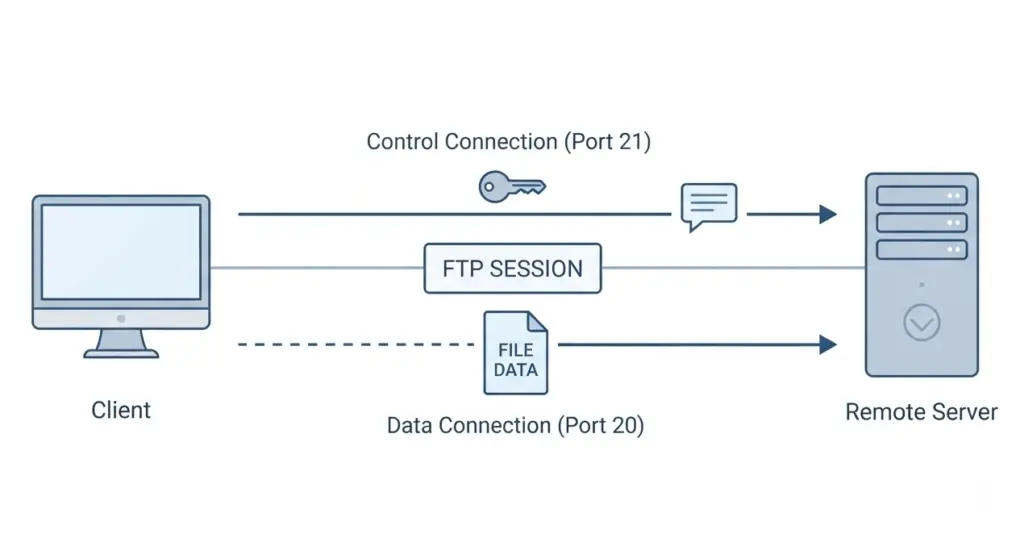
The Data Connection (Port 20 or Dynamic)
The data connection carries the actual file contents and directory listings. This connection opens only when a transfer is initiated and closes immediately after the transfer completes.
FTP’s data channel behavior differs depending on the mode:
| Mode | Who Initiates Data Connection | Port Behavior | Firewall Compatibility |
|---|---|---|---|
| Active | Server connects to client | Server uses port 20 | Poor (blocked by most firewalls) |
| Passive | Client connects to server | Server assigns random high port | Better (client-side firewalls allow outbound) |
Step-by-Step FTP Transfer Process
A typical FTP session follows these stages:
- Connection establishment: The FTP client connects to the server on port 21.
- Authentication: The client sends
USERandPASScommands (in plain text). - Command channel setup: The control connection remains open throughout the session.
- Data channel negotiation: Depending on active or passive mode, the data connection is established.
- File transfer: The actual file data flows over the data channel.
- Session termination: When complete, the client sends
QUITand both connections close.
This separation of control and data channels enables FTP to support advanced features like resuming interrupted transfers and transferring files directly between two servers (FXP), but it also creates significant firewall and security challenges.
FTP Modes Explained: Active vs. Passive
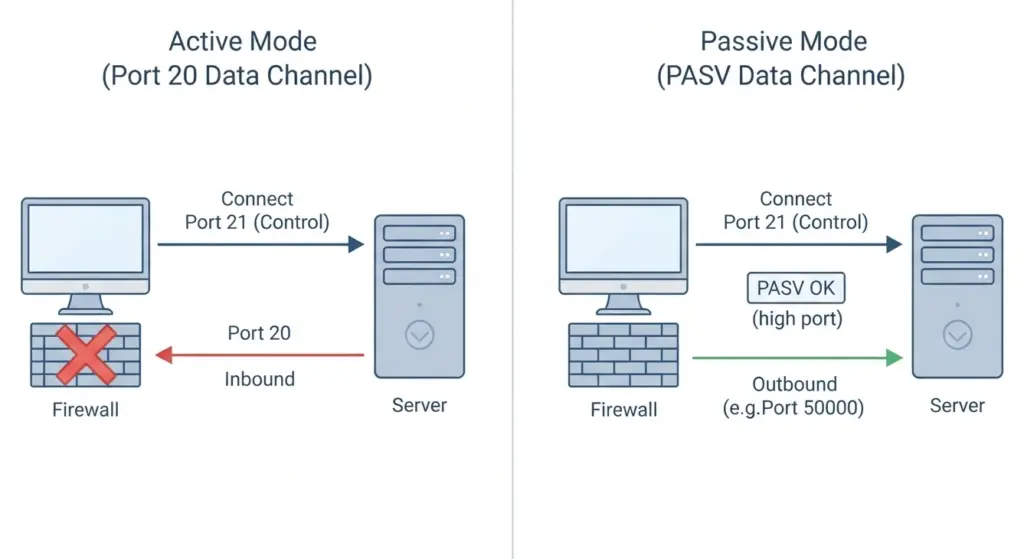
Understanding the difference between active and passive FTP modes is crucial for troubleshooting connection issues—especially when firewalls or NAT (Network Address Translation) devices are involved.
Active Mode: The Original Design
In active mode, the workflow is:
- Client connects to server on port 21 (control channel).
- Client sends a
PORTcommand containing its own IP address and a port number. - Server initiates the data connection from port 20 to the client’s specified port.
The problem: From a firewall perspective, this looks like an unsolicited inbound connection from an external server to a random high port on your internal network. Most stateful firewalls block this by default.
Passive Mode: The Modern Default
In passive mode, the workflow is:
- Client connects to server on port 21 (control channel).
- Client sends a
PASVcommand. - Server responds with an IP address and a random high port number (e.g.,
227 Entering Passive Mode (10,20,30,40,156,68)). - Client initiates the data connection outbound to that server port.
The advantage: Outbound connections from the client are typically allowed by firewalls. The trade-off is that the server must open a wide range of ports (often 10,000+) to accommodate passive mode connections.
Which Mode Should You Use?
For most modern scenarios, passive mode is the default and recommended choice. Nearly all contemporary FTP clients default to passive mode because it works reliably across client-side firewalls and NAT gateways.
If you’re configuring an FTP server, you’ll need to:
- Pin a specific passive port range in your server configuration.
- Open that exact range in your server firewall.
- Ensure your firewall allows inbound connections on those ports.
FTP Security Vulnerabilities: Why Plain FTP Is Risky
By modern standards, plain FTP is inherently insecure. The protocol was designed in an era when networks were small, trusted, and isolated—not the hostile, internet-connected environments we operate in today.
Critical Security Flaws
| Vulnerability | Impact | Real-World Risk |
|---|---|---|
| Credentials in plain text | Usernames and passwords transmitted unencrypted | Anyone with network access can capture login details |
| Data in plain text | File contents not encrypted | Sensitive files (configs, financial data) exposed in transit |
| No integrity verification | No checksums or signatures | No way to detect tampering or corruption |
| FTP bounce attack | PORT command can redirect to arbitrary hosts | Attackers can use your server as a relay to scan internal networks |
Compliance Implications
If your organization handles protected health information (PHI), personally identifiable information (PII), or payment data, plain FTP fails most compliance frameworks:
- HIPAA: Requires encryption of data in transit.
- GDPR: Mandates appropriate technical measures for data protection.
- PCI-DSS: Prohibits transmission of cardholder data over unencrypted channels.
Using plain FTP in these contexts requires extensive compensating controls (e.g., isolated network segments, VPNs, detailed risk documentation) and will likely raise red flags during audits.
Secure Alternatives: FTPS vs. SFTP
To address FTP’s security gaps, two encrypted alternatives emerged: FTPS (FTP Secure) and SFTP (SSH File Transfer Protocol). Despite similar names, they are fundamentally different protocols with distinct trade-offs.
FTPS: FTP Over TLS
FTPS wraps the existing FTP protocol in SSL/TLS encryption. It retains FTP’s dual-channel architecture but encrypts both control and data channels.
Two flavors of FTPS:
- Explicit FTPS: Client connects on port 21, then sends
AUTH TLSto upgrade to encryption. (Recommended) - Implicit FTPS: Client connects directly to port 990 with encryption from the first byte. (Deprecated by IETF in 2005)
Pros:
- Strong encryption (TLS 1.2/1.3, AES-256).
- Supports certificate-based (X.509) authentication.
- Familiar FTP command set for legacy workflows.
Cons:
- Firewall complexity: Encrypted control channel prevents firewalls from inspecting port negotiations.
- Multiple ports: Still requires opening a wide range of ports for passive mode data channels.
- Legacy baggage: Inherits FTP’s two-connection model and all associated operational headaches.
SFTP: A Completely Different Protocol
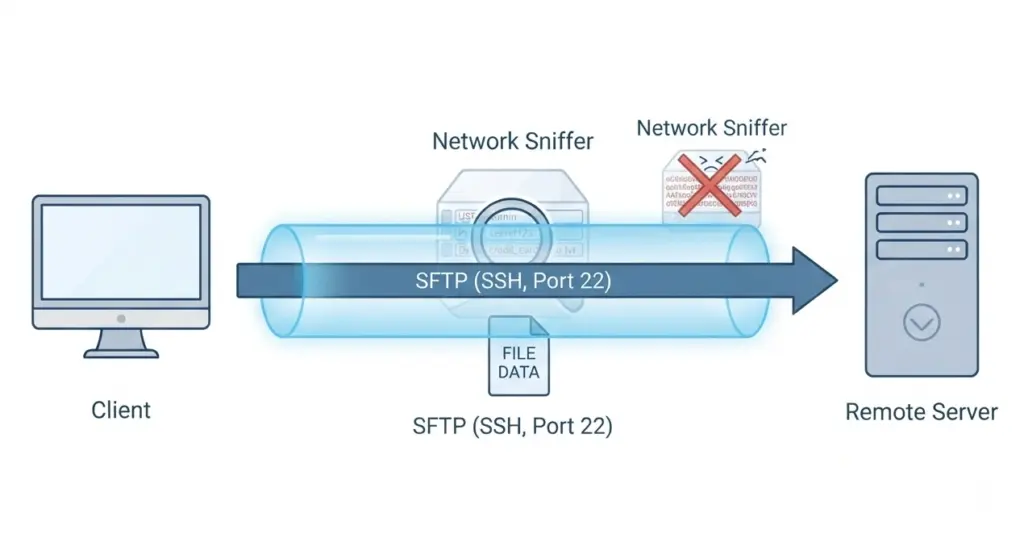
SFTP is not FTP at all. It is a file transfer subsystem that runs over SSH (Secure Shell) on a single encrypted connection, typically port 22.
Key characteristics:
- One connection handles authentication, commands, and data.
- All traffic encrypted by default—no unencrypted mode exists.
- Supports SSH key-based authentication (no passwords stored on servers).
- Built-in integrity checking and resume capability.
Pros:
- Firewall-friendly: Single port (22) simplifies network configuration.
- Strong security: Encryption, authentication, and integrity built into the protocol.
- Modern tooling: Actively maintained (OpenSSH), widely supported.
Cons:
- Different command set (not compatible with FTP clients without SFTP support).
- Slight overhead from SSH handshake (negligible for most use cases).
Comparison Table: FTP vs. FTPS vs. SFTP
| Feature | FTP | FTPS | SFTP |
|---|---|---|---|
| Encryption | None | TLS 1.2/1.3 | SSH (AES-256, ChaCha20) |
| Ports Required | 21 + dynamic range | 21 (or 990) + dynamic range | Single port (22) |
| Firewall Friendliness | Poor | Poor | Excellent |
| Authentication | Plain text password | Password or X.509 cert | Password or SSH key |
| NAT Traversal | Complicated | Complicated (encrypted passive) | Simple |
| Compliance Ready | No | Yes (if configured correctly) | Yes |
| Resume Interrupted Transfers | Server-dependent | Server-dependent | Yes (protocol-level) |
| Active Development | No | TLS layer is | Yes (OpenSSH) |
Which Should You Choose in 2026?
For new deployments: Use SFTP. It’s simpler to operate, easier to firewall, and aligns with modern security best practices.
Use FTPS when:
- You must integrate with a partner system that only supports FTPS (common in B2B EDI and financial exchanges).
- Your compliance framework specifically requires X.509 certificate authentication.
- You’re extending an existing FTP infrastructure and need encryption without changing the underlying protocol.
Use plain FTP only when:
- You’re working with legacy hardware that physically cannot support anything else (e.g., PLCs, older security cameras, embedded devices with frozen firmware).
- The devices are on an isolated network segment with no internet exposure.
- You’ve documented the risk and implemented compensating controls.
Never use plain FTP on the public internet. Credentials and data will be intercepted.
Common FTP Commands and Response Codes
Understanding FTP’s command set and response codes is essential for troubleshooting and scripting automated workflows.
Essential FTP Commands
| Command | Purpose | Example Usage |
|---|---|---|
USER | Send username | USER john_doe |
PASS | Send password | PASS secret123 |
CWD | Change working directory | CWD /public_html |
PWD | Print current directory | PWD |
LIST | List directory contents (human-readable) | LIST |
NLST | List filenames only (script-friendly) | NLST |
RETR | Retrieve (download) a file | RETR file.zip |
STOR | Store (upload) a file | STOR backup.sql |
DELE | Delete a file | DELE old_file.txt |
MKD | Make a directory | MKD new_folder |
RMD | Remove a directory | RMD old_folder |
TYPE | Set transfer type (ASCII or Binary) | TYPE I (binary) |
PASV | Enter passive mode | PASV |
QUIT | Close session | QUIT |
Critical note on TYPE: Always use TYPE I (binary mode) before transferring non-text files. ASCII mode (TYPE A, the default) converts line endings, which corrupts binary files like images, archives, or firmware.
FTP Response Codes
FTP servers respond with three-digit codes that indicate the status of each command.
| Code | Meaning | Example |
|---|---|---|
| 220 | Service ready (greeting) | 220 FTP server ready |
| 331 | Username OK, need password | 331 User name okay, need password |
| 230 | User logged in | 230 User logged in |
| 530 | Not logged in / bad credentials | 530 Not logged in |
| 227 | Entering passive mode | 227 Entering Passive Mode (h1,h2,h3,h4,p1,p2) |
| 150 | File status OK, opening data connection | 150 File status okay; about to open data connection |
| 226 | Transfer complete, closing data connection | 226 Transfer complete |
| 425 | Can’t open data connection (firewall issue) | 425 Can't open data connection |
| 550 | File not found or permission denied | 550 File not found |
| 421 | Service not available, shutting down | 421 Service not available |
Reading response codes:
- 1yz: Positive preliminary reply (command started, wait for another reply).
- 2yz: Positive completion (command succeeded).
- 3yz: Positive intermediate (command accepted, send the next command in sequence).
- 4yz: Transient negative (temporary failure, retrying may work).
- 5yz: Permanent negative (command failed, retrying won’t help).
Troubleshooting Common FTP Issues
Even with proper configuration, FTP connections can fail. Here are the most common problems and how to resolve them.
Issue 1: “425 Can’t Open Data Connection”
Symptoms: Login succeeds, but file transfers or directory listings fail with error 425.
Root cause: Firewall blocking the data connection.
Solutions:
- Switch to passive mode in your FTP client settings.
- If you control the server, configure a pinned passive port range (e.g., 50000-51000) and open it in the firewall.
- Enable “FTP inspection” or “FTP fixup” on your firewall (works for plain FTP, not FTPS).
Issue 2: Corrupted Files After Transfer
Symptoms: Transfer completes successfully, but the file is unusable (e.g., images won’t open, archives fail to extract).
Root cause: File transferred in ASCII mode instead of binary mode.
Solutions:
- Before transferring, explicitly set
TYPE I(binary mode) in your client. - Most modern clients auto-detect file types, but embedded or legacy clients may not.
- Always use binary mode for firmware, images, databases, and compressed files.