The Core Definition
At its foundation, WordPress is a dynamic, server-side content management system that separates content storage from presentation logic. Unlike static HTML sites where every page is a pre-written file, WordPress generates pages on-the-fly by querying a database and assembling content through PHP templates.
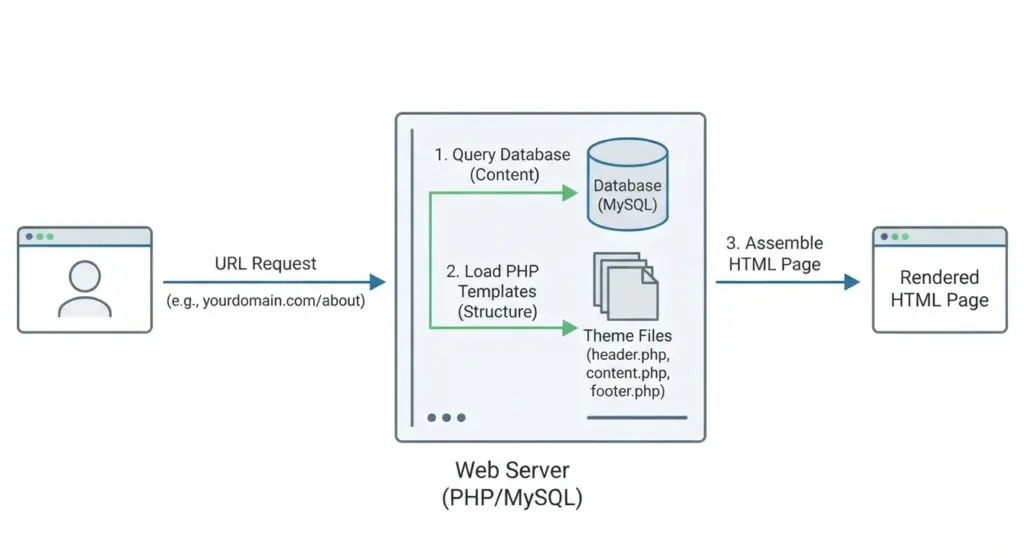
This architecture enables:
- Rapid content publishing without developer intervention
- Centralized management of thousands of pages from a single dashboard
- Extensibility via plugins and themes without modifying core code
- Scalability from single-page portfolios to multi-site enterprise networks
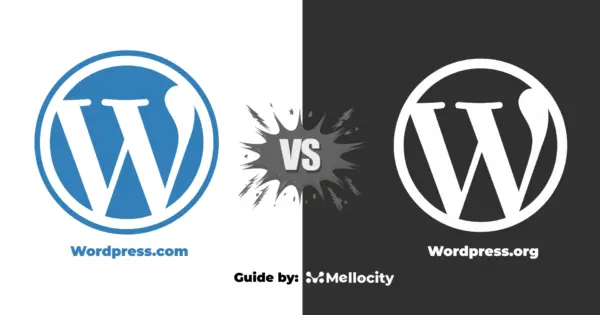
WordPress.org vs. WordPress.com:
One of the most common points of confusion and costly missteps is the difference between WordPress.org and WordPress.com.
| Feature | WordPress.org (Self-Hosted) | WordPress.com (Hosted Service) |
|---|---|---|
| Ownership | You own 100% of your site, data, and code | Automattic (the company) controls the platform |
| Cost | Free software; pay for hosting & domain | Free tier with severe limitations; paid plans for full features |
| Customization | Install any theme/plugin; full code access | Restricted plugin/theme installation on lower tiers |
| Monetization | Full control (ads, affiliates, eCommerce) | Limited or prohibited on free/low-tier plans |
| Maintenance | You manage updates, backups, security | Handled by WordPress.com (on paid plans) |
| Best For | Businesses, professionals, scalable projects | Hobbyists, simple blogs, non-technical users |
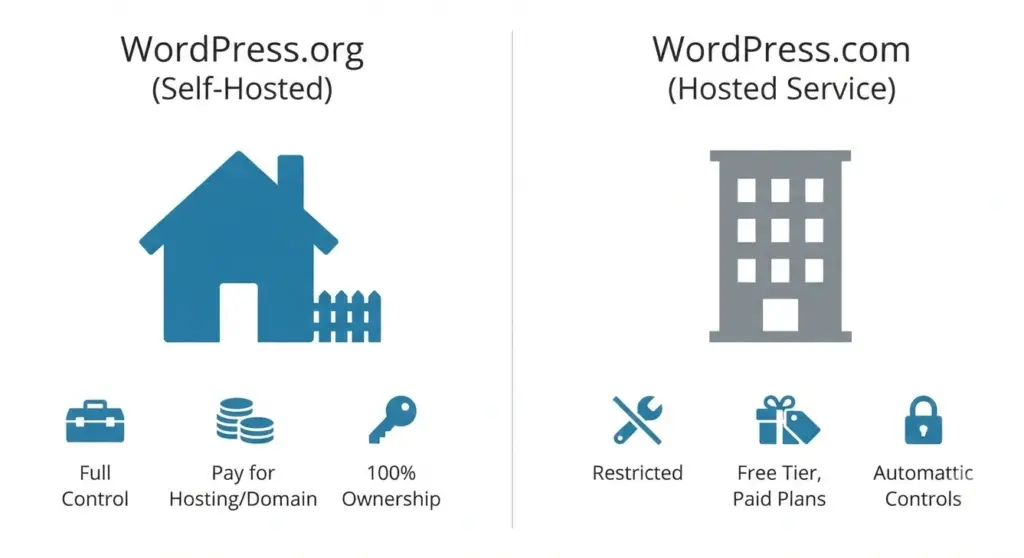
For any serious business use case, whether you’re a small business owner launching a lead-generation site or a CTO evaluating CMS options for a global brand WordPress.org is the only viable choice. The self-hosted model provides full ownership, unlimited extensibility, and long-term cost efficiency that hosted alternatives cannot match.
WordPress Architecture: How It Works Under the Hood
Understanding WordPress architecture isn’t just for developers—it’s essential for anyone responsible for site performance, security, or scalability. Let’s break down the four-layer model that powers every WordPress site.
Layer 1: The Core (wp-admin, wp-includes, wp-config.php)
The WordPress core consists of the immutable PHP files that define the platform’s behavior. Key directories include:
wp-admin/: Powers the dashboard interface where you manage content, users, and settings.wp-includes/: Contains core libraries, classes, and functions (e.g.,WP_Query, hook system).wp-config.php: Stores database credentials, security keys, and environment constants.
Critical Rule: Never edit core files directly. Updates will overwrite your changes, and you risk introducing security vulnerabilities or breaking functionality.
Layer 2: The Database (MySQL/MariaDB)
WordPress stores all content, settings, and metadata in a relational database. The default schema includes 12 core tables, with the most critical being:
| Table | Purpose |
|---|---|
wp_posts | Stores posts, pages, attachments, and custom post types |
wp_postmeta | Key-value metadata for posts (e.g., custom fields) |
wp_users | User accounts and authentication data |
wp_options | Site-wide settings (e.g., site URL, theme options) |
wp_terms, wp_term_taxonomy, wp_term_relationships | Categories, tags, and custom taxonomies |
This metadata-driven design prioritizes flexibility over strict normalization, allowing plugins to extend data models without schema migrations. However, excessive meta queries can impact performance—a key consideration for high-traffic sites.
Layer 3: Themes (Presentation Layer)
Themes control how content is rendered to visitors. Located in wp-content/themes/, a theme includes:
- Template files (
header.php,footer.php,single.php,page.php) style.css: Defines visual styling and theme metadatafunctions.php: Registers features, enqueues scripts, and modifies behavior
WordPress uses a template hierarchy to resolve which file to use for each request. For example, when loading a blog post, WordPress checks in this order:
single-{posttype}.php(most specific)single.phpsingular.phpindex.php(fallback)
This fallback system ensures your site never breaks due to missing templates—but it also means poorly structured themes can lead to unpredictable rendering.
Layer 4: Plugins (Functionality Layer)
Plugins extend WordPress beyond its core capabilities. They hook into the execution flow using actions and filters:
- Actions: Execute code at specific points (e.g.,
publish_post,wp_footer) - Filters: Modify data before it’s saved or displayed (e.g.,
the_content,wp_title)
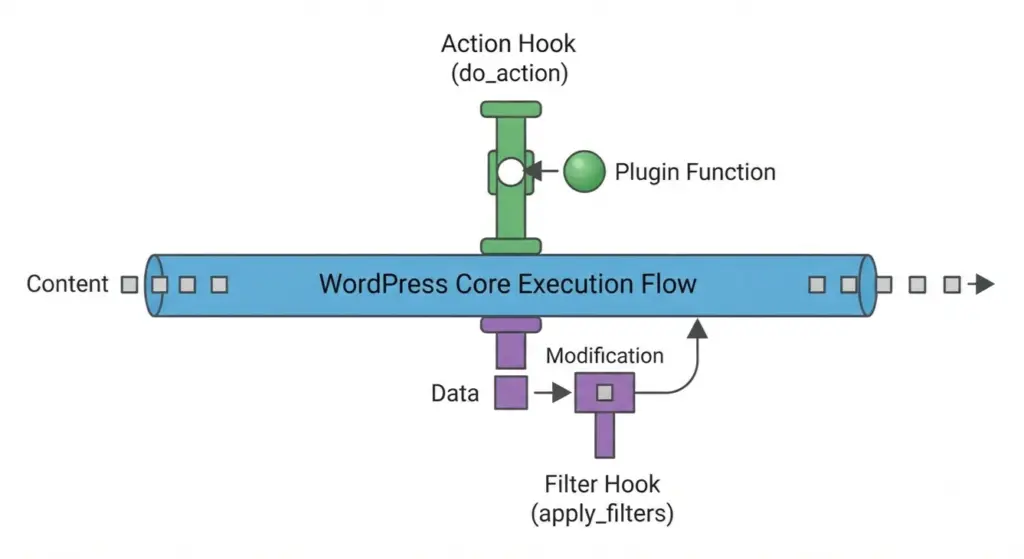
For example, a contact form plugin might use:
add_action(‘wp_footer’, ‘render_contact_form’);
add_filter(‘the_content’, ‘append_form_to_posts’);
This hook-based extension model allows thousands of plugins to coexist without modifying core files—preserving update compatibility and security.
From URL to Rendered HTML
To truly understand “what is WordPress,” you must grasp how it processes a request. Here’s the step-by-step flow:
- Browser Request: User visits
yourdomain.com/about - Front Controller:
index.phploads and bootstraps WordPress - Bootstrap Sequence:
- Loads
wp-config.php(database credentials) - Initializes core libraries (
wp-includes/) - Activates plugins (
plugins_loadedhook) - Sets up theme environment (
inithook)
- Query Parsing: WordPress determines the request type (page, post, archive, etc.)
- WP_Query Execution: Fetches matching content from the database
- Template Resolution: Selects the appropriate theme file via the template hierarchy
- The Loop: Iterates over query results and renders HTML
- Response: Final HTML is sent to the browser
This entire process typically completes in under 200 milliseconds on optimized hosting—but poor plugin choices, unoptimized queries, or cheap hosting can balloon this to several seconds, devastating user experience and SEO rankings.
What Can You Build with WordPress?
WordPress is not just a blogging tool. Its modular architecture supports virtually any web project. Here’s how different stakeholders leverage it:
For Small Business Owners
- Lead-generation websites with contact forms, service pages, and testimonials
- Local SEO-optimized sites with location pages, Google Business integration, and schema markup
- Portfolio sites for agencies, consultants, and creatives
Case Study Framework: A local HVAC company increased qualified leads by 217% after migrating from Wix to WordPress, implementing custom service pages, localized content hubs, and a dynamic quote-request form. (Insert your agency’s metrics here.)
For CTOs and IT Leaders
- Headless CMS architectures using the REST API or GraphQL to serve content to React/Vue frontends, mobile apps, or IoT devices
- Multi-site networks managing hundreds of regional or brand-specific sites from a single installation
- Enterprise integrations with CRMs (Salesforce, HubSpot), ERPs, and marketing automation platforms
Technical Insight: WordPress’s REST API enables decoupled architectures where WordPress manages content while a custom frontend handles presentation—ideal for organizations requiring strict separation of concerns or performance optimization via static site generation.
For E-commerce Managers
- WooCommerce-powered stores handling everything from physical products to digital downloads, subscriptions, and B2B wholesale
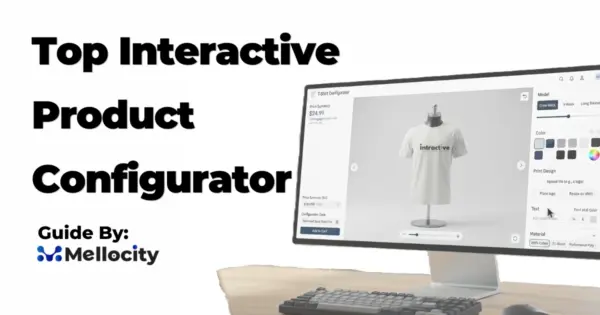
- Custom product configurators using advanced custom fields and dynamic pricing logic
- Multi-vendor marketplaces with vendor dashboards, commission tracking, and escrow payments
Data Point: WooCommerce powers 28% of all online stores, making it the most popular eCommerce platform globally.
Common Challenges and How to Avoid Them
While WordPress is powerful, it’s not without pitfalls. Here are the most frequent issues—and how to mitigate them.
Challenge 1: Plugin Bloat and Performance Degradation
Problem: Sites often accumulate 20–30+ plugins, each adding HTTP requests, database queries, and JavaScript payloads.
Solution:
- Audit plugins quarterly; remove unused ones
- Choose lightweight, well-maintained plugins with active support
- Use performance profiling tools (Query Monitor, New Relic) to identify bottlenecks
- Consider managed hosting with server-level caching (Redis, Varnish)
Challenge 2: Security Vulnerabilities
Problem: WordPress’s popularity makes it a prime target for automated attacks. Outdated plugins/themes are the #1 attack vector.
Solution:
- Enable auto-updates for minor core releases
- Use a security plugin (e.g., Wordfence, Sucuri) for firewall and malware scanning
- Implement two-factor authentication (2FA) for all admin accounts
- Restrict file permissions (
755for directories,644for files)
Challenge 3: Theme Lock-In
Problem: Traditional themes dictate layout, header/footer structure, and page templates—making it difficult to switch designs without rebuilding content.
Solution:
- Use a minimal base theme (e.g., GeneratePress, Kadence, or Hello Elementor)
- Build layouts with a visual page builder (e.g., Elementor Pro, Brizy) that decouples design from theme
- Leverage block themes (Full Site Editing) for native WordPress customization without code
Challenge 4: Database Bloat
Problem: Over time, wp_options, wp_postmeta, and transient data can grow to hundreds of megabytes, slowing queries.
Solution:
- Regularly clean transients and expired data
- Use object caching (Redis/Memcached) to reduce database load
- Optimize tables with
OPTIMIZE TABLEcommands or plugins like WP-Optimize
Best Practices for Enterprise-Grade WordPress Deployments
To maximize WordPress’s potential while minimizing risk, follow these architectural best practices:
1. Separate Concerns: Themes for Design, Plugins for Functionality
Never embed business logic in your theme. If you switch themes, you shouldn’t lose critical features. Instead:
- Use themes purely for presentation (templates, CSS)
- Implement custom post types, taxonomies, and business logic via plugins or
mu-plugins(must-use plugins)
2. Use Child Themes for Customizations
If you must modify a parent theme, always use a child theme. This ensures your changes survive parent theme updates. A child theme inherits all parent templates but allows selective overrides:
/wp-content/themes/
├── parent-theme/
└── child-theme/
├── style.css (with Template: parent-theme header)
└── functions.php
3. Leverage Hooks, Not Core Edits
Instead of modifying wp-includes/ files, use hooks to inject or modify behavior. Example:
// Add custom CSS to admin header
add_action(‘admin_head’, ‘custom_admin_styles’);
function custom_admin_styles() {
echo ‘<style>.wp-heading-inline { display: none; }</style>’;
}
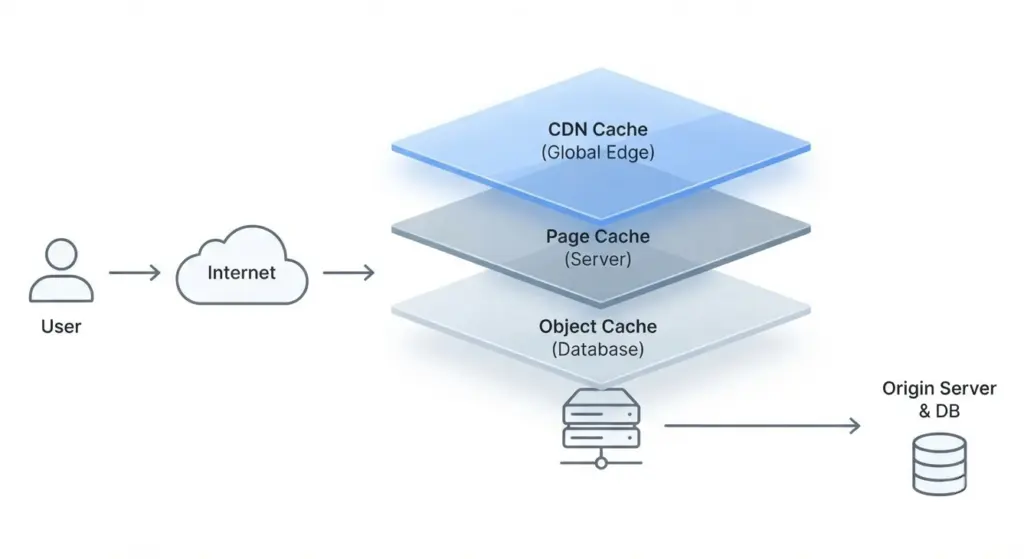
4. Implement Proper Caching Strategy
Caching is non-negotiable for performance. Use a layered approach:
- Object Cache: Redis or Memcached for database query results
- Page Cache: Server-level (Nginx FastCGI, Varnish) or plugin-based (WP Rocket, W3 Total Cache)
- CDN: Cloudflare or BunnyCDN for static assets (images, CSS, JS)
5. Automate Backups and Staging Environments
- Daily automated backups to off-site storage (Amazon S3, Google Cloud)
- One-click staging environments for testing updates before deploying to production
- Version control (Git) for theme and plugin code
Troubleshooting Common WordPress Issues
Even well-architected sites encounter problems. Here’s how to diagnose and resolve frequent issues:
Issue: White Screen of Death (WSOD)
Symptoms: Blank page with no error message.
Diagnosis:
- Enable debug mode in
wp-config.php:
define(‘WP_DEBUG’, true);
define(‘WP_DEBUG_LOG’, true);
define(‘WP_DEBUG_DISPLAY’, false);
- Check
wp-content/debug.logfor PHP errors - Common causes: plugin conflicts, memory exhaustion (
WP_MEMORY_LIMIT), syntax errors infunctions.php
Resolution:
- Deactivate all plugins via FTP (rename
pluginsfolder toplugins.old) - Switch to a default theme (Twenty Twenty-Four)
- Increase PHP memory limit:
define('WP_MEMORY_LIMIT', '256M');
Issue: Permalink Errors (404 on All Pages)
Symptoms: Homepage loads, but all internal links return 404.
Diagnosis: Corrupted .htaccess file or incorrect permalink structure.
Resolution:
- Go to Settings → Permalinks in the dashboard
- Click Save Changes (regenerates
.htaccess) - If using Nginx, ensure rewrite rules are configured:
location / {
try_files $uri $uri/ /index.php?$args;
}
Issue: Database Connection Error
Symptoms: “Error establishing a database connection.”
Diagnosis: Incorrect credentials in wp-config.php or database server downtime.
Resolution:
- Verify
DB_NAME,DB_USER,DB_PASSWORD, andDB_HOSTinwp-config.php - Test database connectivity via command line:
mysql -u username -p database_name - Check server error logs for MySQL/MariaDB crashes
Issue: Mixed Content Warnings (HTTP/HTTPS)
Symptoms: Browser security warnings due to insecure resources.
Diagnosis: Hardcoded http:// URLs in theme files, database, or plugin settings.
Resolution:
- Use a plugin like Really Simple SSL to handle redirects and URL replacement
- Run a database search-replace:
http://yoursite.com→https://yoursite.com(use WP-CLI:wp search-replace 'http://' 'https://' --skip-columns=guid) - Update
WP_HOMEandWP_SITEURLinwp-config.phpto usehttps://
WordPress vs. Alternatives: Strategic Comparison
When evaluating “what is WordPress” against other platforms, consider these dimensions:
| Criterion | WordPress | Webflow | Shopify | Drupal |
|---|---|---|---|---|
| Ease of Use | Moderate (steep learning curve without page builders) | High (visual designer) | Very High (purpose-built for eCommerce) | Low (developer-focused) |
| Customization | Unlimited (full code access) | Limited (platform constraints) | Moderate (Liquid templating, app ecosystem) | High (but complex) |
| eCommerce | Via WooCommerce (flexible but requires setup) | Basic (third-party integrations) | Native (best-in-class for stores) | Via Drupal Commerce (enterprise-grade) |
| SEO | Excellent (clean code, Yoast/Rank Math plugins) | Good (built-in tools) | Good (limited technical SEO control) | Excellent (but requires expertise) |
| Cost (3-Year TCO) | $1,500–$5,000 (hosting + premium plugins/themes) | $3,000–$7,000 (subscription tiers) | $2,500–$6,000 (subscription + transaction fees) | $5,000–$15,000 (development + hosting) |
| Ownership | Full (self-hosted) | None (SaaS platform) | None (SaaS platform) | Full (self-hosted) |
Strategic Takeaway: WordPress offers the best balance of control, cost-efficiency, and extensibility for most business use cases—provided you invest in proper architecture and maintenance.
Frequently Asked Questions (FAQs) About WordPress
1. Is WordPress really free?
Yes, the WordPress.org software is 100% free and open-source under the GPL license. However, you must pay for:
- Domain name: ~$12–$20/year
- Web hosting: $5–$50/month (depending on traffic and performance needs)
- Premium themes/plugins: $50