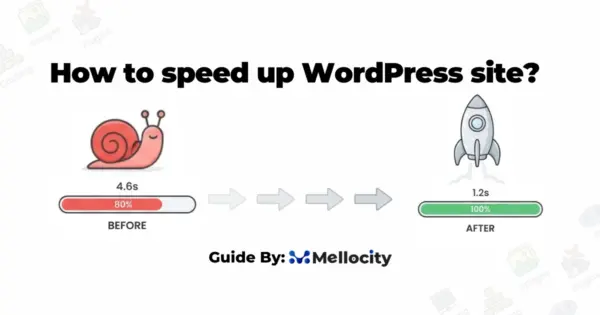
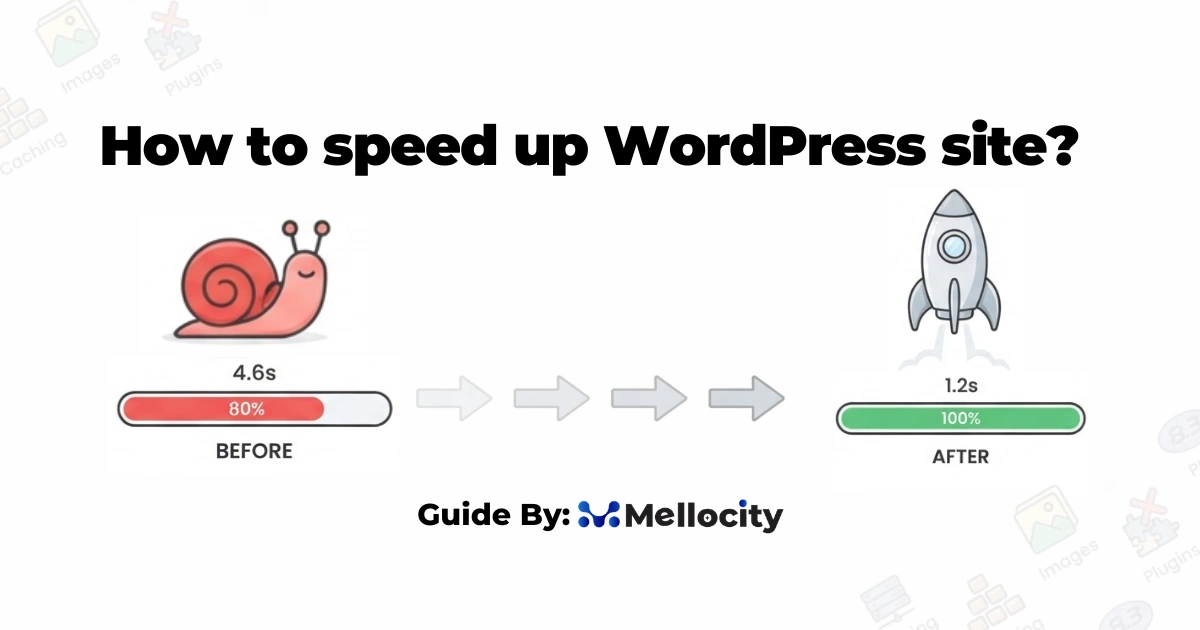
speeding up WordPress usually comes down to five things , choosing decent hosting, using a caching plugin, compressing images, cutting unnecessary plugins, and keeping PHP updated. Each one individually helps; together, they typically take a slow site from the 4-6 second range down to under 2.5 seconds.
The rest of this guide walks through each fix in order of impact, starting with the ones that make the biggest difference for the least effort.
Why WordPress Speed Matters More Than It Used to
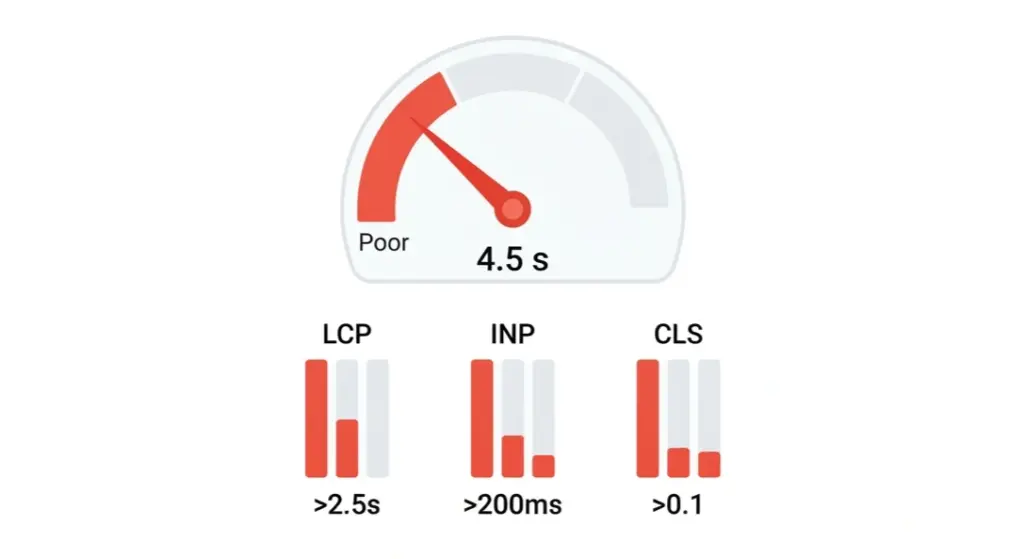
Google has been factoring page experience into rankings for a few years now through a set of metrics called Core Web Vitals. As of 2026, the three metrics and their “good” thresholds are:
| Metric | What it measures | “Good” threshold |
|---|---|---|
| LCP (Largest Contentful Paint) | How fast the main content loads | Under 2.5 seconds |
| INP (Interaction to Next Paint) | How quickly the page responds to clicks/taps | Under 200 milliseconds |
| CLS (Cumulative Layout Shift) | How much the layout jumps around while loading | Under 0.1 |
These thresholds are evaluated at the 75th percentile of real visitor data — meaning at least 75% of your visits need to hit “good” for the metric to pass. That’s a meaningful detail: it’s not enough for your site to load fast on your own fiber connection and new laptop. It has to hold up for the visitor on a mid-range phone with a mediocre connection, because that’s who’s dragging your average down.
Beyond SEO, there’s the more obvious reason speed matters: people leave slow sites. That’s not a new idea, but it’s worth remembering that Core Web Vitals were built specifically to quantify that frustration in a way Google could measure at scale.
Step 1: Test Your Site Before You Change Anything
Don’t guess where the problem is. Run your site through a couple of free tools first:
- Google PageSpeed Insights — gives you a score plus specific flagged issues (large images, render-blocking scripts, etc.), based on both lab data and real-world CrUX field data if your site has enough traffic.
- GTmetrix — similar idea, with a waterfall chart showing exactly which files are slowing down the load.
- WordPress Site Health (built into your dashboard under Tools → Site Health) — flags server-level issues like an outdated PHP version.
Test your homepage and at least one typical content page — blog posts and product pages often behave differently than the homepage, especially if they’re image-heavy.
Write down your current LCP, INP, and CLS numbers. You’ll want a baseline to compare against once you start making changes.
Step 2: Get Your Hosting Right
This is the fix people skip because it feels like the “expensive” one, but it’s usually the highest-leverage change you can make. No amount of plugin tweaking fixes a server that’s genuinely underpowered for your traffic.
Signs your hosting is the bottleneck:
- Your site is slow even on a nearly empty page with no plugins active (test this on a staging copy if you can).
- Load times spike during traffic bursts.
- Your host is shared/budget hosting and you’re getting meaningful daily traffic.
What to look for instead:
- Managed WordPress hosting, which is optimized specifically for WordPress’s caching and database patterns.
- Server-level caching (not just a plugin) — many managed hosts include this.
- A host that keeps PHP updated to a current version by default.
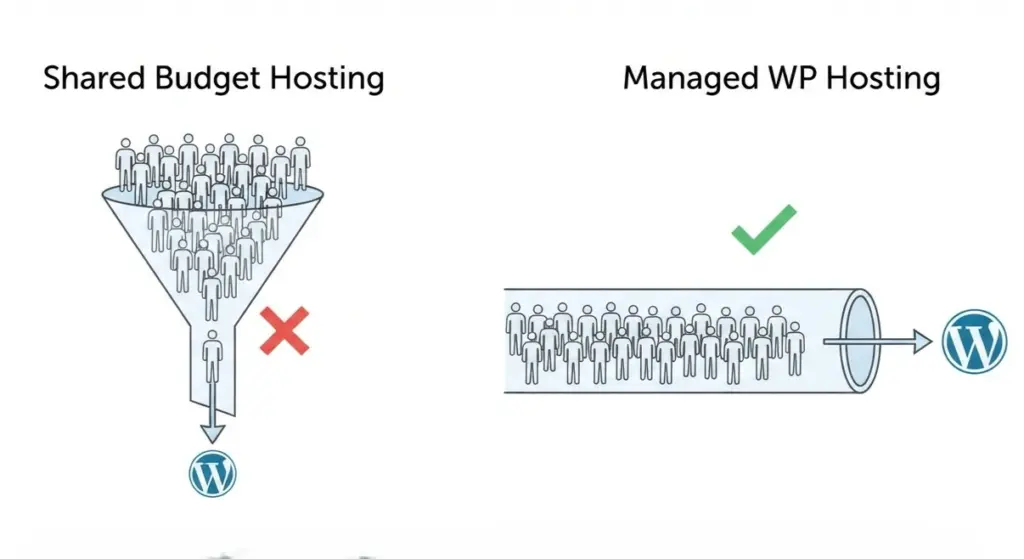
You don’t necessarily need the most expensive plan available. But if you’re on the cheapest shared hosting tier and your site gets real traffic, this is very likely where a chunk of your load time is going.
Step 3: Install a Caching Plugin
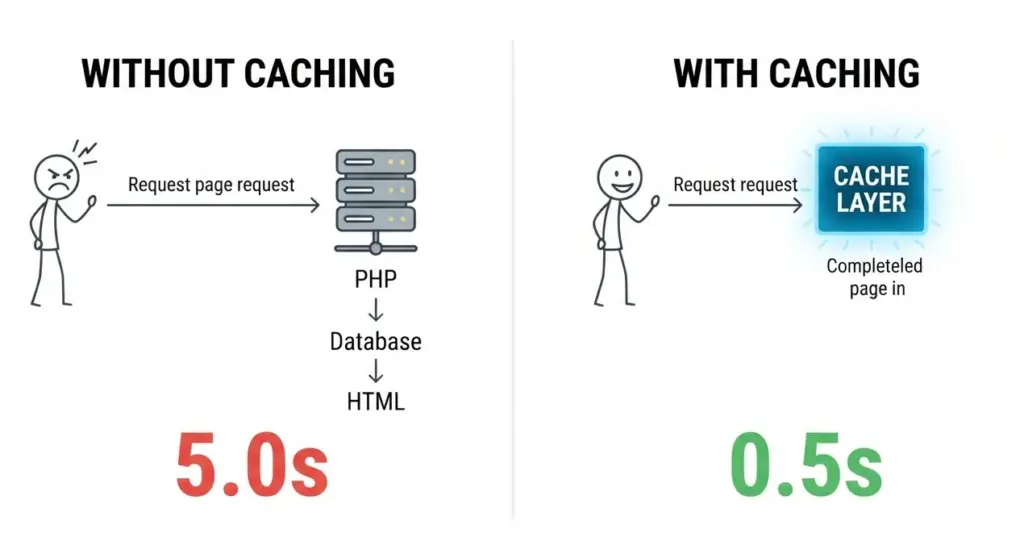
Without caching, WordPress rebuilds each page from scratch — querying the database, running PHP, assembling the HTML — every single time someone visits. Caching stores a ready-made version of the page and serves that instead, which cuts load time dramatically.
Popular caching plugins include WP Rocket, W3 Total Cache, WP Super Cache, and LiteSpeed Cache (if your host runs LiteSpeed servers). Most managed WordPress hosts also include their own caching layer — in that case, check with your host before installing a second plugin, since two caching systems can conflict with each other.
Basic caching setup checklist:
- Enable page caching (the core feature — do this first).
- Enable browser caching, so returning visitors don’t re-download unchanged files.
- Enable GZIP or Brotli compression, if your plugin offers it.
- Set a reasonable cache expiration — long enough to help performance, short enough that content updates show up promptly.
Step 4: Compress and Properly Size Your Images
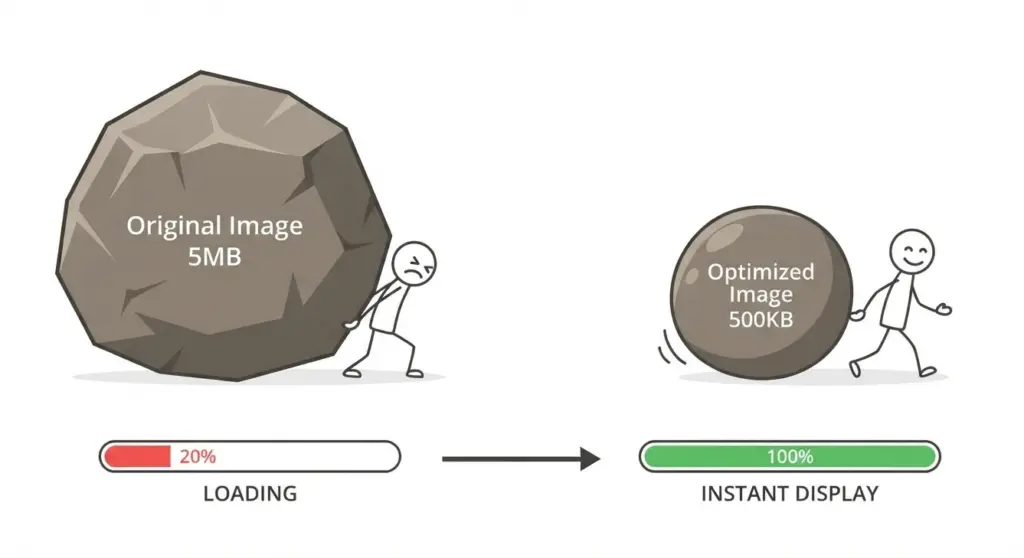
Unoptimized images are one of the most common causes of a slow LCP score, especially when the “largest contentful paint” element is a big hero image or featured photo.
What to actually do:
- Compress images before uploading — tools like TinyPNG or Squoosh reduce file size significantly with minimal visible quality loss.
- Use modern formats like WebP or AVIF instead of JPEG/PNG where your theme and plugins support it — they’re smaller at equivalent quality.
- Resize images to the dimensions they’re actually displayed at. A 4000px-wide photo displayed in a 800px-wide blog post is wasted bandwidth.
- Use lazy loading, so images below the fold don’t load until the visitor scrolls near them. WordPress has had native lazy loading built in since version 5.5, so this may already be active — verify it in your page source or via a speed test.
If you’re managing a lot of content, an image optimization plugin (ShortPixel, Imagify, Smush) can automate compression on upload, which saves you from doing it manually every time.
Step 5: Reduce and Audit Your Plugins
Every active plugin adds some amount of code that has to run on each page load — database queries, extra CSS/JS files, sometimes external API calls. A handful of well-coded plugins won’t hurt much. Fifteen loosely-related plugins, several of which you installed once and forgot about, absolutely will.
A practical audit process:
- Go through your plugin list and ask, honestly, whether each one is still needed.
- Deactivate and delete anything unused — don’t just deactivate, since some plugins still load partial code even when inactive.
- For plugins you’re unsure about, use a query monitor tool (Query Monitor is a free plugin built for this) to see which plugins are adding the most database queries or load time.
- Watch for redundant plugins — for example, running two SEO plugins, or an image optimizer alongside a page builder that already handles images.
This step doesn’t require replacing anything expensive. It just requires being honest about what your site is actually using.
Step 6: Minify and Combine CSS/JavaScript
Every CSS and JS file is a separate request your browser has to make and wait on. Minification strips out unnecessary whitespace and characters from code files, and combining files reduces the total number of requests.
Most caching plugins mentioned above (WP Rocket, LiteSpeed Cache, etc.) include minification as a built-in option — you typically just toggle it on. Be cautious with aggressive combining/minification on complex sites, since it can occasionally break scripts that depend on loading in a specific order. Test your site after enabling this, particularly any interactive elements like forms, sliders, or checkout flows.
Step 7: Use a Content Delivery Network (CDN)
A CDN stores copies of your site’s static files (images, CSS, JS) on servers distributed globally, so visitors load those files from a server near them rather than from your single hosting location. This matters more the more geographically spread out your audience is.
Cloudflare offers a free tier that works with WordPress and is one of the more common starting points. Many managed WordPress hosts also bundle CDN access into their plans. If your audience is mostly local or regional, a CDN will help less than it would for a site with international traffic — worth keeping in mind before treating it as a priority fix.
Step 8: Keep PHP and WordPress Core Updated
This one gets overlooked because it doesn’t feel like a “speed” fix — it feels like maintenance. But PHP version matters more than most people realize.
As of the most recent WordPress guidance, the minimum recommended PHP version is 8.3, with WordPress 6.4 and later fully supporting it. Newer PHP versions process requests noticeably faster than older ones, on top of the security benefits. If your site is still running PHP 7.x, upgrading is one of the more impactful things you can do — and it costs nothing beyond checking that your plugins and theme are compatible first.
Before upgrading PHP:
- Check your current version in WordPress under Tools → Site Health → Info.
- Confirm your active theme and plugins are listed as compatible with the newer version (check each plugin’s “Tested up to” field on its WordPress.org page).
- Take a full backup.
- If possible, test the upgrade on a staging site first, rather than directly on your live site.
Most reputable hosts let you switch PHP versions from a control panel with a couple of clicks — it’s rarely something you need a developer for, but it’s still worth testing carefully since plugin compatibility is where problems tend to show up.
Step 9: Clean Up Your Database
Over time, WordPress databases accumulate clutter: post revisions, spam comments, expired transients, orphaned data from uninstalled plugins. None of this is dramatic on its own, but it adds up, and a bloated database means slower queries.
A database cleanup plugin (WP-Optimize is a common choice) can handle this without needing to touch phpMyAdmin directly. As a general habit, it’s worth doing this every few months rather than as a one-time fix, since the clutter naturally builds back up.
What Actually Moves the Needle Most
If you only have time for a few of these, prioritize in this order:
- Hosting quality — the foundation everything else sits on.
- Caching — usually the single biggest immediate improvement.
- Image optimization — especially if your LCP element is an image.
- PHP version — free performance gain if you’re on an old version.
- Plugin audit — diminishing returns after the obvious bloat is removed.
CDN, minification, and database cleanup genuinely help, but they tend to produce smaller, more incremental gains compared to the first five.
Conclusion
Speeding up a WordPress site isn’t about finding one magic plugin — it’s a combination of decent hosting, smart caching, lighter images, a current PHP version, and not letting your plugin list grow unchecked. Work through the steps in order of impact, re-test after each significant change, and you’ll be able to see exactly which fixes moved your numbers rather than guessing. Given how directly Core Web Vitals now tie into both user experience and search visibility, the time spent here tends to pay off in more than just faster load times.
FAQs
How much can I realistically speed up a WordPress site?
It depends heavily on the starting point. A site on cheap shared hosting with no caching and unoptimized images can often go from 4–6+ seconds down to under 2.5 seconds by addressing hosting, caching, and images alone. Sites that are already reasonably optimized will see smaller, more incremental gains from further tweaks.
Do I need a caching plugin if my host already has caching?
Usually not — and running two caching systems at once can actually cause conflicts or stale content issues. Check what your host offers first, and only add a plugin-level cache if your host doesn’t provide one or if you need more granular control.
Is a page builder like Elementor bad for speed?
Page builders add extra CSS/JS overhead compared to a lightweight, code-based theme, so they can slow a site down if not configured carefully. That said, modern versions of major page builders have improved significantly, and the impact is often smaller than plugin overhead in general. It’s rarely worth switching away from one you’re already invested in unless testing shows it’s a specific bottleneck.
Will speeding up my site actually improve my Google rankings?
Core Web Vitals are one of many ranking signals Google uses, and they matter more in cases where content quality between competing pages is otherwise similar. Speed alone won’t outrank thin or lower-quality content, but it removes one factor working against you and generally improves user engagement metrics that correlate with better performance.
How often should I re-test my site’s speed?
After any significant change (new plugin, theme update, hosting change) and roughly every few months otherwise. Since plugin updates and content growth can gradually affect performance even without you changing anything intentionally.
Can too many plugins really slow down my site that much?
It depends more on plugin quality than plugin count. A handful of poorly coded or redundant plugins can hurt more than a larger number of lightweight, well-maintained ones. Auditing what’s actually running (rather than just counting plugins) gives a more accurate picture.
Is free hosting or a very cheap shared plan ever good enough?
For a low-traffic personal site or a project in early testing, it can be adequate. Once a site gets meaningful daily traffic or needs to perform well for SEO. Budget shared hosting tends to become the limiting factor pretty quickly.
Do I need to hire a developer to do all this?
Most of the steps above — caching plugins, image compression, plugin cleanup — are manageable without coding knowledge. PHP version upgrades and CDN setup are usually doable through your hosting control panel. Though testing on staging first is worth the extra caution if you’re not confident.