HTTP Error 403 Forbidden: What It Means, Why It Happens, and How to Fix It
Have you ever clicked on a website only to be greeted with the frustrating message “403 Forbidden”? Whether you’re trying to visit your favorite blog, access your website’s admin panel, or open an important web page, this error can stop you in your tracks.
Unlike some website errors that indicate missing pages or server failures, an HTTP 403 Forbidden error sends a very specific message: the server received your request, understood it perfectly, but refuses to let you access the requested resource.
For website visitors, this can be confusing. For website owners and developers, it often signals an issue with permissions, server settings, or security rules.
In this comprehensive guide, you’ll learn everything about the HTTP 403 Forbidden error, including what it means, the most common causes, practical troubleshooting methods, prevention tips, and best practices for both users and website administrators.
What Is HTTP Error 403 Forbidden?
HTTP Error 403 Forbidden is an HTTP status code that indicates the web server understands your request but refuses to authorize access to the requested page or resource.
In simple terms:
- Your browser successfully contacted the server.
- The server found the requested resource.
- The server intentionally denied access.
This makes the 403 error very different from errors like 404 or 500 because the requested content usually exists—it simply isn’t accessible to you.
Understanding HTTP Status Codes
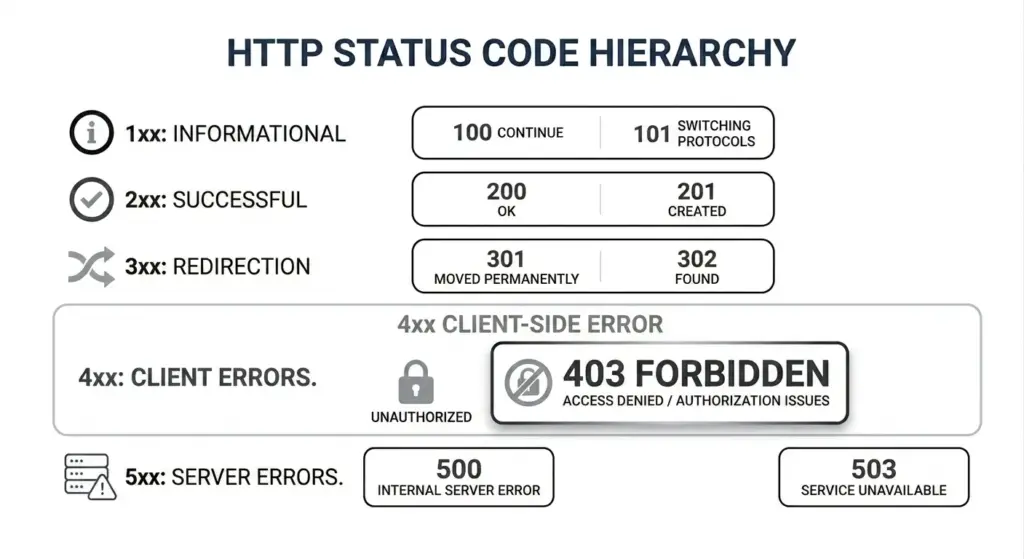
Every time your browser communicates with a website, the server responds with a status code.
These status codes fall into several categories:
- 1xx – Informational responses
- 2xx – Successful requests
- 3xx – Redirections
- 4xx – Client-side errors
- 5xx – Server-side errors
The 403 status belongs to the 4xx family, meaning the issue is related to the request being rejected rather than the server being unavailable.
HTTP 403 vs 401 vs 404: What’s the Difference?
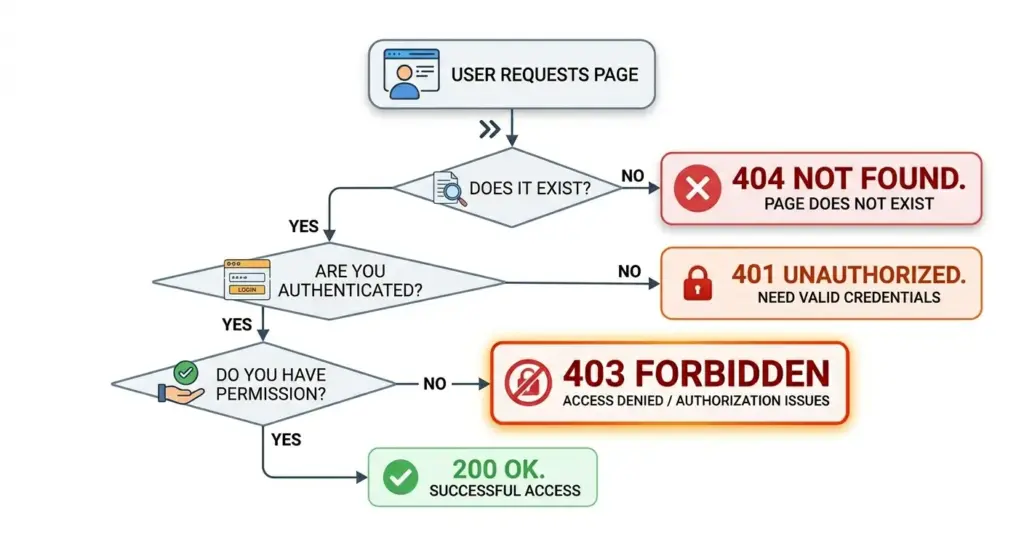
Many people confuse these three HTTP errors because they all prevent access to a webpage. However, they represent very different situations.
HTTP 401 Unauthorized
A 401 error means the server requires authentication before allowing access.
Think of it as someone saying:
“I don’t know who you are. Please log in first.”
This error usually appears when:
- Login credentials are missing
- Username or password is incorrect
- Authentication has expired
HTTP 403 Forbidden
A 403 error means authentication isn’t the problem.
Instead, the server is saying:
“I know who you are—or I know you don’t have permission—but you still cannot access this page.”
This is an authorization problem.
HTTP 404 Not Found
A 404 error simply means the requested page cannot be found.
Possible reasons include:
- The page has been deleted
- The URL is incorrect
- The page never existed
Unlike a 403 error, a 404 doesn’t imply restricted access—it means the resource isn’t available.
How Does an HTTP 403 Error Work?
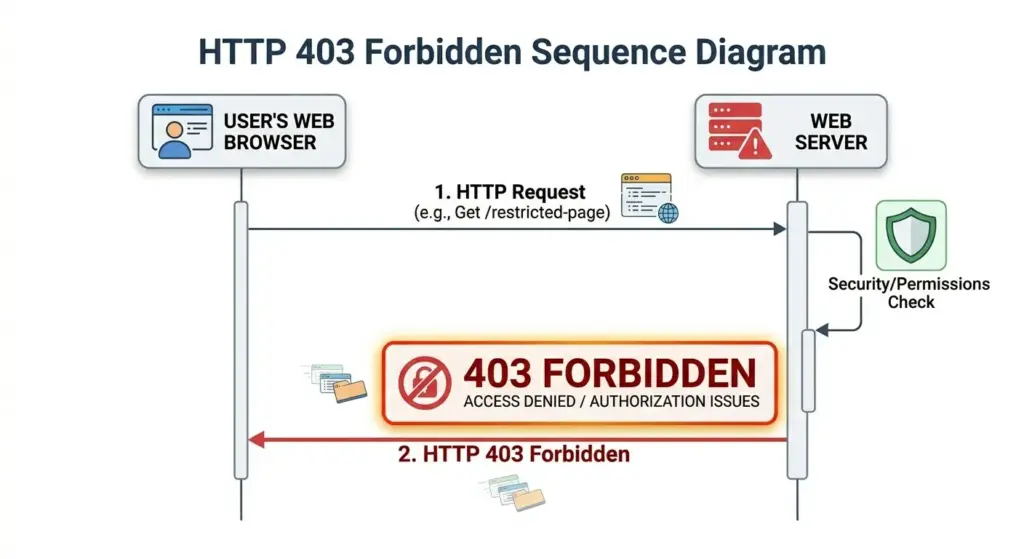
To understand why a 403 error appears, it helps to know what happens behind the scenes.
Every time you enter a website address:
- Your browser sends an HTTP request.
- The request includes headers containing browser and session information.
- The web server analyzes the request.
- The server checks security rules and permissions.
- The server either allows or blocks access.
If the request violates any access control rules, the server immediately returns:
HTTP/1.1 403 Forbidden
No website content is delivered because access has been intentionally denied.
Common Reasons for HTTP Error 403 Forbidden
Several different issues can trigger a 403 Forbidden error. Some affect website visitors, while others occur because of server configuration problems.
Directory Listing Is Disabled
Many servers intentionally block users from viewing folder contents.
For example, visiting:
example.com/images/
may return a 403 error if there is no default index file.
This prevents visitors from browsing internal files that weren’t meant to be public.
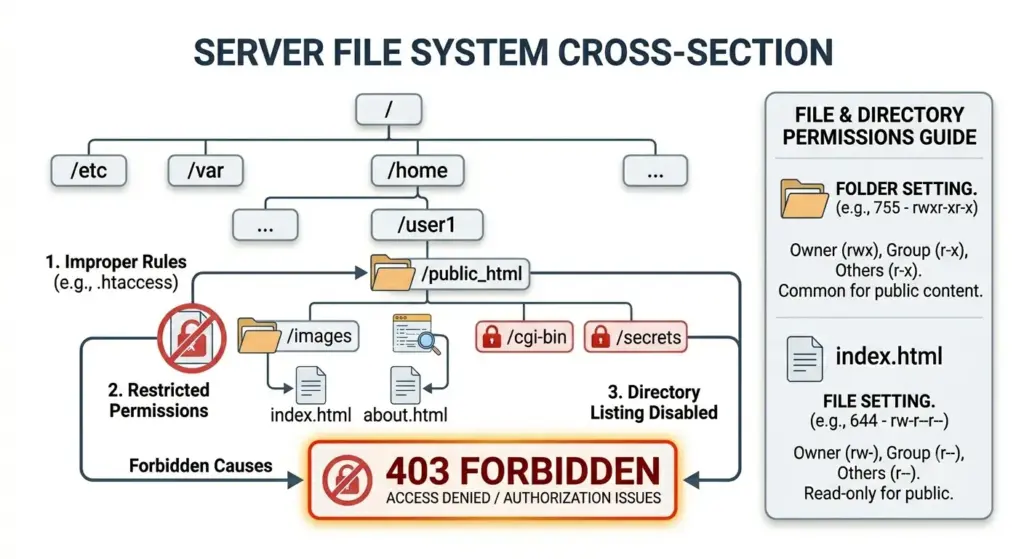
Incorrect File Permissions
Linux servers use permissions to determine who can read, write, and execute files.
Common permission settings include:
- Files: 644
- Directories: 755
If permissions are too restrictive, the web server cannot access the files, resulting in a 403 response.
Incorrect File Ownership
Permissions alone are not enough.
The web server user (such as www-data or apache) must also own or have permission to read the files.
Improper ownership frequently causes permission-related errors.
Misconfigured .htaccess File
Apache servers often use a .htaccess file to control website behavior.
A small mistake can accidentally block access.
Common problematic directives include:
- Deny from all
- Require all denied
- Incorrect rewrite rules
Even a single typo may cause an entire website to display a 403 error.
Nginx Configuration Errors
Websites running Nginx may experience 403 errors due to:
- Incorrect location blocks
- Missing index directives
- Permission restrictions
- Root directory misconfiguration
Server configuration should always be reviewed carefully.
IP Address Blocking
Website owners sometimes block IP addresses for security reasons.
Your IP may be denied if:
- You’re using a VPN
- Your network has suspicious activity
- Your IP belongs to a blocked region
- Your ISP’s address has been flagged
Changing networks often resolves this issue.
Browser Cache and Cookies
Sometimes the issue exists on the user’s device rather than the server.
Corrupted cookies may:
- Expire authentication
- Store invalid session data
- Trigger security checks
Clearing browser data often solves the problem.
Web Application Firewall (WAF)
Many modern websites use Web Application Firewalls like:
- Cloudflare
- Akamai
- AWS WAF
- Imperva
These systems inspect incoming requests for suspicious behavior.
If they detect:
- SQL injection attempts
- Cross-site scripting
- Bot traffic
- Excessive requests
they may automatically return a 403 Forbidden response.
Security Plugins
Content management systems such as WordPress often use security plugins.
Popular examples include:
- Wordfence
- iThemes Security
- Sucuri
Sometimes these plugins mistakenly identify legitimate users as attackers.
This creates what’s known as a false positive.
How to Fix HTTP Error 403 Forbidden as a Website Visitor
If you’re simply trying to access a website, there are several easy troubleshooting steps you can try.
Verify the URL
Check for:
- Misspelled addresses
- Missing page names
- Extra slashes
- Incorrect capitalization
Sometimes a simple typo is all that’s causing the problem.
Refresh the Page
Temporary server restrictions sometimes disappear after a few minutes.
Press:
- F5
- Ctrl + F5
- Cmd + Shift + R (Mac)
to perform a hard refresh.
Clear Browser Cache and Cookies
Cached data occasionally conflicts with current server sessions.
Clearing:
- Cache
- Cookies
- Site data
forces the browser to establish a fresh connection.
Disable VPN or Proxy
VPN services often share IP addresses among thousands of users.
If another user abused that IP, the website may block everyone using it.
Temporarily disconnect your VPN and try again.
Try Another Browser
Testing another browser helps determine whether the issue is browser-specific.
For example:
- Chrome
- Firefox
- Edge
- Safari
If one browser works, the issue likely involves cached data or browser extensions.
Switch Networks
Try using:
- Mobile data
- Home Wi-Fi
- Office internet
If the website loads on another network, your IP address may have been blocked.
Wait and Try Again
Some websites temporarily block repeated requests.
These temporary bans usually expire automatically after:
- 15 minutes
- 30 minutes
- A few hours
Contact the Website
If nothing works, contact the website administrator.
Provide:
- The exact URL
- Time of the error
- Screenshot
- Your IP address (if requested)
This helps them identify the problem quickly.
How Website Owners Can Fix HTTP 403 Errors
If you own the website, troubleshooting becomes more technical.
Check File Permissions
Standard permission settings include:
- Files: 644
- Folders: 755
Avoid setting everything to 777, which creates serious security risks.
Verify File Ownership
Confirm the web server user owns the website files.
For Apache:
www-dataapache
depending on your operating system.
Review .htaccess
Temporarily rename the .htaccess file.
If the website begins working, recreate the configuration carefully.
Look especially for:
- Rewrite rules
- Access restrictions
- Authentication directives
Inspect Server Logs
Apache logs:
- access.log
- error.log
Nginx logs:
- access.log
- error.log
These logs often reveal the exact reason access was denied.
Review Security Plugins
Temporarily disable security plugins one at a time.
If the error disappears, adjust the plugin settings rather than leaving it disabled permanently.
Check CDN and Firewall Rules
Cloudflare and similar services may block requests based on:
- Country
- IP reputation
- Browser fingerprint
- Bot detection
Review firewall logs for blocked requests.
Verify Index Files
Many servers require an index file.
Examples include:
- index.html
- index.php
Without one, directory browsing is disabled and a 403 error may appear.
Confirm Virtual Host Configuration
Incorrect virtual host settings can accidentally deny access.
Verify:
- Root directory
- Server name
- Access rules
- SSL configuration
Why HTTP 403 Errors Improve Website Security
Although frustrating, the 403 error exists for an important reason.
Imagine if every website publicly exposed:
- Password files
- Configuration files
- Database backups
- Admin dashboards
- Internal documents
Cybercriminals would quickly exploit these resources.
The 403 response acts as a digital security guard, preventing unauthorized access before sensitive information can be exposed.
Geo-Blocking and Regional Restrictions
One increasingly common cause of 403 errors is geographic access control.
Some websites intentionally restrict visitors from certain countries because of:
- Licensing agreements
- Copyright regulations
- Government restrictions
- Fraud prevention
When your IP address indicates you’re accessing the site from a blocked region, the server returns a 403 Forbidden response.
Streaming platforms and digital content providers commonly use this approach.
How Web Application Firewalls Use 403 Responses
Modern cybersecurity depends heavily on intelligent firewalls.
Rather than simply checking passwords, today’s WAFs analyze hundreds of signals, including:
- Request frequency
- Browser behavior
- Suspicious URLs
- User-agent strings
- Known attack patterns
If a request appears malicious, the firewall blocks it instantly.
This process often happens within milliseconds.
In many cases, the website owner never even knows an attack occurred because the firewall handled it automatically.
What Is a False Positive 403 Error?
Security systems are not perfect.
Sometimes legitimate visitors are blocked accidentally.
This is called a false positive.
Examples include:
- Office networks sharing one IP
- University campuses
- Hotel Wi-Fi
- Coffee shop internet
- Corporate VPNs
If one user behaves maliciously, everyone sharing that IP address may temporarily lose access.
Website administrators regularly adjust firewall rules to reduce these unintended blocks.
Best Practices to Prevent HTTP 403 Errors
Preventing 403 errors is easier than fixing them later.
Website administrators should follow these best practices.
Maintain Proper Permissions
Use recommended permission settings rather than granting excessive access.
Audit Security Rules
Review firewall rules regularly.
Remove outdated or unnecessary restrictions.
Monitor Error Logs
Frequent log reviews help identify permission issues before users notice them.
Keep Software Updated
Update:
- Web servers
- CMS platforms
- Security plugins
- Operating systems
Updates often fix permission and security bugs.
Test After Configuration Changes
Any modification to:
- Apache
- Nginx
- Cloudflare
- WordPress
- Security plugins
should be tested immediately to ensure legitimate visitors aren’t blocked.
Avoid Overly Aggressive Security Rules
Security should balance protection with usability.
Blocking every unusual request may also block real customers.
Carefully tune firewall settings to minimize false positives.
Frequently Asked Questions About HTTP Error 403 Forbidden
Can I fix a 403 Forbidden error myself?
Yes, if you’re a visitor, you can try clearing cookies, checking the URL, disabling your VPN, switching networks, or contacting the website owner. If you’re a website administrator, you’ll need to inspect permissions, server configurations, and security settings.
Is HTTP 403 the same as being blocked?
In many cases, yes. A 403 error often means the server has intentionally denied access due to permissions, firewall rules, or IP restrictions.
Does a 403 error mean the website is down?
No. The website is usually online and functioning normally. Only your request has been denied.
Can a VPN cause a 403 error?
Yes. Shared VPN IP addresses are frequently blocked by websites because they are sometimes associated with spam, scraping, or malicious activity.
Does clearing browser cookies fix a 403 error?
It can. If the problem is caused by an expired session or corrupted authentication cookie, clearing cookies often resolves the issue.
Is HTTP 403 bad for SEO?
A temporary 403 on restricted pages isn’t usually a problem. However, if important public pages consistently return 403 responses, search engines may stop crawling or indexing them, negatively affecting SEO and organic traffic.
Final Thoughts
The HTTP Error 403 Forbidden is much more than an annoying message—it represents one of the internet’s most important security mechanisms. Unlike a 404 error, which simply means a page cannot be found, a 403 indicates that the server knows exactly what you’re requesting but has deliberately denied access.
For everyday users, the solution may be as simple as clearing browser cookies, checking the URL, disabling a VPN, or trying a different network. For website owners, resolving the issue often involves reviewing file permissions, correcting server configurations, inspecting firewall rules, and ensuring security tools aren’t blocking legitimate visitors.
As cybersecurity threats continue to evolve, 403 responses have become increasingly common due to advanced Web Application Firewalls, geo-blocking, bot protection systems, and intelligent access controls. While these measures can occasionally generate false positives, they play a critical role in protecting websites and sensitive data from unauthorized access.
Understanding why HTTP 403 Forbidden occurs not only helps you solve the problem more efficiently but also provides valuable insight into how modern websites balance accessibility with security. The next time you encounter a 403 error, you’ll know that the server isn’t necessarily broken—it is simply enforcing the rules designed to keep the web safer for everyone.