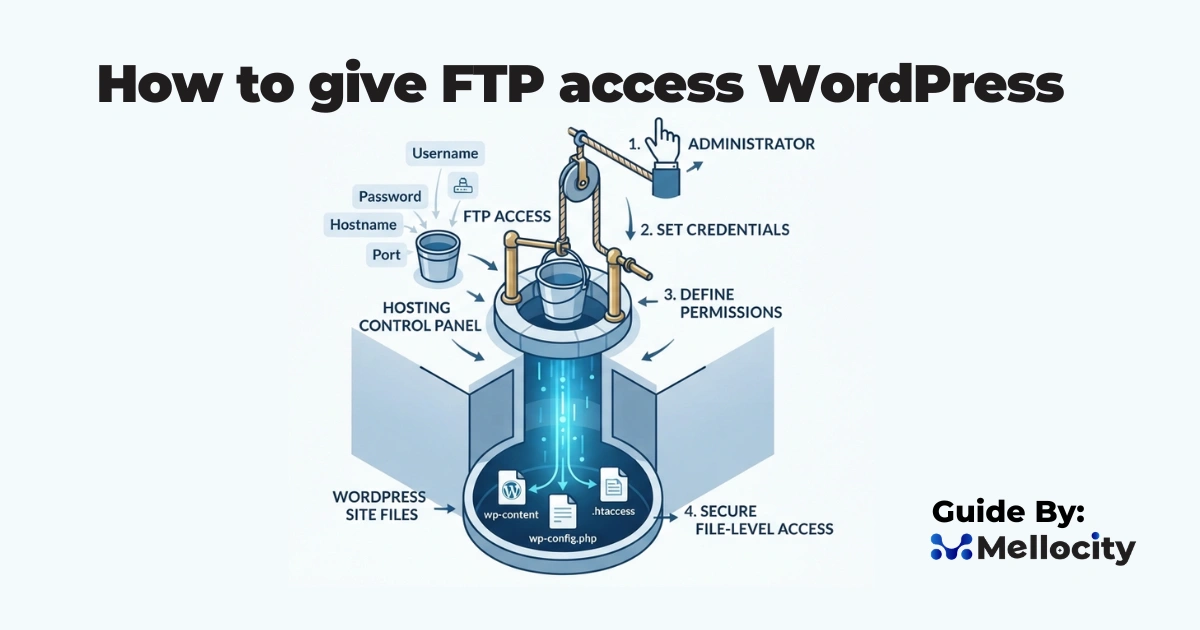
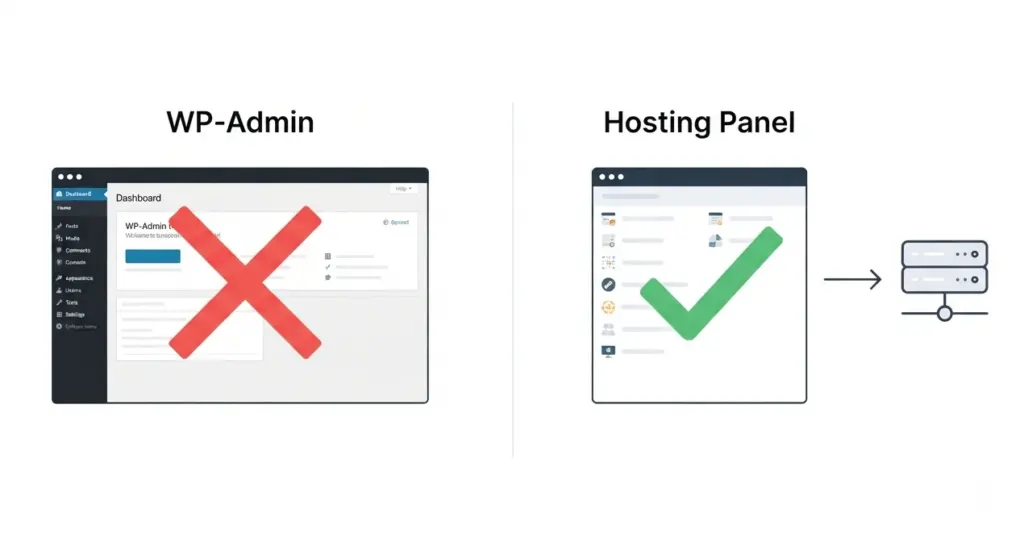
Giving FTP access to a WordPress site is usually a hosting-side task, not a WordPress dashboard task. The safest and most professional way is to create a separate FTP or, preferably, SFTP account through your hosting panel, restrict it to the needed directory, and share the credentials only with the right person for the shortest time necessary.
Why FTP access matters
FTP access gives a developer, agency, or technical support team direct file-level access to your WordPress installation, which is useful when the dashboard is broken, a plugin causes a fatal error, or a theme file needs urgent correction. It is especially valuable for troubleshooting because it lets you disable a faulty plugin, replace a corrupted core file, or inspect server-side configuration without relying on wp-admin.
For business owners and operations teams, the main benefit is speed. Instead of waiting through multiple support cycles, a qualified technician can reach the relevant files, make the fix, and restore the site faster, which is critical for ecommerce stores and lead generation sites.
FTP vs SFTP
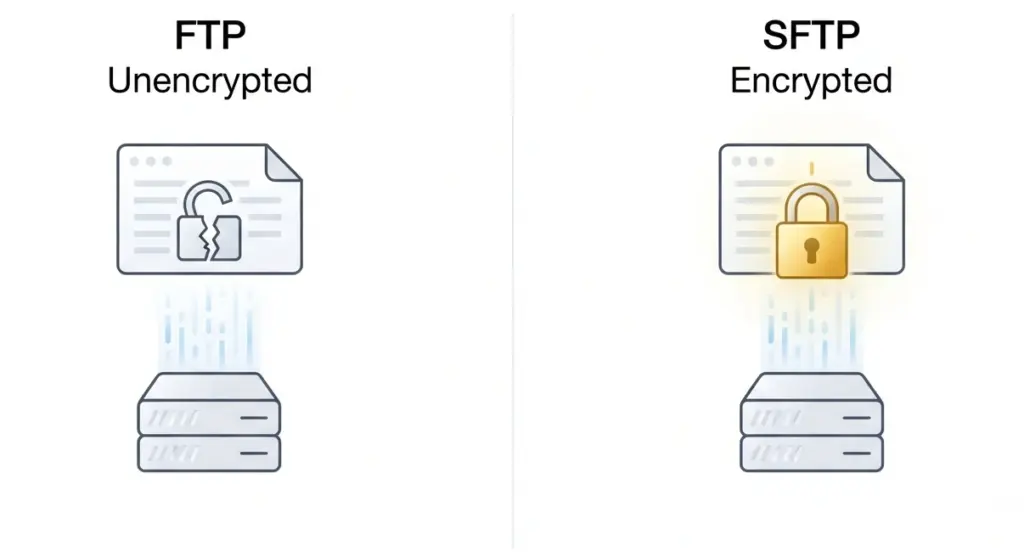
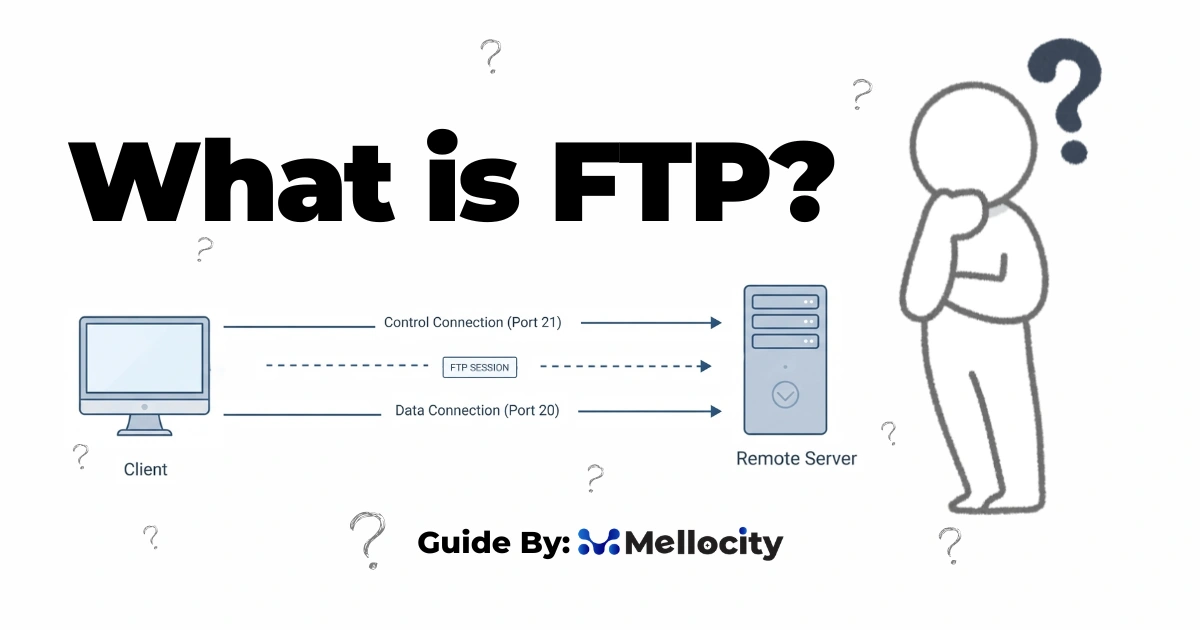
FTP is the traditional file transfer protocol, while SFTP is the more secure option because it encrypts the connection during login and file transfer. In practice, most modern agencies should prefer SFTP whenever the host supports it.
| Option | Security | Typical port | Best use |
|---|---|---|---|
| FTP | Unencrypted | 21 | Legacy setups only |
| SFTP | Encrypted | 22 or host-specific | Recommended for WordPress sites |
If your host offers both, choose SFTP by default. It reduces the risk of credential exposure on public or shared networks and is a better fit for professional WordPress maintenance workflows.
What you need first
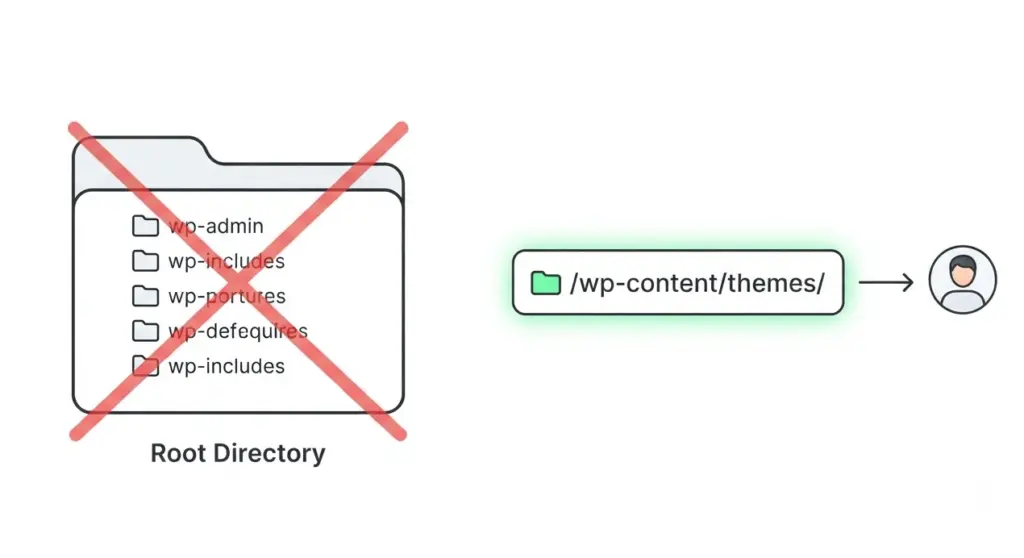
Before you create access, gather the correct hosting details. Typical credentials include a hostname or server address, a username, a password, and a port number, with the exact values depending on the provider. Some hosts use cPanel’s FTP Accounts area, while others provide their own custom control panel.
You should also decide how much access the person actually needs. For example, a front-end developer may only need access to /wp-content/themes/, while a plugin specialist may need the full site root. Limiting scope is a simple security win because it reduces the chance of accidental file changes outside the task.
How to give FTP access WordPress via cPanel
The most common method is to create an FTP account inside your hosting control panel. In cPanel, this is usually found under the Files section as FTP Accounts, where you can add a new account, set a password, and optionally define a directory restriction.
Follow this process:
- Log in to your hosting control panel.
- Open FTP Accounts.
- Click Add FTP Account.
- Enter a username and a strong password.
- Set the directory path you want to expose.
- Save the account and note the host, username, password, and port.
The directory setting is important. If you point the account to a specific folder, the user will only be able to access that part of the site, which is ideal for temporary contractor access or narrowly scoped fixes. If you leave the directory unrestricted, the account may see much more of the hosting environment than necessary.
How to connect with FileZilla or similar clients
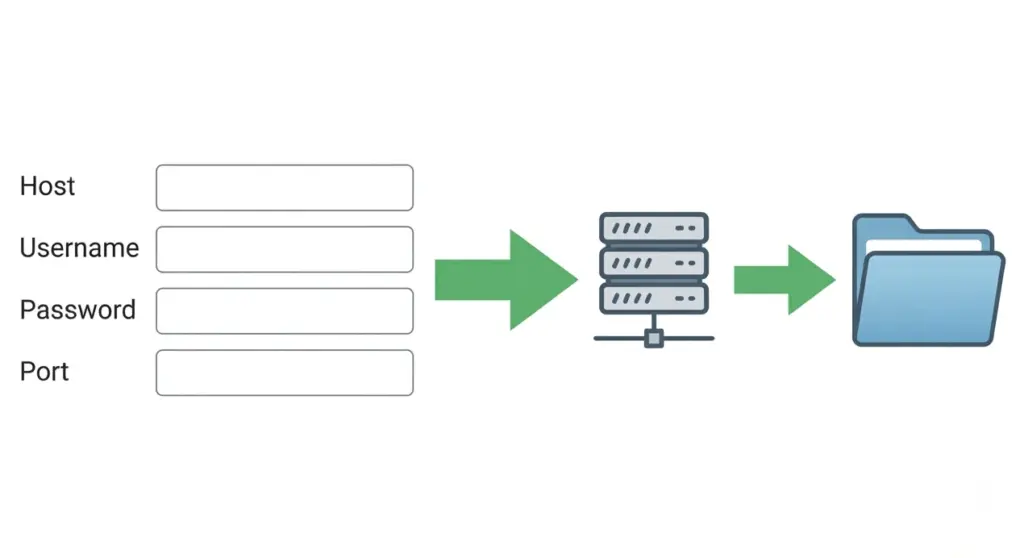
Once the account exists, the developer or support engineer can connect with an FTP client such as FileZilla. They will enter the host, username, password, and port, then choose FTP or SFTP depending on what the host supports.
A typical FileZilla workflow looks like this:
- Open the client.
- Create a new site entry.
- Select SFTP if available.
- Enter the hostname.
- Use the correct port.
- Set logon type to ask for password or a secure equivalent.
- Connect and verify the file tree.
Once connected, the local computer files appear on one side and the server files on the other, which makes uploads, downloads, and edits straightforward. For WordPress work, the most common target folders are wp-content/plugins/, wp-content/themes/, and sometimes the site root for configuration files.
Best security practices
FTP access should never be treated like a permanent, shared login. Each person should get a unique account, and that account should be removed or disabled once the work is finished. This gives you an audit trail and prevents old credentials from circulating inside email threads or chat tools.
A few best practices matter most:
- Use SFTP instead of plain FTP whenever possible.
- Restrict the account to the minimum required directory.
- Use a strong, unique password generated by the host if available.
- Share credentials through a secure channel, not plain text in open chat.
- Revoke access after the task is complete.
For agencies, this is not just security hygiene. It is also part of professional process design, because it lowers risk during maintenance, reduces support liability, and keeps client environments cleaner over time.
Common use cases
FTP access becomes especially useful when WordPress itself is inaccessible or partially broken. It can also help with tasks that are awkward or impossible in the dashboard.
Common examples include:
- Uploading a custom theme or child theme.
- Deactivating a plugin that causes a white screen or fatal error.
- Editing
wp-config.phpfor debugging or memory settings. - Updating
.htaccessfor redirects or permalink repair. - Downloading files for backup or migration tasks.
In a real agency workflow, these tasks often happen during launch, redesign, malware cleanup, or emergency recovery. That makes FTP access a practical support channel rather than a routine everyday tool.
Troubleshooting access problems
If the connection fails, the issue is usually one of four things: wrong host, wrong port, wrong protocol, or incorrect credentials. Start by checking whether the host requires SFTP and whether the port is standard or customized by the provider.
Other common problems include:
- The account is restricted to the wrong directory.
- A firewall or security plugin is blocking the connection.
- The hosting provider uses a nonstandard hostname.
- The password was copied incorrectly or expired.
- The account was created for the wrong domain on a multi-site host.
If you are dealing with a live production site, make one change at a time and verify access after each adjustment. That reduces the chance of introducing a second issue while fixing the first.
FAQ
Is FTP access the same as WordPress admin access?
No. FTP access lets someone manage server files, while WordPress admin access lets them manage site content and settings inside the dashboard.
Can I give access without exposing the full site?
Yes. Most hosting panels let you restrict an FTP account to a specific folder or directory, which is the better option for temporary or task-based access.
Should I use FTP or SFTP?
Use SFTP whenever possible because it is more secure than plain FTP.
What credentials should I share?
Share only the host, username, password, and port required for the task, and only with the person who actually needs the access.
How do I remove access later?
Return to your hosting panel, locate the FTP account, and delete or disable it once the work is finished.
Conclusion
If you want to know how to give ftp access wordpress safely, the best practice is to create a separate hosting-level account, restrict its directory, use SFTP when available, and remove the access after the job is done. That approach protects the site while still giving developers the file-level control they need for troubleshooting, customization, and emergency support.
For professional implementation, our agency can help you set up the right access model for your WordPress environment and handle the technical work securely, whether you need one-time support or an ongoing maintenance process.