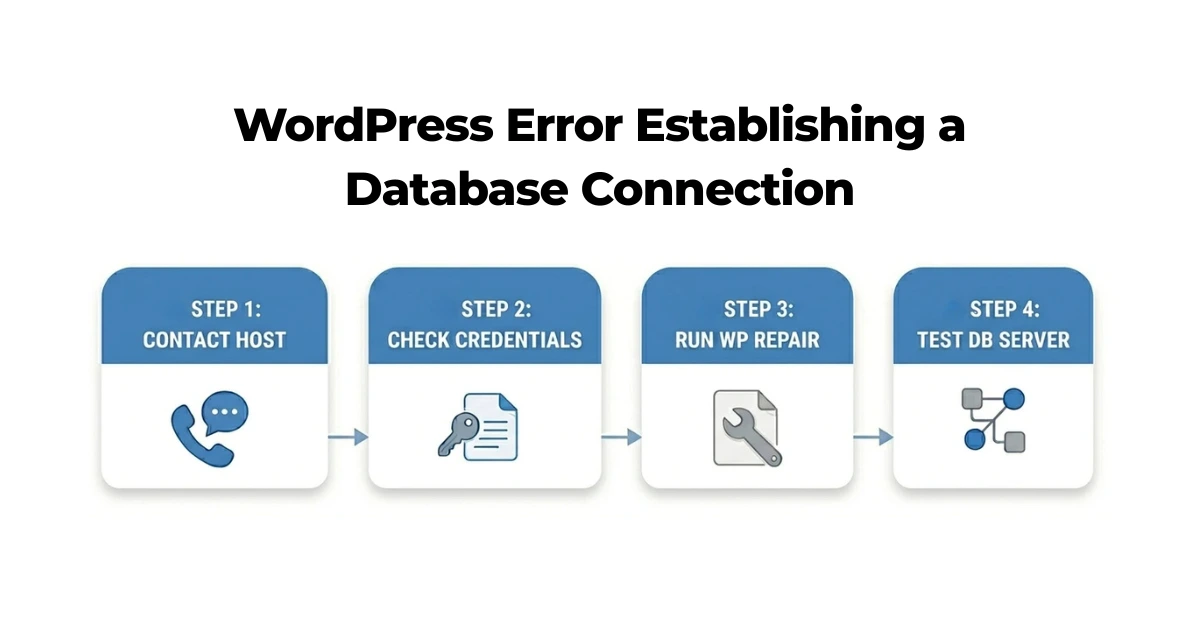
Error establishing a database connection means WordPress can’t communicate with the MySQL database where your content and settings are stored, usually because of incorrect database credentials in wp-config.php, corrupted database tables, or an overloaded/unresponsive database server. To fix it, verify your credentials, repair your database tables, and confirm your database server is running, steps we’ll walk through in detail below.
What It Really Means to Lose Your Database Connection
Few things make a website owner’s stomach drop like opening their site and seeing “Error establishing a database connection” staring back at them. In that moment your site is basically blind. It can’t read its own database, and since WordPress keeps everything there, every post you’ve ever published, every setting, every preference, you suddenly can’t manage your site at all. The good news? This error is incredibly common, and you’ve got plenty of ways to fix it.
That blank white screen with a single line of text feels pretty hopeless when you first see it. But here’s the thing worth holding onto: in the vast majority of cases, your data is still safe. Your website hasn’t lost its content, it’s just lost the line of communication with the database. With a bit of patient investigation and some careful troubleshooting, you can almost always bring everything back to life without losing a single piece of content.
How Does a WordPress Database Actually Work?
Before we get into the fixes, it helps to understand what’s happening under the hood. Knowing how WordPress talks to your database makes the whole error a lot less intimidating, and it tells you exactly where things can go wrong.
Unlike a static HTML page that just sits there, WordPress builds your pages on the fly. Every time someone visits your site, WordPress assembles that page from scratch. The server receives the request from the visitor’s browser, then pulls the relevant content, settings, and options from the database and stitches the page together in real time.
The key ingredient in all of this is your data. WordPress stores your content, your configuration, and all the little bits of meta-information inside a MySQL database. To build any page, the server has to send queries to MySQL using PHP. And that whole process depends on one thing working properly: a healthy connection between your server and your database.
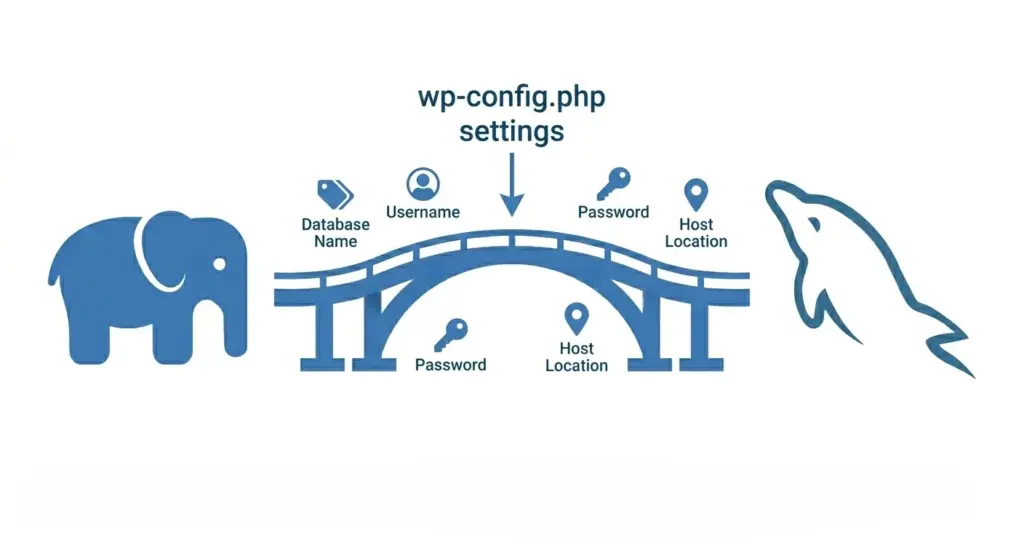
The Bridge Between PHP and MySQL
For page-building to work, your WordPress installation needs a stable, reliable connection to the MySQL database. That connection gets initialized every single time the server is asked to build one of your pages.
To open that connection, the server relies on a handful of configuration settings stored inside the wp-config.php file: the database name, the username, the password, and the host location. Those four values decide whether PHP can successfully reach MySQL or not. Even a tiny typo in any of them can break the connection completely.
What Causes the “Error Establishing a Database Connection” Message?
There are several reasons this error shows up. Let’s walk through the most common ones so you can recognize which situation you’re dealing with.
Incorrect Database Credentials
The simplest and most frequent cause is wrong login credentials. This usually pops up after a website migration or a server change, when you’ve moved hosts or manually tweaked your environment.
Remember those four values in wp-config.php? If you forgot to update them, or mistyped one during the move, your server simply can’t authenticate with MySQL. Think of it like an old lock-and-key setup: if the host changes the lock on the vault, your old key is useless no matter how hard you turn it.
Corrupted Database Tables
Sometimes the connection breaks because one or more of your database tables have become corrupted.
WordPress relies on dozens of tables to store everything from user accounts and posts to comments and media. Each one holds its data in a specific structure, and if that structure gets disturbed, the whole connection can fail. Often your front-end will just show the generic error, but if you try logging into wp-admin, you might get a more telling message saying one or more tables are unavailable and need repair.
A Compromised or Hacked Website
In some cases, database errors are a red flag for a security breach. Attackers may inject malicious code into your database or tamper with it to steal data.
A badly behaving script can overload the MySQL server and damage table indexes, which knocks out your whole site. Worse, a hacker might alter your wp-config.php connection details directly, in which case WordPress simply can’t open the connection anymore.
Overloaded or Unresponsive Servers
Server overload is another common culprit, and shared hosting is especially prone to it. If your database server gets hit with a traffic surge, or a neighboring site on the same server starts hogging resources, your MySQL connection can buckle.
When that happens, the database either stops responding entirely or slows down so much that PHP gives up waiting for a reply, and the page fails to build.
PHP Memory Limit Issues
Running out of memory is another frequent trigger. WordPress needs a decent chunk of server resources to run smoothly, and that’s even more true if you’re running lots of plugins or custom scripts that are heavy on RAM.
Every page request fires up PHP, which needs memory allocated to do its job. If the PHP memory limit gets exhausted mid-process, the script just stops dead, and your site can’t establish its database connection.
How to Troubleshoot the Error Step by Step
Step 1: Check With Your Hosting Provider
Before you touch a single file, contact your hosting provider. Database servers are maintained on their end, so the issue might be a system-wide outage, scheduled maintenance, or a server migration that has nothing to do with your site specifically.
Reach out through live chat or phone and ask whether there’s a known problem with the MySQL server. If it turns out to be an outage on their side, you can relax, there’s nothing for you to fix. If not, it’s time to roll up your sleeves.
Step 2: Get Under the Hood of wp-config.php
Next, connect to your site’s files using an FTP client like FileZilla.
Find the wp-config.php file in your root directory and open it in a text editor. You’ll see something like this:
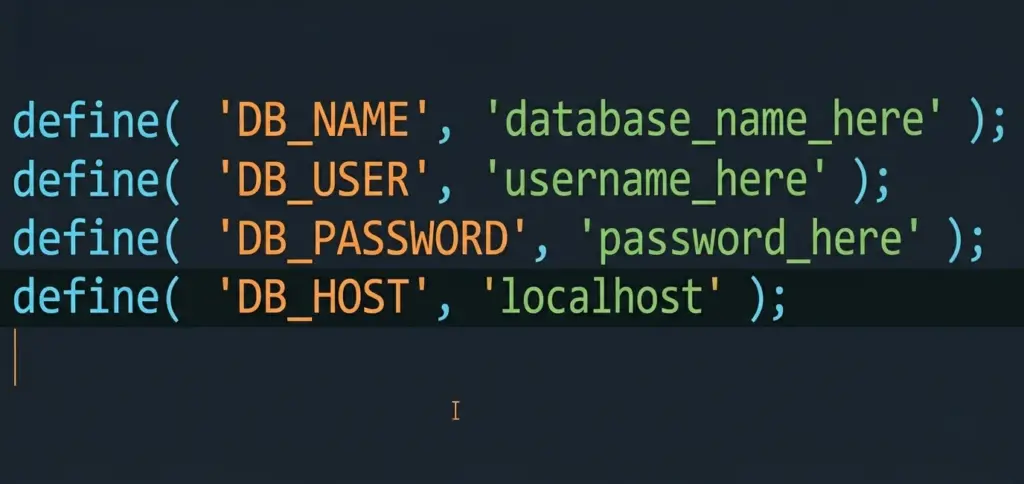
Keep that file open, then head into the MySQL Databases section of your hosting control panel. Carefully compare the database name, username, and password in wp-config.php against your actual MySQL credentials. Watch for typos, stray spaces, or anything that doesn’t line up exactly.
If you spot a mismatch, correct it, save the file, upload it back, and check whether the error is gone.
Step 3: Check and Correct the Database Host Value
If the credentials all check out, the problem might be the database host.
In wp-config.php, the host parameter is usually set to localhost, which is correct for the vast majority of shared hosting setups. But some cloud-based or managed hosts store your database on a separate server.
If that’s your situation, contact your host for the correct database host address and plug it into wp-config.php. It often looks like an IP address or a subdomain, for example 127.0.0.1 or yourserverhostname.com.
Step 4: Use the Built-in WordPress Repair Tool
If nothing so far has worked, you may be dealing with damaged database tables. Luckily, WordPress has a built-in tool that can detect and repair them.
Add this line to your wp-config.php file, just before the closing comment:
define( 'WP_ALLOW_REPAIR', true );Then visit this URL in your browser:
https://yourwebsite.com/wp-admin/maint/repair.php
Click “Repair Database” and let it run. If table corruption was the issue, this often fixes it. Once you’re done, remove that line from wp-config.php, this page is publicly accessible while it’s enabled, so leaving it active is a security risk.
Step 5: Test Whether Your Database Server Is Even Responding
To find out whether the database server is responding to PHP independently of WordPress, you can run a quick standalone test. This tells you whether the problem is inside WordPress or whether the PHP-to-MySQL connection itself is broken.
Create a file called db-test.php in your root directory and add this code, swapping in your real database details:
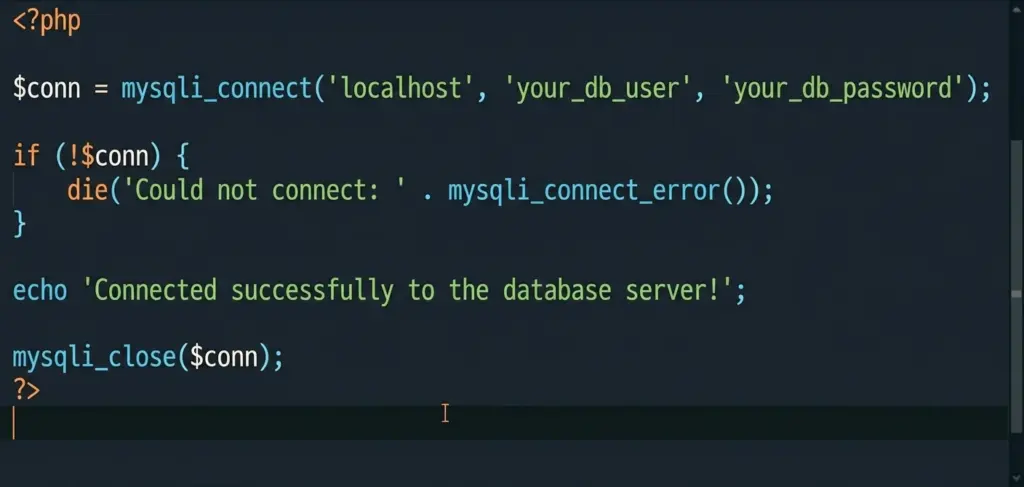
Upload the file, then visit yourdomain.com/db-test.php in your browser. If you see the success message, your PHP can reach MySQL just fine, which means the trouble lies with your WordPress database, tables, permissions, or plugins. If it fails to connect, contact your host and ask them to restart the database server. Either way, delete db-test.php once you’re finished so it isn’t left exposed.
Advanced Fixes for Stubborn Database Errors
Increasing the PHP Memory Limit
If the error only shows up occasionally, or during heavy backend tasks, you may be running low on memory. When a script runs out of resources, it crashes and takes your database processes down with it.
Add this line to wp-config.php, right under the opening PHP tag, to ask WordPress for up to 256 MB of RAM:
define( 'WP_MEMORY_LIMIT', '256M' );If your host allows the override, this single line can clear up the instability. If it doesn’t, you’ll need to bump the limit manually through your .htaccess file or php.ini, or ask your host to raise it for you.
Restoring Corrupted Core Files
In rare cases, the problem comes down to corrupted WordPress core files, sometimes an interrupted auto-update writes only part of a file, breaking the code that reads your classes.
The fix is to reinstall the core files. Download the latest version of WordPress and unzip it on your computer. Connect via FTP, delete the existing wp-admin and wp-includes folders, then upload the fresh copies. Also upload the new wp-login.php and wp-settings.php files to your root directory, overwriting the old ones. Leave wp-content and wp-config.php completely untouched, that’s where your themes, uploads, and unique settings live.
Checking and Repairing the Database via phpMyAdmin
If the built-in repair tool didn’t do the trick, you can repair the database directly through phpMyAdmin.
Log into phpMyAdmin, select your WordPress database from the left sidebar, and you’ll see all your tables. At the bottom, click “Select All,” then choose “Analyze table” from the dropdown. The tool scans everything and flags any problems. If it finds faulty tables, select all again, choose “Repair table,” and wait for it to finish.
Fixing Incorrect File Permissions
Sometimes the issue is simply wrong file permissions. WordPress has to be able to read critical files like wp-config.php, where your database credentials live, or it can’t open the connection at all.
Connect via FTP, right-click wp-config.php, and open the Permissions tab. The recommended setting for wp-config.php is 640 or 600. If you run into permission errors, you can temporarily try 644 to test. As a general rule, directories should be set to 755 and files to 644.
Real-Life Scenarios You Might Run Into
The Error Only Appears on wp-admin
If your front-end loads fine but you get the database error only when opening wp-admin, you’re likely looking at a damaged admin table. WordPress uses different tables for front-end content versus user authentication.
So if your wp_users or wp_options table is corrupted, WordPress can’t verify your login. The easiest fix is the built-in repair tool covered earlier. Alternatively, you can restore those tables from a backup or repair wp_users and wp_usermeta manually.
The Error Comes and Goes During Traffic Spikes
If the error appears intermittently and seems tied to busy periods, you’re hitting resource limits. Every page load opens a connection between PHP and MySQL, and once the cap on simultaneous connections is reached, new requests get blocked.
The best fix is caching. Tools such as WP Rocket serve static HTML to visitors instead of querying MySQL on every single request, which dramatically reduces the load. If that’s not enough, talk to your host about upgrading to a plan with more concurrent connection capacity.
The Error Starts Right After a Migration
If the error appeared just after moving to a new host or domain, it’s usually mismatched credentials or a changed table prefix.
First, make sure you’re not still using localhost if your new host needs a different database host address. Then check your table prefix, many hosts use randomized prefixes instead of the standard wp_. If your old database used one prefix and your new install expects another, WordPress will be looking for tables that don’t exist. Open wp-config.php, find the $table_prefix line, and make sure it matches your actual table names in MySQL.
How to Prevent Database Connection Errors in the Future
Choose Managed WordPress Hosting
Cheap shared hosting is tempting when you’re starting out, but it often causes database headaches down the road. If another account on your shared server gets overloaded or hacked, your database can suffer right along with it.
Investing in managed WordPress hosting sidesteps a lot of that. Platforms like Kinsta give each customer an isolated environment, keeping your database in its own container and monitoring the MySQL connection. They typically throw in caching, database optimization, and other tools that keep your database healthy with far less effort on your part.
Set Up a Solid Backup Strategy
Even a perfectly healthy database can run into trouble during routine work, updating plugins, switching themes, or adding custom code. A bad moment can corrupt your tables and take your site offline.
To protect yourself, schedule automatic backups of your files and database using a plugin like UpdraftPlus or BlogVault. Store those backups off your hosting server in secure cloud storage such as Google Drive, Dropbox, or Amazon S3. If something breaks badly, you can roll back to a working version in minutes.
Use a Staging Environment
Database problems often sneak in when you install new plugins or run theme updates directly on your live site. An update that alters the database structure can corrupt tables and crash things.
The safe approach is to test first. A tool like Local by WP Engine creates an exact copy of your site on your own computer, so you can try out updates, themes, and plugins privately before pushing anything live.
Keep an Eye on MySQL Usage
The bigger your database grows, the harder MySQL has to work to pull data from it. Let it fill up with junk and your server starts spending too long on every query.
A cleanup plugin like WP-Sweep helps by clearing out unused metadata, leftover transients, old drafts, trashed comments, and other clutter that slows MySQL down. It’s also worth checking your disk space now and then, because if your server runs out of room to write temporary files, you’ll be right back to a database connection error.
Final Thoughts
Seeing “Error establishing a database connection” is alarming, but it’s rarely the disaster it first appears to be. In most cases your content is perfectly safe, and the fix is something straightforward, a mismatched credential, a corrupted table, or a host hiccup. Work through the steps methodically, from checking your wp-config.php to repairing tables and testing the server directly, and you’ll usually have your site back up quickly. Better still, put a few preventative habits in place: reliable hosting, regular backups, a staging environment, and a tidy database. Do that, and the next time this error tries to ruin your day, you’ll know exactly what to do.