For many website owners, the WordPress dashboard is more than just a menu. It is the digital equivalent of a home office. It is where ideas become published posts, where site aesthetics are refined, and where the nuts and bolts of your online presence are managed.
Yet, despite its ubiquity, logging in is often the first hurdle new users face. Whether you are a beginner encountering a “404 Not Found” error, an experienced user looking to enhance your security, or someone who has simply forgotten their password, understanding the ins and outs of the login process is essential.
In this guide, we will walk through the anatomy of the WordPress login screen, common troubleshooting steps, security best practices, and advanced techniques to ensure you always have access to your site.
The Anatomy of the Default WordPress Login URL
By default, every WordPress installation uses a standardized URL structure to reach the administration area. If your website is named example.com, your login page is almost certainly located at one of these two addresses:
example.com/wp-login.phpexample.com/wp-admin
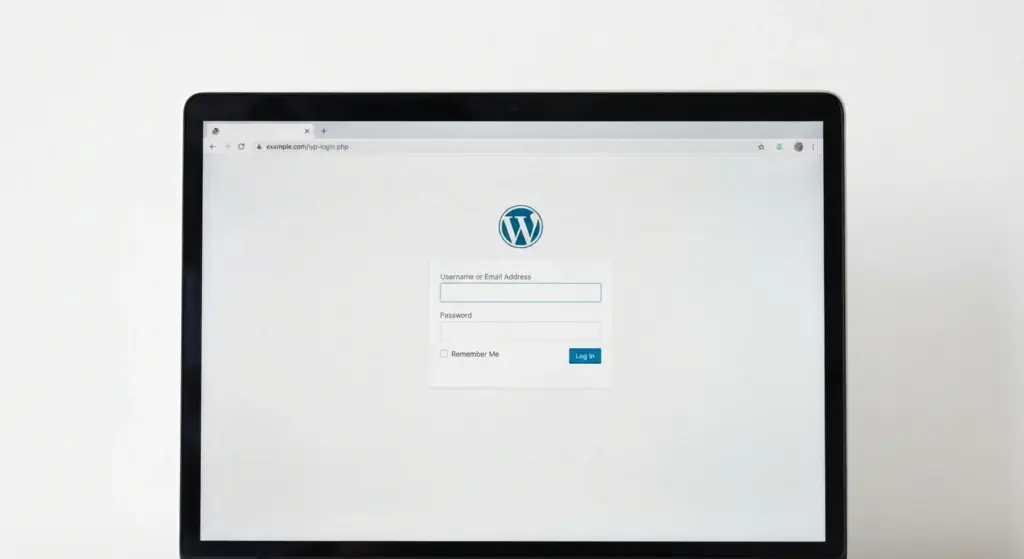
When you enter example.com/wp-admin into your browser, WordPress automatically checks if you have an active session cookie. If you don’t, it redirects you to the wp-login.php page. This page is the “bouncer” of your site. It verifies your credentials against the database before granting you access to the dashboard.
Why Are There Two Different URLs?
Users often wonder why two paths lead to the same place. Here is the technical reality: wp-admin is a directory in your WordPress file system. It contains all the files that make the dashboard run. When you try to access that folder, WordPress detects you aren’t authenticated and sends you to the actual login file, wp-login.php.
It is a simple mechanism, but because it is the industry standard, it is also the first place bots and hackers look. Knowing this distinction is the first step toward better site management.
Logins for Subdirectories and Subdomains
If you installed WordPress in a subdirectory (like example.com/blog/) or a subdomain (like shop.example.com), your login URL will follow that path.
- Subdirectory:
example.com/blog/wp-login.php - Subdomain:
shop.example.com/wp-login.php
Always ensure you are targeting the correct root folder where the WordPress core files actually live.
How to Log In: A Step-by-Step Walkthrough
While it seems straightforward, there are a few nuances to the daily login routine that can save you time.
- Enter the URL: Type your login address into the browser navigation bar.
- Provide Credentials: Enter your username (or the email address associated with the account) and your password.
- The “Remember Me” Checkbox: Checking this box tells WordPress to set a cookie that keeps you logged in for 14 days. If you leave it unchecked, your session will generally expire when you close the browser or after a period of inactivity. Note: Only use this on private, secure devices.
- Access the Dashboard: Hit “Log In,” and you will be taken to the “At a Glance” screen of your WordPress backend.
When Things Go Wrong: Common Login Troubleshooting
It happens to the best of us. You type in your credentials, hit Enter, and… nothing. Or worse, you see an error message. Here is how to diagnose and fix the most frequent issues.
The “Lost Password” Ritual
If you have forgotten your password, the “Lost your password?” link below the login form is your first line of defense. Clicking this prompts you to enter your email or username. WordPress then sends a reset link to the email associated with your administrator account.
What if the email never arrives?
- Check your Spam folder: Automated emails are frequently flagged by aggressive filters.
- Check the server’s mail function: Sometimes, a server’s PHP mail function is disabled, meaning the password reset email never actually leaves the server. If this happens, you will need to utilize the database method discussed later in this guide.
Resolving the “White Screen of Death” (WSoD)
If you log in and see a completely blank white screen, it is usually a sign of a PHP error, often caused by a plugin conflict or a theme update.

To fix this, you need to “bypass” the broken code:
- The Plugin Conflict Test: Connect to your site via FTP or your hosting file manager (like FileSilo or the cPanel File Manager). Locate the
/wp-content/folder and rename thepluginsfolder toplugins_old. This deactivates all plugins. Try logging in again. If it works, one of your plugins is the culprit. You can then rename the folder back and deactivate plugins one by one to find the “broken” one. - Switch to a Default Theme: If a theme update broke the site, renaming your active theme folder in
/wp-content/themes/will force WordPress to revert to a default theme like Twenty Twenty-Four.
Cookies and Browser Cache Issues
Sometimes, the issue isn’t your site; it’s your browser. WordPress uses cookies to verify your identity. If your browser cache is corrupted or if cookies are disabled, you might get caught in a redirect loop.
The Pro Solution: Clear your browser cache and cookies, or try opening your login page in an Incognito/Private window. If it works in private mode, you simply need to clear your browser’s local data.
Enhancing Your Security: Locking the Front Door
Because the /wp-login.php page is universal, it is a prime target for “brute-force” attacks, where automated bots attempt to guess thousands of password combinations every minute. You can drastically improve your security with a few behavioral changes and tools.
Moving Beyond “Admin” Usernames
Many people still use “admin” as their username. This is a gift to hackers because it provides 50% of the login credentials for free.
If your username is “admin,” do this today:
- Create a new user account with a unique name.
- Set that user as an “Administrator.”
- Log out and log back in as the new user.
- Delete the original “admin” account, making sure to attribute all existing content to your new account.
Implementing Two-Factor Authentication (2FA)
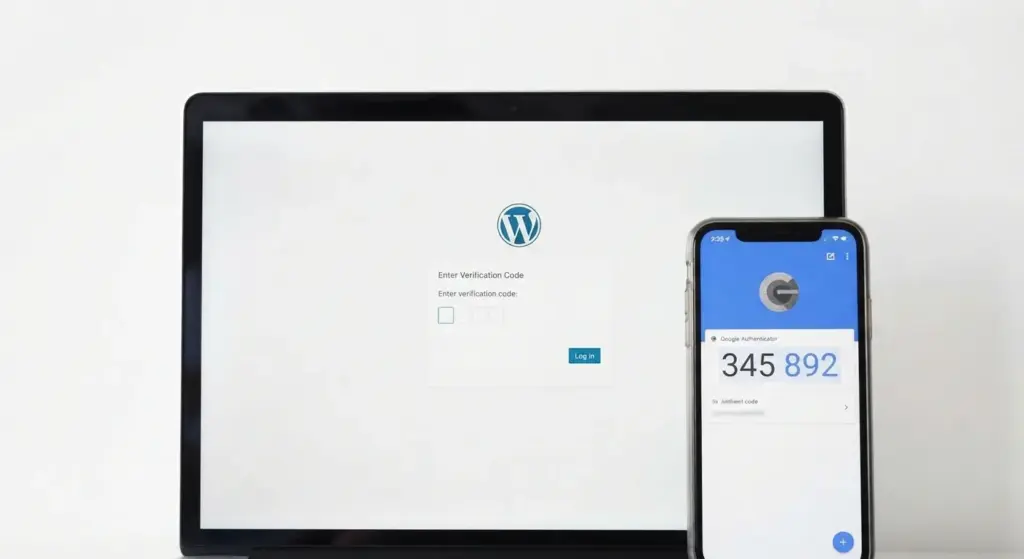
2FA adds a layer of security by requiring a second form of verification, usually a code generated by an app on your phone like Google Authenticator or Authy. Even if a hacker successfully guesses your password, they cannot enter your dashboard without your physical device. Plugins like Wordfence or Two-Factor make this easy to set up.
Limiting Login Attempts
Automated bots don’t get tired. They will try to log in 24/7. By installing a plugin like Limit Login Attempts Reloaded, you can set a rule that blocks an IP address after, say, five failed attempts. This effectively neutralizes most brute-force attacks by making the “cost” of the attack too high for the bot to continue.
Advanced Access: Resetting Your Password via the Database
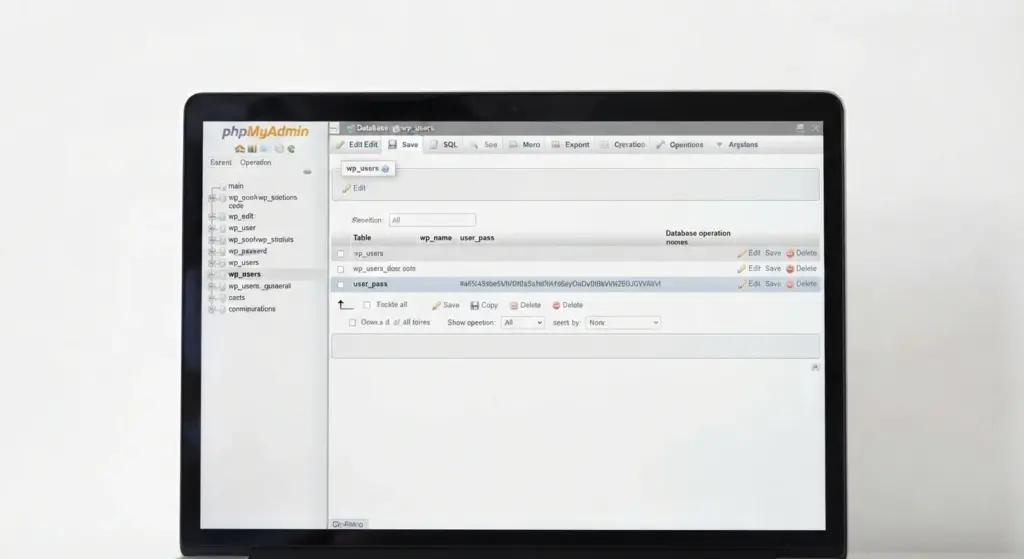
If you have lost access to your admin email and the standard password reset is failing, you aren’t locked out forever. You can force a password change by interacting directly with your database using phpMyAdmin. This tool is available through almost every hosting control panel (like cPanel, Plesk, or SpinupWP).
The Step-by-Step Database Reset
- Access phpMyAdmin: Open your hosting dashboard and find the phpMyAdmin icon.
- Locate Your Database: Select your site’s database from the left-hand sidebar.
- Find the Users Table: Look for the table named
wp_users(note: your prefix might be different, likesite123_users). - Edit Your User: Find your username in the list and click “Edit.”
- The MD5 Trick: Look for the
user_passfield. Delete the long string of nonsense and type in your new password. Crucial: In the “Function” dropdown menu for that row, you must select MD5. WordPress uses this encryption to turn your plain text password into a secure hash. - Save: Click “Go.” You can now log in with the password you just typed.
Customizing the Login Experience for Clients and Branding
If you are a developer building sites for clients, the default WordPress branding can feel a bit “off-brand.” Customizing the login screen is a great way to provide a professional, white-label experience.
Replacing the WordPress Logo
You can replace the WordPress logo with a client’s logo without needing a heavy plugin. By adding a small snippet of CSS to your theme’s functions.php file, you can change the background image of the login H1 link. Alternatively, plugins like LoginPress allow you to customize colors, backgrounds, and logos with a visual editor.
Hiding the Login URL (Security through Obscurity)
While not a “perfect” security measure, changing your login URL from example.com/wp-login.php to something unique like example.com/entrance-gate can stop 99% of automated bot traffic. Bots are programmed to look for the default URL; if it returns a 404 error, they typically move on to an easier target. The WPS Hide Login plugin is the gold standard for this simple change.
Managing Logins in a WordPress Multisite Network
In a WordPress Multisite setup, the login experience remains largely the same, but the hierarchy changes.
Users who are logged into the network can move between sites they have permissions for without re-entering their credentials. As a Super Admin, your login grants you the “master key” to the Network Admin dashboard, where you can manage themes and plugins for every site on the network at once. If a user is only a “Subscriber” on Site A, they won’t even be able to see the login screen for Site B unless you have granted them specific access.
Solving the “Redirect Loop” Nightmare
One of the most frustrating errors is the “Redirect Loop,” where your browser tells you the page is redirecting in a way that will never complete. This usually happens when the siteurl and home settings in your database don’t match the actual URL you are using. Usually, this is caused by a recent move from http to https.
The Instant Fix via wp-config.php
You can “force” These settings and override the database by adding two lines of code to your wp-config.php file (found in your site’s root directory):
phpCopydefine('WP_HOME','https://example.com');
define('WP_SITEURL','https://example.com');
Replace example.com with your actual domain. This often clears up redirect loops instantly and allows you to log back in to investigate further.
Logging In Through Your Hosting Provider (SSO)
Many modern “Managed WordPress” hosts (like WP Engine, SiteGround, and Flywheel) offer Single Sign-On (SSO). This means you can log into your hosting account and click a button that says “Log into WordPress” without ever typing a username or password.
This is incredibly secure because it relies on the authentication of your hosting account, which often already has robust 2FA. If you find yourself frequently losing passwords, check your hosting dashboard to see if this one-click login feature is available.
Summary Checklist for a Seamless Login Experience
To ensure you never face a “locked out” crisis, keep this checklist in mind:
- Bookmark the Login Page: Save your
wp-adminURL in your browser bar for quick access. - Use a Password Manager: Never rely on memory for 20-character random strings. Let a tool like Bitwarden or 1Password handle it.
- Always Enable 2FA: If you do nothing else for security, do this. It is the single biggest deterrent for hackers.
- Maintain Site Backups: Before you go tinkering in
phpMyAdminor renaming plugin folders, ensure you have a recent backup (via UpdraftPlus or your host). - Keep Your Admin Email Current: Ensure the email associated with your account is one you check daily.
Final Thoughts on the WordPress Gateway
Logging into WordPress is the moment your role shifts from a passive observer to an active creator. While it may seem like a simple routine, it is a process that touches on user experience, server-side security, and technical troubleshooting.
By understanding the underlying mechanics, how the browser communicates with the server, how passwords are encrypted, and how to protect yourself from external threats, you aren’t just logging in; you are taking full control of your digital platform. Treat your credentials with care, keep your site updated, and that gateway to your dashboard will always be open for your next big idea.
Frequently Asked Questions (FAQ)
Q: Can I change my WordPress username?
A: You cannot change a username directly in the “Profile” section. The best way is to create a new user with the correct name, grant them Admin rights, and delete the old one. Alternatively, you can change the user_login value in the wp_users table via phpMyAdmin, though this is for advanced users only.
Q: Why does it say “Cookies are blocked” even when they aren’t?
A: This is usually a conflict with a security plugin or a cache issue. Try the “Incognito Mode” test. If that fails, it may be a server-side session configuration issue that your hosting support will need to fix.
Q: How often should I change my password?
A: If you are using 2FA and a strong, unique password, you don’t need to change it “just because.” Only change it if you suspect your computer has been compromised or if you’ve had to share the password with an untrusted third party.
Q: Does “wp-admin” work for every WordPress site?
A: Unless the owner has used a plugin to hide or move the login URL, yes. It is the “universal” door for the WordPress software.