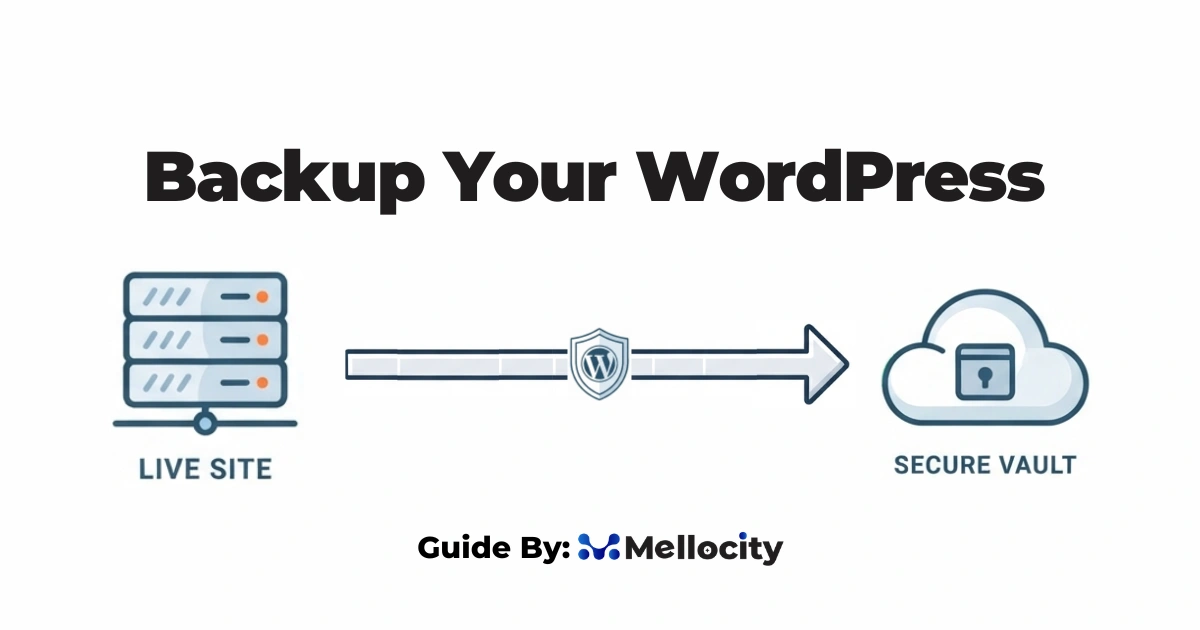
What Does It Mean to Backup Your WordPress Site?
A WordPress backup is not simply installing a plugin and clicking “backup now.” It is infrastructure you operate with a frequency target, a recovery target, a storage topology, an encryption model, a retention policy, and a verification schedule. When any of those elements fail, your backup doesn’t exist, regardless of what your dashboard says.
What a Complete WordPress Backup Contains
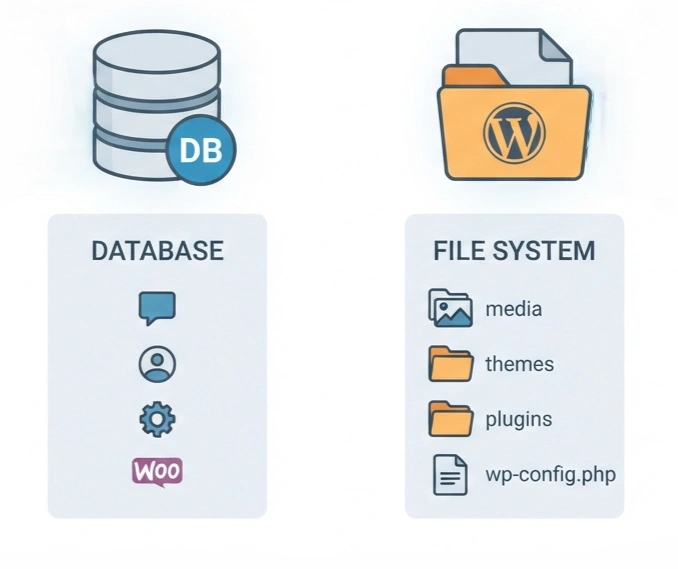
A complete WordPress backup must include both the database and the file system. Missing either one means your restore will fail.
Database Components:
- All posts, pages, and custom post types
- Comments and user accounts (including hashed passwords)
- Site settings stored in
wp_options - Plugin and theme configurations
- WooCommerce orders, customers, and product data
- Custom plugin tables and third-party integrations
File System Components:
/wp-content/uploads/– All media files, images, PDFs, and documents/wp-content/themes/– Active theme, child themes, and customizations/wp-content/plugins/– All installed plugins (including commercial licenses)/wp-content/mu-plugins/– Must-use pluginswp-config.php– Database credentials, salts, and environment constants.htaccessornginx.conf– Server configuration and rewrite rulesrobots.txt,favicon.ico, and other root-level customizations
Most backup plugins cover the first two categories. Real disaster recovery covers all of them.
Backup vs. Migration vs. Staging vs. Version Control
These four concepts are not substitutes for each other:
| Concept | Purpose | Backup Substitute? |
|---|---|---|
| Migration packages | Move sites between hosts | No—designed for transfer, not recovery |
| Staging environments | Test changes safely | No—temporary copy, not a restore point |
| Version control (Git) | Track code changes | No—doesn’t cover database or uploads |
| Host snapshots | Quick rollback convenience | No—same infrastructure, limited retention |
A backup answers one question: “Can I restore production to the state it was in at time T?” If any of the other concepts is your answer, you do not have a backup strategy.
Why Most WordPress Backup Plans Fail
Understanding why backups fail is critical to building one that works. WordPress backups fail for four repeatable reasons: silent archive corruption goes undetected until restore, PHP-bound batch jobs run out of memory or time on large sites, the backup sits inside the same blast radius as the site, and host retention windows rarely match an agency SLA.
The Silent Failure Problem
Silent backup failure occurs when a backup process reports success but the resulting archive is unrestorable. This is the category that kills most WordPress agencies.
The backup log says success. The ZIP file is present. The size looks roughly right. Nobody tried to restore it. Months later, during a real incident, the restore fails because the archive was truncated at a PHP memory ceiling, the database export stopped mid-table, or the uploaded ZIP was corrupted during transfer with no hash verification.
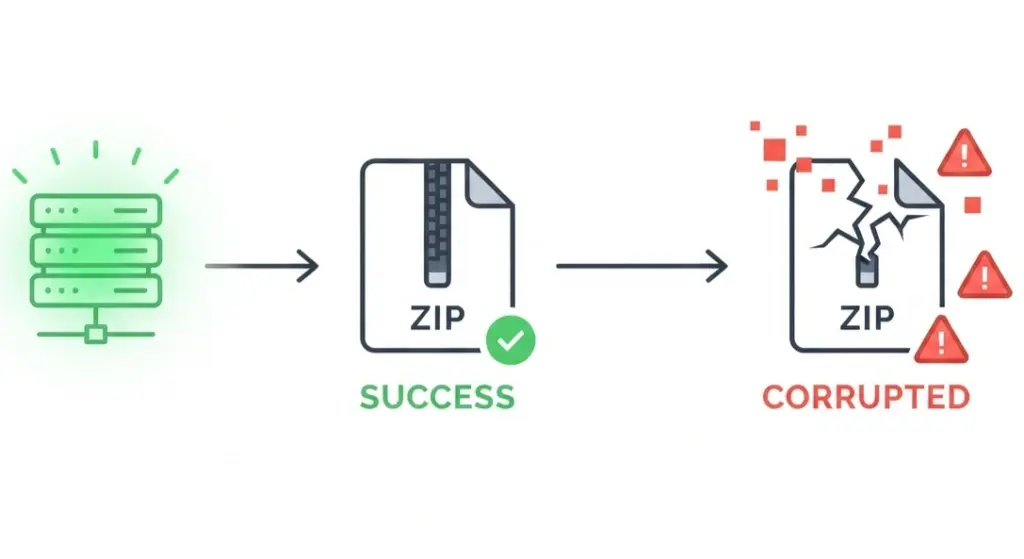
According to Acronis’s 2025 Cyber Protection Report, 42% of companies that attempted to restore from backup discovered their backups were incomplete, corrupted, or too old to be useful.
The only cure is a scheduled restore drill. A backup that has never been restored is a hope, not a backup.
The Server-Side Failure Problem
Most WordPress backup plugins run on the site itself. They allocate PHP memory, compress files into a ZIP, and push that archive off-server. On a 500MB brochure site, this works. On a 12GB WooCommerce store on shared hosting with a 256MB PHP memory limit, it fails silently, often for months, before anyone notices.
The Blast-Radius Problem
If your backup plugin stores archives in /wp-content/uploads/backups/, and an attacker, a bad plugin update, or a runaway cron has filesystem write access, your backup is gone the same second your site is. If your off-site target uses a single API key stored in wp-config.php, the same credential that lets the site write backups lets anything on the site delete them.
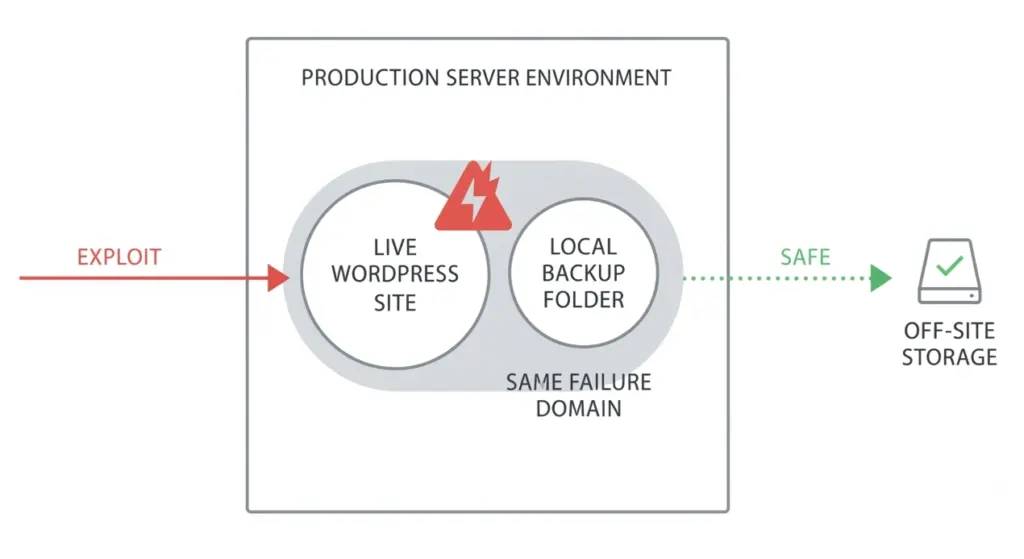
A backup inside the same failure domain as the site is not a backup. It is a second copy at the same risk.
The Host Retention Mismatch
Managed hosts retain backups for a fixed window—typically 14 to 30 days depending on plan and provider. That window rarely matches an agency care-plan SLA that promises recovery of data from “the last 60 days”. It also vanishes entirely if the host suspends the account for a payment dispute, a ToS violation, or an acquisition-and-sunset event.
Host backups are a fast-rollback convenience, not a strategy.
Rules: Applied to WordPress
The 3-2-1 backup rule is a storage strategy requiring three copies of your data, stored on two different media types, with at least one copy held off-site. It is endorsed by CISA and the US cybersecurity community, and it is the baseline every serious storage strategy starts from.
Translated to WordPress reality:
- Copy 1: The live production site itself. This is your primary, not a backup.
- Copy 2: A recent snapshot held by the host (Kinsta, WP Engine, Pressable, Cloudways). Fast to roll back, but on the same infrastructure as production.
- Copy 3: An independent, off-site encrypted storage target held by you or your management platform. Different provider, different credentials, different geography where possible.
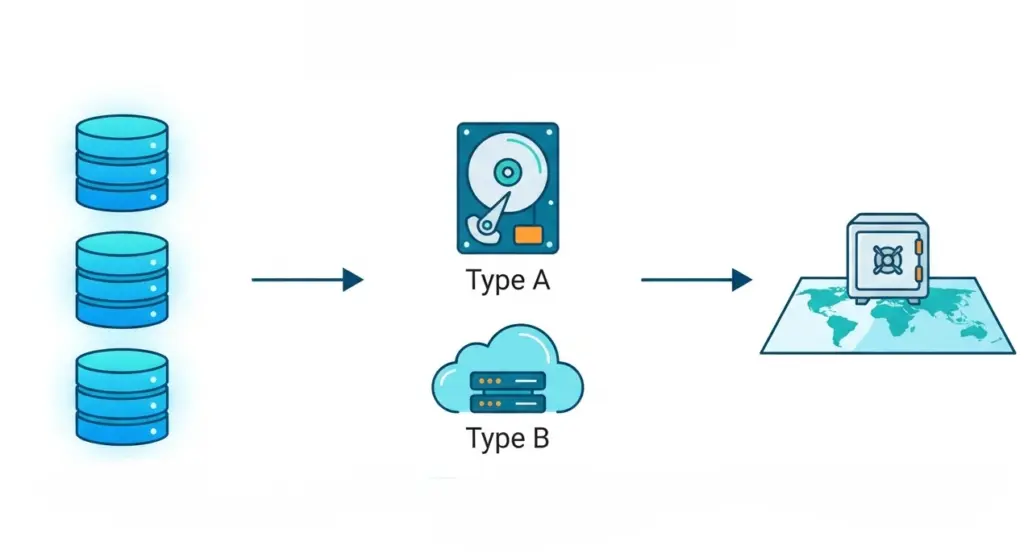
“Two media” in cloud-native WordPress usually means two different storage backends (object storage plus a replicated secondary), not tape and disk. The point is independence of failure domain.
A Concrete 3-2-1 Stack for a 50-100 Sites Portfolio
At portfolio scale, the stack does not change shape. The operational overhead does. The 3-2-1 stack across 50-100 sites is:
- Host snapshots per site, relied on only for quick rollbacks.
- A single managed platform covering all sites, with daily or hourly backups depending on site type, centralized credentials, and per-site retention.
- At least twice a year restore drill per site.
- One incident playbook that any team member can execute without consulting the lead engineer.
Without centralization, 50 host dashboards times 50 plugin dashboards times 50 storage accounts becomes unmanageable before year one.
RTO and RPO: The Two Numbers That Decide Your Backup Frequency
Every backup strategy should start with two questions:
- RPO (Recovery Point Objective): How much data can you afford to lose? If your RPO is 1 hour, you need hourly backups. If it’s 24 hours, daily backups suffice.
- RTO (Recovery Time Objective): How quickly must the site be back online? If your RTO is 15 minutes, you need pre-staged backups with automated restore. If it’s 4 hours, manual restore from offsite storage may work.
Mapping RTO/RPO to WordPress Site Types
| Site Type | RTO Target | RPO Target | Backup Frequency | Retention |
|---|---|---|---|---|
| Static brochure | 6 hours | 24 hours | Daily | 50 days |
| Content blog | 4 hours | 24 hours | Daily | 50 days |
| Membership site | 1 hour | 6 hours | Every 6-12 hours | 50 days |
| WooCommerce, low volume | 1 hour | 1 hour | Hourly | 50 days |
| WooCommerce, high volume | 30 minutes | 1 hour | Hourly | 50 days |
| SaaS / custom app | 15 minutes | 15 minutes | Continuous / block-level | 90 days+ |
Every row corresponds to a business model, not a plugin setting. Write the row for each client before choosing any tool.
Methods for Backing Up WordPress
Host-Level Backups
A host-level WordPress backup is a server-side snapshot taken by the managed host (Kinsta, WP Engine, Pressable, Cloudways, etc.) and stored on the same infrastructure as production. Retention typically runs 7 to 14 days, occasionally up to 60 on higher-tier plans.
Pros:
- Fast rollback after bad deploys
- No plugin overhead
- Often included free with hosting
Cons:
- Same infrastructure as production (same failure domain)
- Limited retention windows
- Requires host support for restores on some platforms
- Not independent of account suspension or provider issues
Host backups are excellent for fast rollback after a bad deploy. They are not a backup strategy on their own.
Plugin-Based Backups
The plugin category is crowded and incentivized. A short, honest tour:
UpdraftPlus: The most-installed option with over 3 million active installations. The free version supports scheduled backups to cloud storage (Dropbox, Google Drive, Amazon S3). Premium unlocks incremental backups, encryption, and additional destinations.
BlogVault: Solid managed SaaS with per-site pricing, off-site storage, and real-time backups for WooCommerce. Doesn’t use server resources—runs on BlogVault servers.
BackupBuddy (Solid Backups): Previously BackupBuddy, rebranded after the iThemes / SolidWP / StellarWP consolidation. Premium features include real-time database backup (Stash Live), malware scanning, and staging site deployment.
Duplicator: Widely used for migrations, often pressed into service as a backup tool. Its strength is portability, not scheduled resilience.
Jetpack Backup (VaultPress): Owned by Automattic and bundled with Jetpack. Real-time automated backups with one-click restores from the Jetpack dashboard.
Plugin-based backups work until they don’t. When they don’t, the failure mode is usually memory limit or timeout.
Manual Backups via phpMyAdmin + SFTP
A phpMyAdmin export plus an SFTP pull of /wp-content/ is the 2am last resort. It’s unworkable at scale, but useful as a ground-truth check on what your “automation” actually replaced.
Database export via phpMyAdmin or command line:
mysqldump -u username -p database_name > backup.sql
File backup via command line:
tar -czf backup-$(date +%Y%m%d).tar.gz /path/to/wordpress/
Pros:
- Complete control over backup process
- No plugin dependencies or overhead
- Free (except for storage costs)
Cons:
- Requires technical expertise (SSH, database management)
- Time-consuming without automation scripts
- Easy to forget or skip backups
- Restoration requires manual process
SSH / WP-CLI Backups
Scripted wp db export plus rsync is a reliable primitive for custom pipelines. WP-CLI’s db check is essential for verifying consistency.
Database export with WP-CLI:
wp db export – –add-drop-table | gzip > /home/deploy/backups/db-$(date +%F).sql.gz
File archive with WP-CLI:
tar -czf /home/deploy/backups/files-$(date +%F).tar.gz \
–exclude=’wp-content/cache’ \
–exclude=’wp-content/uploads/cache’ \
–exclude=’.git’ \
wp-content wp-config.php .htaccess 2>/dev/null
Pros:
- Scriptable and automatable with cron
- Works independently of WordPress
- Can optimize exactly what’s backed up
- Suitable for multi-site management
Cons:
- Requires SSH access and WP-CLI installation
- You maintain the script, cron, storage, encryption, retention, alerting, and restore tooling
- For an agency, this is a full-time hobby, not a product
Managed Platform Backups (SaaS)
This is the category that matters at portfolio scale. Managed platforms run the backup off-server, store it independently, and expose a single dashboard across all client sites. Representative names include WP Umbrella, BlogVault, and ManageWP.
Pros:
- Streaming architecture (no server-side archive creation)
- Centralized credentials and dashboard
- No leftover files on source server
- Professional support and SLA-backed reliability
- Built-in encryption and compliance features
Cons:
- Ongoing subscription cost
- Less direct control over infrastructure
- Dependency on third-party service availability
For 50+ sites, the leverage wins every single time.
Backup Technology: Streaming vs. Batching
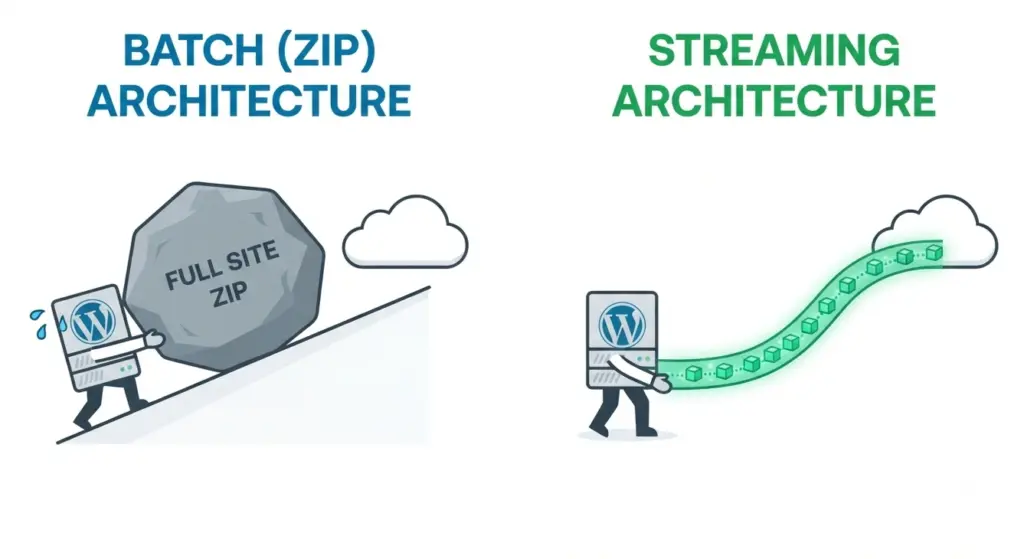
Batch (ZIP) Architecture: What Most Plugins Do
UpdraftPlus, BackWPup, Duplicator, and Solid Backups all share the same fundamental model. These plugins compress the full site into a ZIP archive on your own server, then upload the finished archive to an off-site destination.
This requires enough RAM to hold compression buffers, enough disk space to hold the archive mid-build, and enough PHP execution time to finish before the process is killed. On shared hosting, on WooCommerce stores, or on media libraries above 5GB, one of those three runs out. PHP gets killed, the archive is corrupted or partial, and the backup log either reports success or reports a vague error that nobody reads.
Batch architecture also leaves ZIP artifacts on the server between runs. These accumulate, consume disk quota, and sometimes end up publicly addressable in /wp-content/uploads/, which is its own security problem.
Streaming Architecture: What Managed Platforms Do
WP Umbrella, BlogVault, and ManageWP stream file changes and database blocks off-server, chunk by chunk. There is no archive being built on the source server , no single process that has to finish inside PHP’s execution window and no memory ceiling to hit. There are no leftover files.
Incrementals are computed at block level, so only the changed portion of a 4GB uploads directory is transmitted, not the whole thing. Verification can happen on the receiving end, independent of the source server’s health.
Why This Decides Reliability at Scale
A backup method that routinely fails mid-run on a 5GB site is not a strategy, it is a hope. On one site, the difference is a footnote. Across a 50-site portfolio, the difference is how often you get woken up by an alert that “last night’s backup didn’t complete”. Across 500 sites, the batch model is operationally untenable.
This is why managed platforms can offer “backup ran” as an SLA rather than a probability. The architecture removes the failure classes that batch backups spend their lives fighting.
How Often Should You Backup Your WordPress Site?
Your backup frequency should match how often your site changes. Here’s a decision framework based on site type and business impact:
Backup Frequency by Site Type
E-commerce Sites (WooCommerce): Hourly to Daily
WooCommerce stores need daily database backups minimum. Consider hourly backups for high-volume stores to protect every transaction and order. A nightly WooCommerce backup means that if the site is compromised at 11:30pm and the issue is detected at 9am, you lose every order placed during a full trading day, plus customer accounts, plus stock movements.
Business/Blog Sites: Daily to Weekly
Sites updated multiple times per week should run daily backups. Less active sites can backup weekly with manual backups before major changes.
Static/Brochure Sites: Weekly to Monthly
Sites with minimal changes can run weekly or monthly automated backups, plus manual backups before any updates or customizations.
Before Updates: Always
Create a manual backup before updating WordPress core, themes, or plugins. This is non-negotiable—updates can break sites. The WordPress upgrade guide requires this for major core upgrades, and the logic applies to every other update for the same reason.
Files vs. Database: Different Schedules
Back up databases more frequently (daily) and files less often (weekly). Your database changes constantly; files change when you upload media or update themes. UpdraftPlus and other advanced plugins expose this split natively because treating them as one unit wastes bandwidth on slow-changing data.
Where to Store Your WordPress Backups
The 3-2-1 backup rule: Keep 3 copies of your data, on 2 different media types, with 1 copy offsite. Here’s how to apply it to WordPress:
Primary Storage: Cloud Services (Offsite)
Amazon S3: Industry standard for reliability. $0.023/GB/month. Requires AWS account setup. Supports lifecycle policies for cost management and cross-region replication.
Google Cloud Storage: Strong for sites already in the Google ecosystem. Similar pricing to S3 with good integration options.
Backblaze B2: Most affordable cloud storage. $0.005/GB/month (75% cheaper than S3). Similar to Amazon S3 but with simpler pricing.
Wasabi: Flat-rate pricing with no egress fees (critical restore costs can spike with S3 if you download frequently).
Google Drive / Dropbox: Easiest for non-technical users. 15GB free