Use self-hosted WordPress (WordPress.org) with a reliable host, pick a responsive theme, install essential plugins (SEO, security, caching, backups), create core pages, optimize for speed and SEO, and maintain regular updates and backups to build a professional WordPress website.
How to Make a WordPress Website:
Building a WordPress website today is accessible, practical, and scalable , whether you want a simple blog, a portfolio, a small-business site, or a full e-commerce store. This guide walks you step-by-step from choosing the right WordPress version and hosting to launching, optimizing, and maintaining your site. I’ll keep things real and actionable, no fluff, only what matters.
Why WordPress?
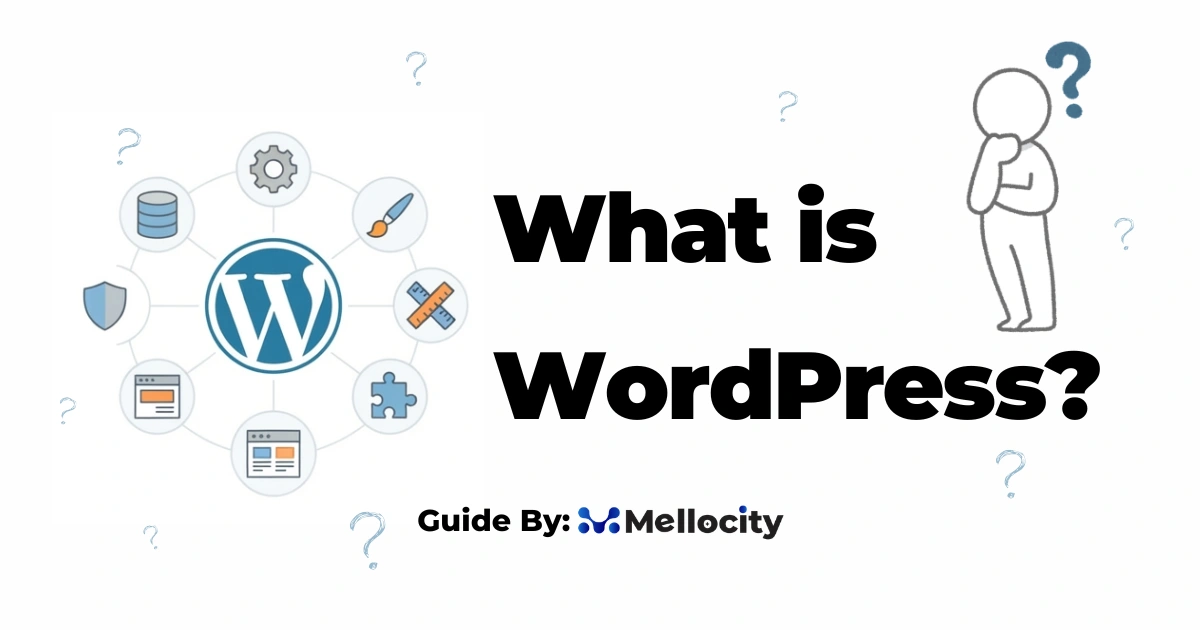
WordPress (the self-hosted WordPress.org) powers a large portion of the web because it balances power with ease of use. You get full control over design, content, monetization, and code. That ownership matters when you grow.
WordPress.org vs WordPress.com:
Quick verdict
WordPress.org (self-hosted) is the right choice for most people who want freedom, scalability, and monetization options. WordPress.com is fine for hobby blogs or those who want a hands-off setup, but it quickly becomes limiting unless you pay for higher tiers.
Key differences explained
- Ownership and control: With WordPress.org you host the site yourself and own everything , files, database, code. WordPress.com controls much of that unless you upgrade to business plans.
- Plugins and themes: WordPress.org allows any plugin or theme. WordPress.com restricts plugins on free/cheap plans.
- Monetization: WordPress.org lets you run ads and e-commerce freely. WordPress.com often requires premium plans to monetize.
- Technical responsibility: WordPress.org requires you to manage updates, security, and backups (though managed hosts do much of this for you). WordPress.com handles those but at the cost of control.
Choose a Domain Name and Hosting :
Domain name: best practices
- Short, memorable, and easy to spell.
- Prefer .com for global reach; consider country TLDs (like .pk) if targeting a local audience.
- Avoid hyphens and confusing numbers.
- If brandable names are taken, try short phrases or coined words rather than long descriptive names.
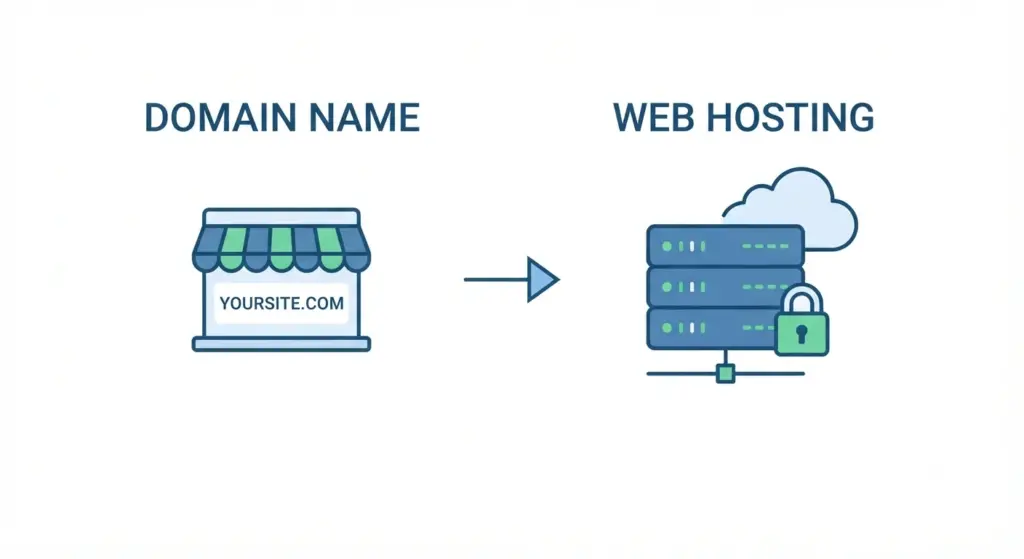
Types of hosting and who they suit
- Shared hosting: Cheap, good for small blogs or testing, but can be slow and noisy on shared servers.
- VPS (Virtual Private Server): Better performance and isolation. Good for growing sites with moderate traffic.
- Managed WordPress hosting: Optimized for WordPress, automatic updates, caching, security hardening. Great for most users who want speed and fewer hassles. Providers: Bluehost, SiteGround, DreamHost, Kinsta, WP Engine, etc.
- Cloud hosting: AWS, Google Cloud, DigitalOcean , powerful and scalable but needs more technical knowledge.
- What to look for: free SSL, 99.9% uptime, fast support, good reviews for performance, and a simple staging environment for testing changes.
Cost considerations
- Domain: usually $10–$20/year.
- Shared hosting: $3–$10/month (intro pricing often lower).
- Managed WordPress: $15–$50+/month depending on traffic and features.
- Factor in premium themes, plugins, and possible developer help.
Installing WordPress:
One-click installers
Most hosts offer one-click WordPress installs. The process: pick domain, admin username, password, site title , done. You’ll get access at yourdomain.com/wp-admin.
Manual install (when needed)
- Download WordPress from wordpress.org.
- Create a MySQL database on your host.
- Upload files via FTP.
- Run the installer by visiting your domain.
Manual install gives insight into the system but is rarely necessary for new users.
Security tip at install
- Avoid using “admin” as username.
- Use a strong, unique password (password manager suggested).
- Enable HTTPS (install SSL) immediately.
First Steps Inside WordPress Dashboard
Core settings to configure first
- Permalinks (Settings > Permalinks): choose “Post name” for clean URLs , better for SEO.
- General Settings: set site title, tagline, email, timezone.
- Reading Settings: choose a static homepage or latest posts depending on your site’s purpose.
- Discussion Settings: configure comment moderation and anti-spam (Jetpack, Akismet).
- Media Settings: adjust default image sizes if needed to avoid oversized uploads.
- Privacy Page: create or designate a privacy policy (legal compliance).
Create an admin account for yourself and a separate user with lower privileges for day-to-day tasks or contributors. It reduces the risk from accidental changes or credential compromise.
Choosing and Customizing a Theme
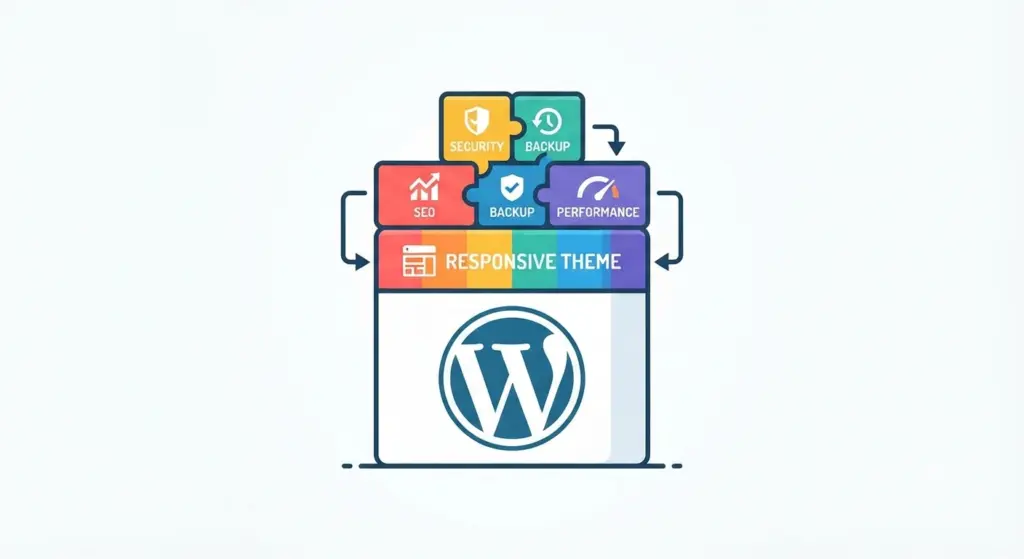
What makes a good theme
- Mobile-first, responsive design.
- Lightweight and fast , minimal bloat.
- Regular updates and active support.
- Compatibility with major page builders if you use them (Elementor, Gutenberg, Beaver Builder).
- Accessibility and SEO-friendly markup.
Free vs premium themes
- Free themes (from WordPress.org) are great for budgets and standards-compliant code.
- Premium themes offer extra templates, support, and advanced features. Marketplaces: ThemeForest, ThemeIsle, StudioPress (Genesis).
- Consider a theme framework (Genesis, Kadence) if you want a stable foundation with good performance.
Customize without code
- Appearance > Customize: change colors, site identity, menus, widgets, and layout options.
- Use a child theme if you plan to edit PHP or CSS , it preserves customizations across updates.
Page builders vs Gutenberg
- Gutenberg (block editor) has matured and is lighter weight. Good for many sites.
- Page builders (Elementor, Beaver Builder) are powerful for complex layouts but can add weight and locking-in.
- Pick what matches your comfort level: use Gutenberg for performance and simplicity; use a page builder for pixel-perfect control if you accept the overhead.
Essential Plugins:
Must-haves for most sites
- SEO:
RankMath or Yoast SEO , helps with meta tags, XML sitemaps, schema, and on-page guidance. - Security:
Wordfence or Sucuri , firewall, malware scanning, login protection. - Backups:
UpdraftPlus, BackWPup , schedule daily/weekly backups and store copies off-site (Dropbox, Google Drive). - Caching & Performance:
WP Rocket (paid) or LiteSpeed Cache/WP Super Cache , speed up page loads. - Image optimization:
ShortPixel, Smush, or native lazy-loading to reduce image weight. - Forms:
WPForms or Gravity Forms , contact, lead capture. - Analytics:
Google Site Kit or MonsterInsights for easy Google Analytics integration. - Database optimization:
WP-Optimize to keep things tidy. - E-commerce:
WooCommerce for online stores.
Plugin hygiene
- Only install trusted plugins with many installs and recent updates.
- Keep plugin count lean , each plugin adds overhead and potential security risk.
- Deactivate and delete unused plugins.
Creating Pages and Content :
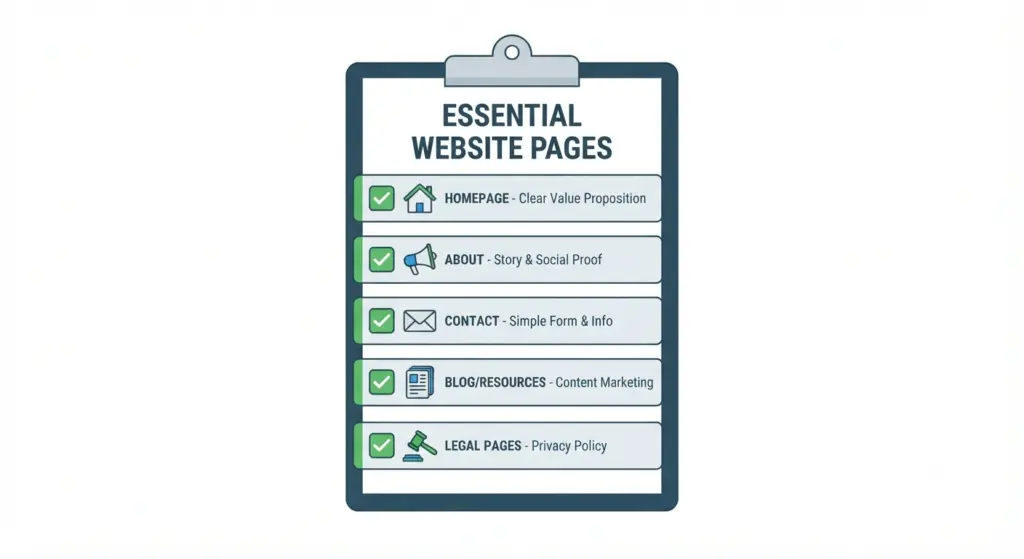
Essential pages (and why they matter)
- Homepage: Clear value proposition, fast load, prominent CTA (call-to-action). It’s the first impression.
- About: Tell your story, add social proof, and show trust signals.
- Contact: Simple form, email, phone (if relevant), and physical address or map.
- Blog/Resources: For content marketing and SEO , publish consistently.
- Services/Product pages: Clear pricing, benefits, FAQs, and how to buy or contact.
- Legal pages: Privacy Policy and Terms of Service , especially important if you collect data or sell.
Content structure for SEO and readability
- Use H1 for page title, H2 for major sections, and H3/H4 for subpoints.
- Write for humans first , useful, clear, and scannable copy.
- Include keywords naturally: use a primary keyword and 1–3 related keywords.
- Add internal links to related pages and external links to reputable sources.
- Use short paragraphs, bullet points, and images to break up walls of text.
Images, media and accessibility
- Always add alt text to images describing the content and context , helps SEO and accessibility.
- Prefer WebP or compressed JPG/PNG to reduce weight.
- Use descriptive filenames (e.g., small-business-seo-checklist.jpg).
Launch Checklist :
Pre-launch checklist
- Proofread and check content for accuracy.
- Check links and navigation flows , click every menu item and CTA.
- Run speed test (Google PageSpeed Insights, GTmetrix) and follow high-impact fixes.
- Ensure mobile responsiveness across common screen sizes.
- Set up Google Search Console and submit sitemap (SEO plugin provides sitemap).
- Connect Google Analytics (via Site Kit or manual tag).
- Check forms and email notifications , test submission flows.
- Install SSL and ensure HTTPS-only site (search engines prefer secure sites).
Low-traffic SEO actions before launch
- Optimize meta title and meta description for homepage and main pages.
- Ensure canonical URLs are set to avoid duplicate content.
- Add schema markup (local business, product, article) via SEO plugin for rich results.
- Submit site to Google Search Console and Bing Webmaster Tools.
- Create a basic robots.txt and ensure it doesn’t block search engines.
Speed, Performance and Core Web Vitals
Why speed matters
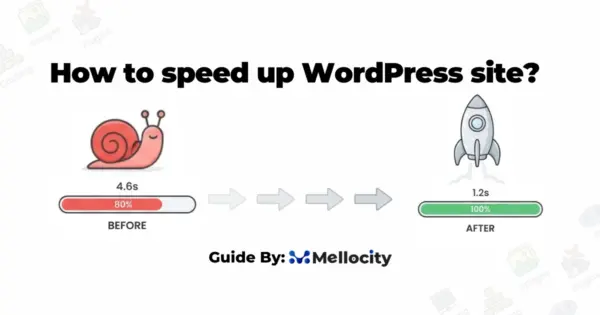
Fast sites rank better, convert better, and give a better user experience. Google measures Core Web Vitals (Largest Contentful Paint, First Input Delay, Cumulative Layout Shift) and uses them for ranking signals.
Practical performance improvements
- Use caching (page and object caching).
- Use a Content Delivery Network (CDN) like Cloudflare to deliver assets globally.
- Optimize images and serve them in modern formats (WebP).
- Minify CSS/JS and combine files where appropriate.
- Defer non-critical JS and inline critical CSS.
- Choose a fast theme and avoid heavy page-builder bloat.
- Serve fonts efficiently or use system fonts where practical.
Use tools to diagnose
- Google PageSpeed Insights (Core Web Vitals)
- GTmetrix or WebPageTest for detailed waterfall analysis
- Lighthouse audits within Chrome DevTools
SEO :
On-page SEO essentials
- Keyword research: find intent-driven keywords (Ahrefs, SEMrush, or free Google Keyword Planner).
- Use one primary keyword per page and include it in title, URL, H1, and first 100 words if natural.
- Write useful content longer than competitors for competitive topics (but don’t pad , make every word count).
- Use descriptive meta tags and schema to improve CTR in search results.
Technical SEO basics
- XML sitemap and robots.txt , submitted to Search Console.
- Canonical tags to prevent duplicate content.
- Structured data (schema.org) for rich snippets.
- Fast loading, mobile-optimized pages.
- Secure site (HTTPS).
Content strategy
- Publish consistently: aim for quality over quantity.
- Use topic clusters: a pillar page plus supporting posts linked together.
- Reuse and update older content , refresh dates and facts.
- Promote content on social media and in newsletters to build initial traction.
Security and Backups:
Security essentials
- Keep WordPress core, theme, and plugins updated.
- Use a strong admin password and enable two-factor authentication (2FA).
- Limit login attempts and use CAPTCHAs on forms if spam is an issue.
- Use a reputable security plugin for scans and firewall protection.
- Disable file editing in wp-config.php with: define(‘DISALLOW_FILE_EDIT’, true);
Backups and recovery plan
- Schedule regular automated backups and store them off-site (S3, Dropbox, Google Drive).
- Test restore process occasionally , a backup is only useful if restoration works.
- Keep an emergency access plan (admin user or host recovery options).
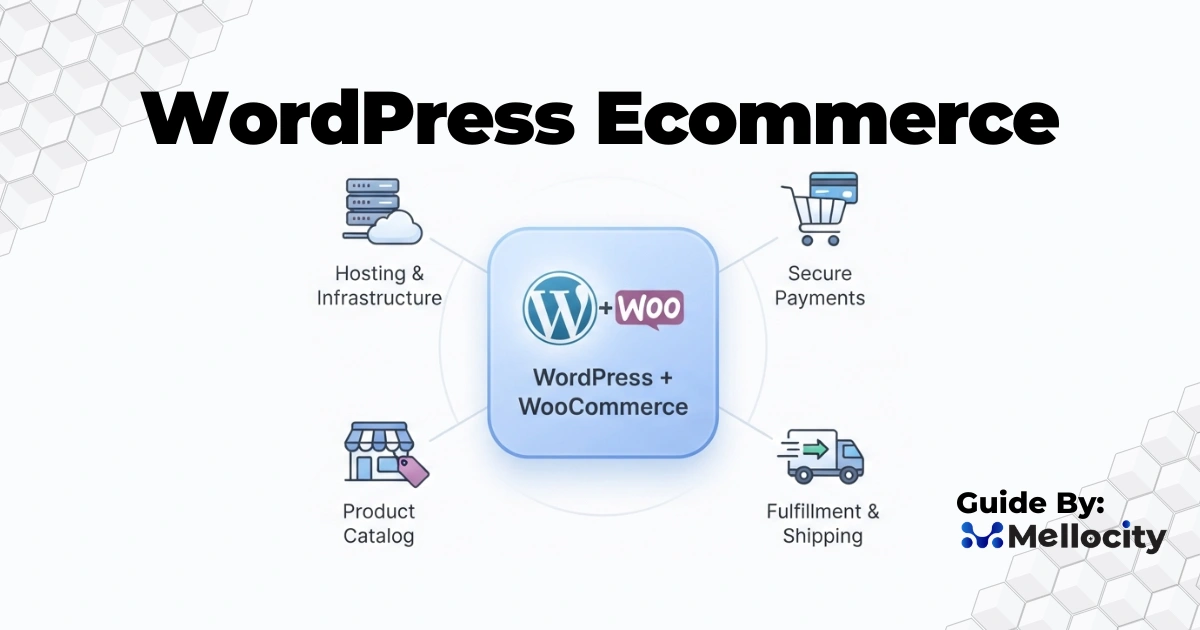
E-commerce with WooCommerce (If You’re Selling)
Quick setup checklist
- Install WooCommerce and follow the setup wizard (currency, shipping, payment gateways).
- Choose a WooCommerce-compatible theme.
- Add product images, SKU, descriptions, and structured product data.
- Set up payment processors (Stripe, PayPal, local gateways).
- Configure shipping, taxes, and returns policy clearly.
Performance & security for shops
- Use strong caching but exclude cart/checkout pages from caching.
- Enable HTTPS for all pages (checkout and account pages especially).
- Monitor inventory, orders, and customer support workflows.
Maintenance:
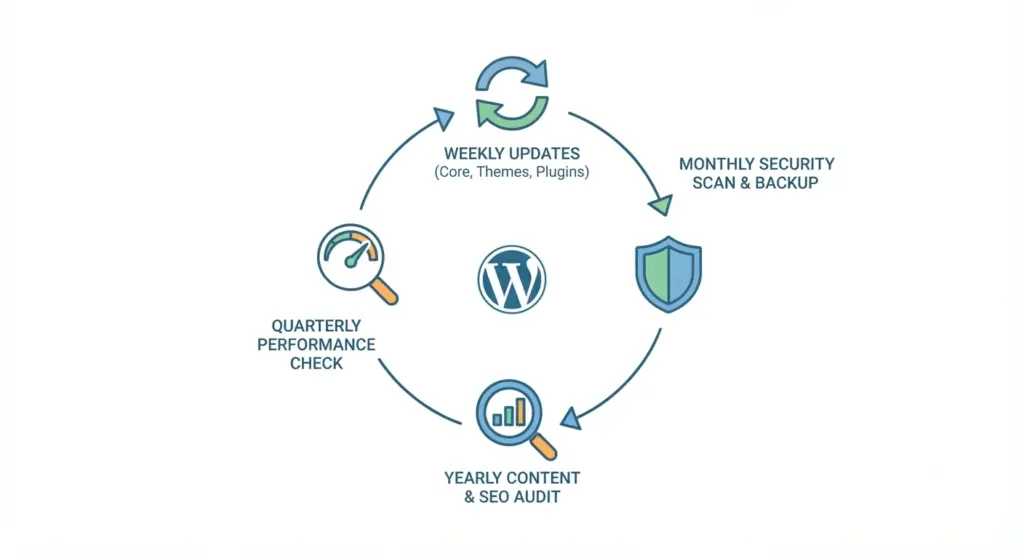
Regular maintenance schedule
- Weekly: Update plugins, themes, and core; check for broken links and spam comments.
- Monthly: Full backup and test restore; run security scans; review analytics trends.
- Quarterly: Audit SEO, prune unused plugins, test forms and transactions.
- Yearly: Review content accuracy, update legal pages, and refresh visuals and calls-to-action.
Monitoring and analytics
- Set up Google Analytics (GA4) and Google Search Console.
- Monitor uptime with a service (UptimeRobot, Pingdom).
- Track performance and user behavior to find conversion bottlenecks.
Accessibility and Legal Compliance
Accessibility basics
- Use semantic HTML, descriptive link text, alt text for images, and logical heading order.
- Test with screen readers and keyboard navigation.
- Follow WCAG guidance for color contrast and readability.
Legal pages and privacy
- Add a Privacy Policy if you collect personal data or use analytics and cookies.
- If you operate in or target Europe, comply with GDPR: get consent for cookies and provide data access/removal mechanisms.
- For payment/e-commerce sites, be transparent about returns and terms of sale.
Troubleshooting Common Problems
Broken site after plugin/theme update
- Put site in maintenance mode and restore from a recent backup.
- Deactivate plugins via FTP (rename plugin folder) if you can’t access wp-admin.
- Check error logs (host panel) or enable WP_DEBUG in wp-config.php temporarily for diagnostics.
Slow site
- Audit plugins , deactivate heavy ones and measure impact.
- Optimize images and enable caching.
- Move to better hosting or enable a CDN.
Lost admin access
- Reset password via database with phpMyAdmin or use host account recovery tools.
- Ensure at least one admin account is protected and documented in a secure password manager.
Grow, Iterate and Outsource When Needed
What to focus on after launch
- Create a content calendar focused on user intent and problems you solve.
- Collect user feedback and iterate on design elements and CTAs.
- Run A/B tests for headlines, button text, and page layouts.
- Build an email list , small, engaged audiences often convert better than large, cold traffic.
When to hire help
- If speed, security, or custom features are critical and out of your skillset, outsource to a developer or agency.
- Consider a fractional marketing/SEO expert when you can’t keep up with content creation and promotion.
Final Thoughts :
Building a WordPress website is a practical, repeatable process. Start with the essentials: choose self-hosted WordPress, pick a reliable host, use a fast theme, install only trusted plugins, and focus on content that helps people. Launching is just the start , the real win comes from consistent content, ongoing maintenance, and regular optimization.