Backing up your WordPress site means saving both your database and files, storing copies offsite, automating the process, and testing restores regularly.
How to Protect Your Site :
Backing up your WordPress site is one of those things that feels easy to postpone until something goes wrong. But the moment a plugin update breaks your layout, a hacker gets in, or your host has a server issue, a good backup becomes the difference between a quick recovery and a real disaster. In 2026, the smartest WordPress users do not treat backups as an afterthought. They treat them like insurance.
A proper backup strategy is not just about copying files somewhere and hoping for the best. It is about understanding what WordPress actually consists of, choosing a backup method that fits your setup, storing copies safely, and making sure you can restore the site when needed. Whether you run a blog, a business site, or a WooCommerce store, the goal is the same: if something breaks, you should be able to get back online fast.
What a WordPress Backup Really Includes :
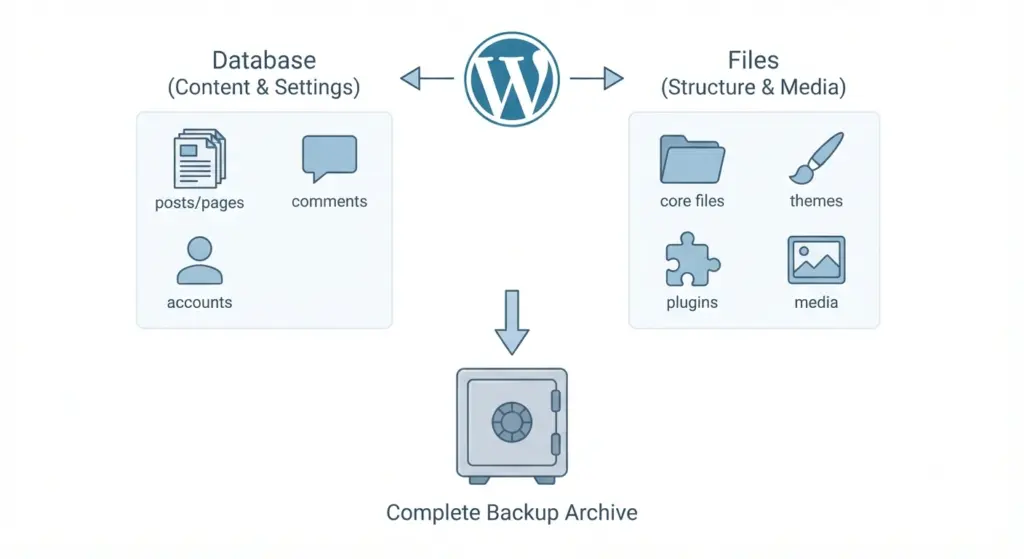
A complete WordPress backup has two essential parts: your database and your files.
1. The Database:
The database is where WordPress stores the content and settings that make your site function. It contains:
- Posts and pages
- Comments
- User accounts
- Site settings
- Plugin settings
- Theme customizer data
- WooCommerce orders and product information, if you run an online store
Without the database, your site may still have the structure, but it loses the content that gives it value.
2. The Files :
The files are the physical backbone of the site. These include:
- WordPress core files
- Your active and inactive themes
- Installed plugins
- Media uploads in
wp-content/uploads - Custom code files and edits
The uploads folder matters a lot because it usually contains your images, PDFs, logos, and other media. If that folder is missing, your site may load, but it can look broken or incomplete.
Why Both Matter :
If you only back up the database, you lose media and site structure. If you only back up the files, you lose content, comments, orders, and settings. A real backup must include both.
The 3-2-1 Backup Rule :
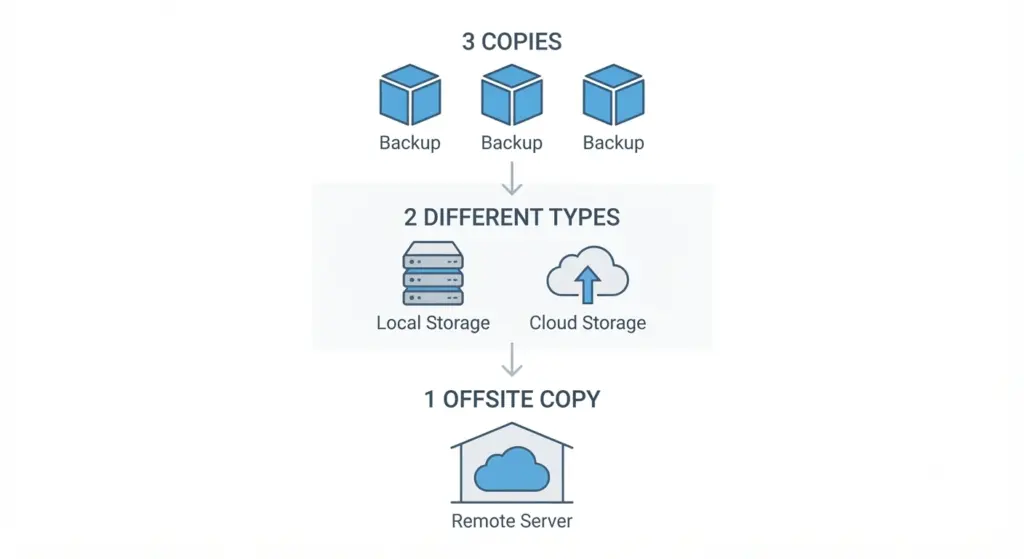
The safest backup strategy is still the 3-2-1 rule.
What It Means :
- 3 copies of your data
Keep the live site plus at least two backup copies. - 2 different storage types
Do not rely on just one place. For example, keep one copy on local storage and another in cloud storage. - 1 offsite copy
At least one backup should be completely separate from your hosting account.
Why This Matters
If your site is hacked, your host has a failure, or your account gets locked, a backup stored on the same server may be useless. Offsite storage protects you from that risk. Good options include Google Drive, Dropbox, Amazon S3, and dedicated backup services.
The Best Ways to Back Up a WordPress Site :
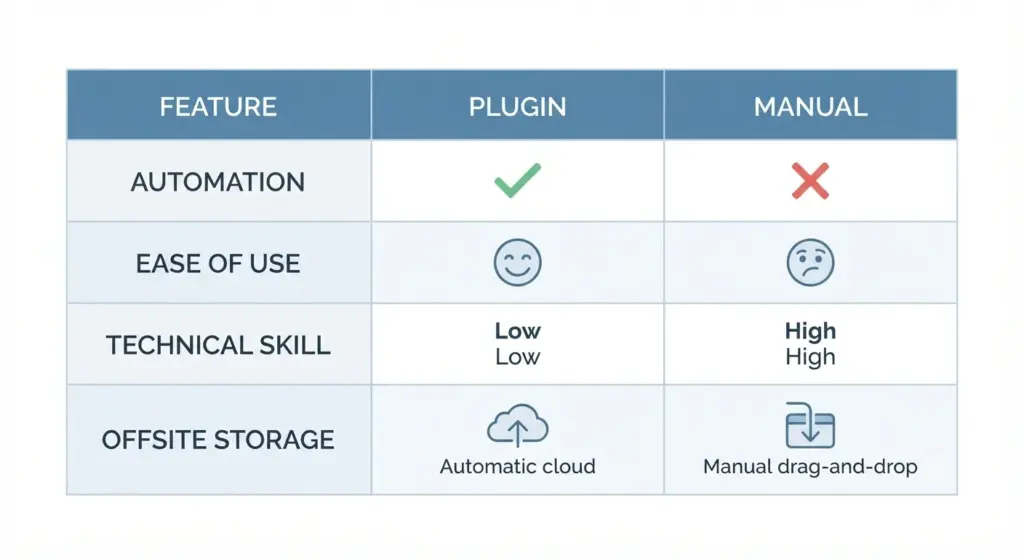
There are three practical ways to back up a WordPress site. The best one depends on how much control you want and how technical you are.
1. Using a WordPress Backup Plugin :
For most people, this is the easiest and most reliable method. Backup plugins automate the process, let you schedule backups, and often send copies to cloud storage.
Popular Backup Plugins
Some well-known and widely used options include:
- UpdraftPlus
A popular choice with cloud storage support and a generous free version. - BlogVault
Strong for WooCommerce and useful for incremental backups. - Jetpack Backup
Known for easy restores and tight WordPress integration.
How It Usually Works
- Install the plugin from the WordPress dashboard.
- Connect it to cloud storage.
- Choose what to back up.
- Set a backup schedule.
- Run a manual backup once to confirm everything works.
Why Plugins Are So Useful
- They are beginner-friendly
- They automate the process
- They reduce human error
- They make restores easier
- They can send backups offsite automatically
Things to Watch
A plugin is only useful if it is configured properly. Many users install a backup plugin and never connect cloud storage or test a restore. That defeats the purpose. Always verify that the backup actually exists outside your site.
2. Using Your Hosting Provider’s Backup Tools :
Many managed WordPress hosts include their own backup systems. These are often created at the server level, which means they do not use your site’s own resources during the backup process.
Where to Look
Check your hosting dashboard for sections like:
- Backups
- JetBackup
- Restore points
- Site management tools
Advantages
- Often fast to restore
- May be available with one click
- No need to install extra plugins
- Can run automatically on the host side
Limitations
The biggest limitation is dependency. If your host has a major issue, access to those backups may also be affected. That is why it is smart to keep a second backup copy somewhere else too.
3. The Manual Backup Method :
Manual backups are useful if you want full control, need to migrate a site, or manage a smaller website without a plugin.
How to Back Up the Files
Use FTP or SFTP with a client such as FileZilla or Cyberduck. Then:
- Connect to your site.
- Open the root folder, usually
public_html. - Download all files and folders to your computer.
How to Back Up the Database
Use phpMyAdmin from your hosting control panel.
- Select your WordPress database.
- Click the Export tab.
- Choose the quick export option.
- Download the SQL file.
After That
Place both the files and database export into a folder, compress it if needed, and store it safely offsite.
When Manual Backups Make Sense
- Small sites
- One-time migrations
- Technical users who want full control
- Emergency situations when plugins are unavailable
When You Should Take a Backup :
Automated backups are great, but they are not enough on their own. There are moments when a manual backup is the smart move.
Before Updates
Always back up before updating:
- WordPress core
- Themes
- Plugins
Even a routine update can cause conflicts, especially on sites with custom code or multiple plugins.
Before Making Design Changes
If you are editing:
functions.php- Custom CSS
- Theme templates
- Page builder settings
take a backup first. Small code changes can break the front end or the admin area.
Before Moving Hosts
Site migration is one of the most common times things go wrong. A full, fresh backup gives you a safe fallback.
Before Letting Someone Else Work on the Site
If a developer, freelancer, or agency is making changes, create a backup first. That way, if something breaks, you are not starting from zero.
Backups Are Only Useful If You Can Restore Them :
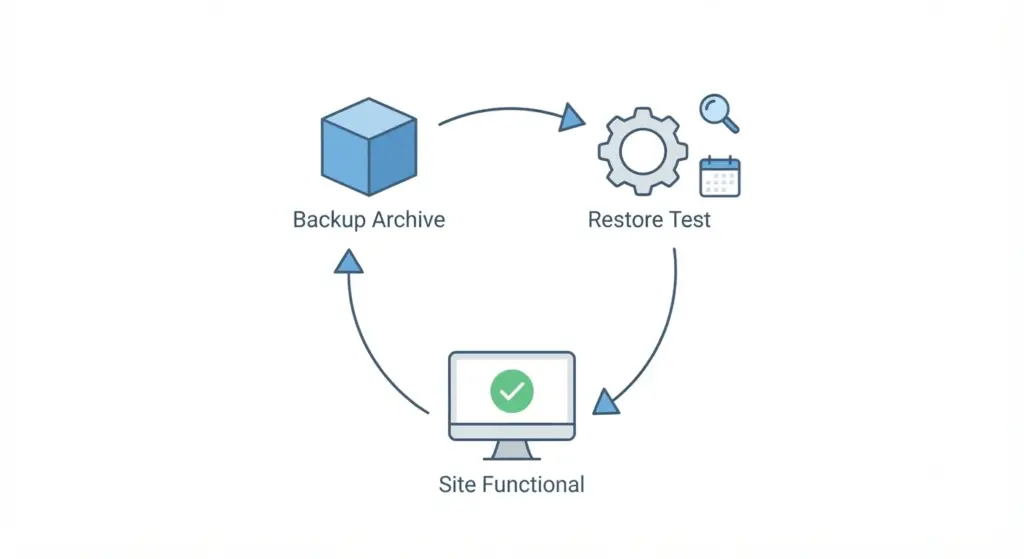
A lot of people think backing up is the hard part. In reality, restore testing is just as important. A backup you cannot restore is not a real safety net.
What a Restore Usually Looks Like :
If you are using a plugin, the process is usually:
- Open the backup plugin.
- Choose the backup date.
- Select what to restore.
- Start the restore process.
- Wait for completion without closing the browser.
What to Restore :
In most cases, you will want:
- Database
- Plugins
- Themes
- Uploads
If the issue is minor, you may not need to restore everything. But for serious damage, restoring the full site is usually the simplest route.
Why Testing Matters :
Testing a restore tells you:
- The backup is valid
- The files are complete
- The database is usable
- The process works before an emergency happens
A backup system that has never been tested is a risk, not a solution.
How Often Should You Back Up a WordPress Site?
The right schedule depends on how often your site changes.
For a Personal Blog
A daily or every-other-day backup is usually enough if you publish regularly.
For Business Sites
If your site gets leads, form submissions, or content updates often, daily backups are safer.
For WooCommerce or Membership Sites
These sites change constantly because of orders, accounts, and customer activity. Hourly or real-time backups are much better here.
General Rule
The more frequently your data changes, the more frequent your backups should be.
Staging Environments Reduce Risk Even More
A staging site is a private copy of your live site where you can test updates and changes safely.
Why Staging Helps
Instead of testing directly on the live site, you can:
- Update plugins
- Try theme changes
- Test custom code
- Check for layout issues
If everything works in staging, then you can move the change to production with more confidence.
Important Point
Staging is not a replacement for backups. It is a prevention tool. Backups are your recovery tool. You need both.
Keep Your Backups Clean and Efficient :
Backups can become slow or large if your site has too much clutter.
Database Cleanup
Over time, databases collect extra data like:
- Post revisions
- Transients
- Old drafts
- Spam comments
- Temporary records
Cleaning these out can make backups faster and smaller. Tools such as WP-Optimize are commonly used for this kind of maintenance.
Avoid Backing Up Junk You Do Not Need :
If your backup solution allows filtering, be careful not to exclude anything important. You want a backup that is lean, not incomplete.
Security and Privacy :
If your site handles sensitive information, your backups need to be protected as well.
What to Consider
- Encryption support
- Restricted access to backup storage
- Secure cloud credentials
- Strong passwords and two-factor authentication
This is especially important for sites dealing with customer accounts, financial data, or health-related information.
How to Know Your Backup System Is Working :
A backup plan should be checked regularly, not assumed to work forever.
Monthly Backup Health Check
Once a month, confirm:
- The latest backup completed successfully
- The backup includes database and files
- Offsite storage is still connected
- Old backups are not silently failing
- There is enough storage space available
Every 90 Days
If possible, perform a test restore every few months. That is the best proof that your system is reliable.
A Simple WordPress Backup Checklist :
Before you finish, use this checklist:
- Does the backup include both files and database?
- Is at least one copy stored offsite?
- Is the backup automated?
- Have you tested a restore recently?
- Do you have a backup before major changes?
- Is your backup storage secure?
If the answer to any of these is no, your backup setup still needs work.
The Bottom Line :
A good WordPress backup strategy is not about being paranoid. It is about being prepared. Websites break. Servers fail. Updates conflict. People make mistakes. That is normal. What separates a fragile site from a resilient one is whether you can recover quickly when something goes wrong.
If you back up both files and database, store copies offsite, automate the process, and test restores from time to time, you are protecting more than a website. You are protecting your content, your business, and your peace of mind.