A WordPress 500 internal server error is one of the most frustrating and potentially costly issues any website owner can face. Unlike a 404 error that tells you a page is missing, or a 403 that indicates a permissions problem, the 500 error is a generic catch-all that means “something went wrong on the server, but we’re not telling you what.” This vague message can translate into lost revenue, damaged reputation, and hours of downtime while you scramble to diagnose the problem.
The WordPress 500 internal server error: what causes it, how to systematically troubleshoot it, and—most importantly—how to prevent it from happening again. Whether you’re managing a single business site or overseeing a portfolio of client properties, understanding the technical mechanisms behind this error will help you resolve issues faster and make more informed decisions about your hosting infrastructure.
Understanding the WordPress 500 Internal Server Error
What Does HTTP 500 Actually Mean?
The HTTP 500 status code is part of the 5xx family of server error responses. According to the HTTP specification, a 500 Internal Server Error indicates that “the server encountered an unexpected condition that prevented it from fulfilling the request.” This is deliberately vague—servers are designed to hide detailed error information from end users for security reasons. If your server started broadcasting specific error messages like “Plugin X caused a PHP fatal error on line 42,” malicious actors could use that information to exploit vulnerabilities.
What makes the WordPress 500 internal server error particularly challenging is that it’s a symptom, not a diagnosis. The error could stem from a corrupted configuration file, a plugin conflict, exhausted server resources, incorrect file permissions, or even a problem at your hosting provider’s infrastructure level. Unlike client-side errors (4xx codes) that indicate something wrong with the user’s request, a 500 error is always a server-side failure.
Why WordPress Sites Are Especially Vulnerable
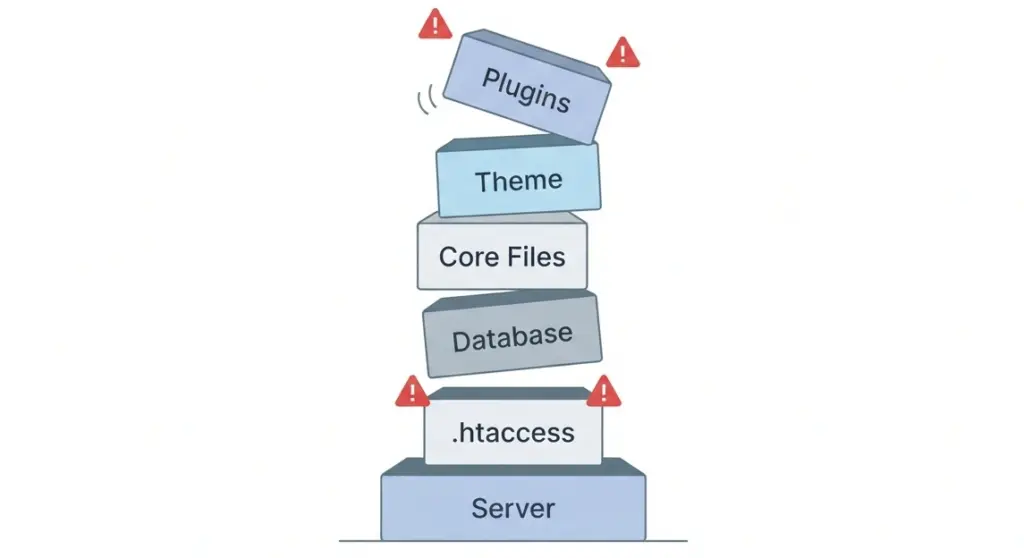
WordPress powers over 40% of all websites on the internet, and its plugin-and-theme architecture is both its greatest strength and its most common source of 500 errors. Every time a visitor loads a page on your WordPress site, the server must:
- Execute PHP scripts from WordPress core
- Query the MySQL database for content
- Load and execute code from your active theme
- Run any active plugins that hook into the page load process
- Process rewrite rules from your .htaccess file (on Apache servers)
If any single component in this chain fails—a typo in a plugin’s code, a theme function that exceeds the PHP memory limit, a corrupted .htaccess directive—the entire request fails and you get the dreaded WordPress 500 internal server error. This is why WordPress sites seem to encounter 500 errors more frequently than static HTML sites: there are simply more moving parts that can break.
Why You Need to Act Fast
The WordPress 500 internal server error isn’t just a technical inconvenience—it’s a business-critical issue. When your site returns a 500 error:
- Visitors see a broken site: Whether it’s a blank white screen (the infamous “White Screen of Death”) or a generic error message, potential customers can’t access your content, products, or services.
- Search engines de-index your pages: If Google’s crawler encounters a 500 error when trying to index your site, it may temporarily remove your pages from search results to avoid sending users to a broken experience.
- Revenue stops immediately: For e-commerce stores, every minute of downtime equals lost sales. Even for lead-generation sites, a 500 error means missed conversions and damaged credibility.
- Admin access may be blocked: In severe cases, the WordPress 500 internal server error affects both the front-end and the /wp-admin dashboard, locking you out of the very tools you need to fix the problem.
The longer a 500 error persists, the more damage it causes. That’s why having a systematic troubleshooting process is essential.
Common Causes of WordPress 500 Internal Server Error
Understanding what typically triggers a WordPress 500 internal server error is the first step toward resolving it. Based on our experience supporting hundreds of business-critical WordPress sites, here are the most frequent culprits:
Corrupted .htaccess File
The .htaccess file is a server configuration file used by Apache and LiteSpeed web servers to control URL rewriting, redirects, and other server-level directives. WordPress uses this file to enable “pretty permalinks” (URLs like yoursite.com/about-us instead of yoursite.com/?p=123).
When a .htaccess file becomes corrupted—often after a plugin update, migration, or manual edit—it can trigger a WordPress 500 internal server error across your entire site. Common causes include:
- Syntax errors in custom rewrite rules
- Incompatible directives added by security or caching plugins
- File corruption during failed updates or server migrations
Plugin Conflicts and Faulty Code
Plugins are the #1 cause of WordPress 500 internal server errors. Every plugin you install adds code that runs on every page load, and conflicts can arise in several ways:
- Incompatible plugins: Two caching plugins, or a security plugin and a performance optimizer, may try to modify the same server settings and crash.
- Outdated plugins: Plugins not updated to work with your current PHP or WordPress version can trigger fatal errors.
- Poorly coded plugins: Infinite loops, memory leaks, or calls to deprecated functions can exhaust server resources and trigger a 500 error.
- Post-update conflicts: A plugin update that introduces a bug can break your site immediately after you click “Update.”
Theme Issues
Your WordPress theme is essentially a collection of PHP templates that control how your site looks and functions. Like plugins, themes can cause a WordPress 500 internal server error if:
- There’s a PHP error in the theme’s
functions.phpfile - The theme is incompatible with your WordPress or PHP version
- Theme files became corrupted during an update
- Custom code modifications introduce syntax errors
Exhausted PHP Memory Limit
WordPress and its plugins require PHP memory to execute scripts. If your site exceeds the allocated memory limit, PHP terminates the script and the server returns a 500 error. Common scenarios that exhaust memory include:
- Resource-heavy plugins (page builders, backup tools, WooCommerce with many products)
- Large image processing or bulk imports
- Too many plugins running simultaneously
- Inefficient database queries that load excessive data into memory
The default PHP memory limit on many shared hosting plans is 128M or even 64M, which is often insufficient for modern WordPress sites.
Corrupted WordPress Core Files
WordPress core files (the wp-admin/, wp-includes/, and root files like index.php) can become corrupted due to:
- Failed or interrupted updates (e.g., a server timeout during the update process)
- Malware or hacking attempts that modify core files
- File transfer errors during manual uploads or migrations
When core files are corrupted, WordPress can’t execute properly and may return a WordPress 500 internal server error.
Database Problems
Your WordPress database stores all your content, settings, and plugin data. A corrupted or overloaded database can trigger 500 errors in several ways:
- Corrupted tables from crashes or failed updates
- Excessive post revisions, transients, or autoloaded options that slow queries to a crawl
- Incorrect database credentials in
wp-config.php
Incorrect File Permissions
WordPress files and folders need specific permissions to work correctly. If permissions are too restrictive (e.g., 400 or 000), the server can’t read or execute files. If they’re too permissive (e.g., 777), some security configurations may block execution as a safety measure.
Recommended permissions:
- Folders:
755(read/write/execute for owner; read/execute for others) - Files:
644(read/write for owner; read for others) - wp-config.php:
400or440(extra secure, since it contains database credentials)
PHP Version Incompatibility
WordPress requires PHP 7.4 or higher (recommended: 8.0+). Using an outdated PHP version (e.g., 5.6 or 7.0) can cause:
- Fatal errors from deprecated functions
- Incompatibility with modern plugins and themes
- Security vulnerabilities that attract malware
Conversely, jumping to a very new PHP version (e.g., 8.3) before your plugins and themes are compatible can also trigger a WordPress 500 internal server error.
Server-Level Issues
Sometimes the problem isn’t your WordPress installation—it’s your hosting environment:
- Overloaded server: Shared hosting plans often oversell resources, leading to CPU or memory exhaustion during traffic spikes.
- Misconfigured server: Missing PHP modules, disabled
mod_rewrite, or incorrect PHP-FPM settings can break WordPress. - Disk space exhaustion: If your hosting account runs out of storage, WordPress can’t write files or logs.
- Security rules: Overly aggressive ModSecurity or WAF rules can block legitimate WordPress requests.
CDN or Caching Conflicts
Content Delivery Networks (CDNs) like Cloudflare and caching plugins can sometimes cache corrupted data or miscommunicate with your server, triggering a 500 error. This is especially common after major site changes or migrations.
Step-by-Step Troubleshooting Guide for WordPress 500 Internal Server Error
When your site goes down with a WordPress 500 internal server error, you need a clear, systematic approach. The following troubleshooting steps are ordered from least invasive to most technical, allowing you to resolve the issue with minimal risk.
Before you begin: Create a backup. If you have any access to your site (FTP, file manager, or database), create a full backup before making changes. This gives you a safety net if something goes wrong.
Step 1: Clear Browser and WordPress Cache
Sometimes the 500 error is a caching artifact—your browser or a caching plugin is serving a cached error page.
- Clear your browser cache: Use Ctrl+Shift+Delete (Windows) or Cmd+Shift+Delete (Mac) to clear cached data. Try loading your site in incognito mode.
- Clear WordPress cache: If you can access your dashboard, purge your caching plugin’s cache (e.g., WP Rocket, W3 Total Cache).
- Purge CDN cache: If you use Cloudflare or another CDN, log into your account and purge all cached content. Enable “Development Mode” temporarily to bypass caching.
If the error persists, move to the next step.
Step 2: Check Error Logs (The Most Important Step)
Error logs are your best friend when diagnosing a WordPress 500 internal server error. They reveal the exact PHP error, file, and line number causing the problem.
Option 1: Server Error Logs (via Hosting Panel)
Most hosting providers let you view server logs through cPanel, Plesk, or a custom dashboard:
- cPanel: Go to
Metrics > Error Logand select your domain. Look for entries with timestamps matching when the error occurred. - Plesk: Navigate to
Domains > [Your Domain] > Logs.
Example log entry:
[Tue Oct 01 12:34:56 2024] [error] [client 192.168.1.1] PHP Fatal error:
Uncaught Error: Call to undefined function my_plugin_function() in
/home/user/public_html/wp-content/plugins/my-plugin/plugin.php:42
This tells you exactly which plugin and file caused the error.
Option 2: WordPress Debug Log
If you can’t access server logs, enable WordPress’s built-in debug mode:
- Connect to your site via FTP or File Manager.
- Open
wp-config.phpin your root directory. - Find the line
define( 'WP_DEBUG', false );and change it to:
define( ‘WP_DEBUG’, true );
define( ‘WP_DEBUG_LOG’, true );
define( ‘WP_DEBUG_DISPLAY’, false );
@ini_set( ‘display_errors’, 0 );
- Save the file and reload your site to trigger the error.
- Check
/wp-content/debug.logfor PHP errors.
Option 3: error_log File
Many servers save errors to a file called error_log in your WordPress root or wp-content folder. Download it via FTP to view.
Step 3: Regenerate the .htaccess File
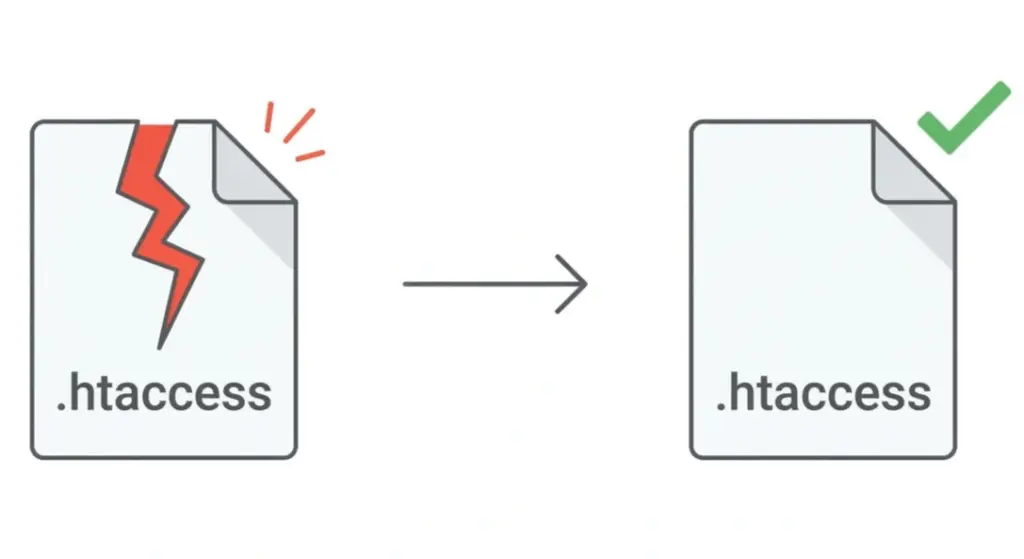
A corrupted .htaccess file is one of the most common causes of WordPress 500 internal server errors.
Via WordPress Dashboard (if accessible):
- Go to
Settings > Permalinks. - Click “Save Changes” without making any modifications.
- WordPress will regenerate the .htaccess file with default rewrite rules.
Via FTP or File Manager (if dashboard is inaccessible):
- Connect to your site via FTP or your host’s File Manager.
- Navigate to your WordPress root directory (where
wp-config.phpis located). - Find the
.htaccessfile (you may need to enable “Show Hidden Files”). - Rename it to
.htaccess_oldas a backup. - Try loading your site. If it works, the .htaccess file was the problem.
- Create a new
.htaccessfile and paste in the default WordPress rules:
# BEGIN WordPress
<IfModule mod_rewrite.c>
RewriteEngine On
RewriteBase /
RewriteRule ^index\.php$ – [L]
RewriteCond %{REQUEST_FILENAME} !-f
RewriteCond %{REQUEST_FILENAME} !-d
RewriteRule . /index.php [L]
</IfModule>
# END WordPress
- Save and upload the file.
Step 4: Increase the PHP Memory Limit
If your site is exhausting its PHP memory allocation, increasing the limit can resolve the WordPress 500 internal server error—at least temporarily.
Method 1: Edit wp-config.php
- Open
wp-config.phpvia FTP or File Manager. - Add this line before the “That’s all, stop editing! Happy publishing” comment:
define( ‘WP_MEMORY_LIMIT’, ‘256M’ );
- For admin-area errors, you can also add:
define( ‘WP_MAX_MEMORY_LIMIT’, ‘512M’ );
- Save the file and test your site.
Method 2: Edit php.ini or .user.ini
If your host allows PHP configuration overrides:
- Create or edit a
php.inior.user.inifile in your WordPress root. - Add these lines:
memory_limit = 256M
max_execution_time = 120
max_input_vars = 5000
post_max_size = 64M
upload_max_filesize = 64M
- Save and test.
Method 3: Contact Your Host
If you can’t edit these files, contact your hosting provider and ask them to increase the PHP memory limit to 256M or higher.
Note: Increasing memory is a temporary fix. You still need to identify what’s consuming excessive memory (usually a poorly coded plugin or theme).
Step 5: Deactivate All Plugins (Plugin Conflict Test)
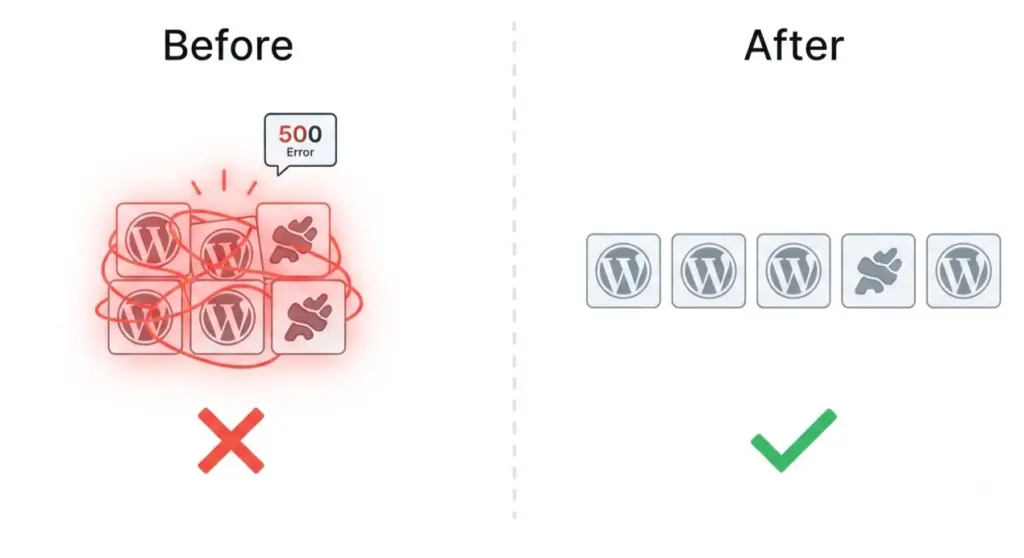
Plugins are the leading cause of WordPress 500 internal server errors. Deactivating all plugins helps you determine if a plugin conflict is the culprit.
If You Can Access the Dashboard:
- Go to
Plugins > Installed Plugins. - Select all plugins, choose “Deactivate” from the bulk actions dropdown, and click “Apply.”
- Test your site. If the error disappears, reactivate plugins one by one, testing after each. The last plugin you activate before the error returns is the culprit