A plugin not working in WordPress is usually a symptom of deeper issues like conflicts, outdated software, or server limitations—not just “a bad plugin.” The fastest way to restore stability is to troubleshoot systematically, starting from non-destructive checks and moving toward configuration, compatibility, and code-level analysis.
What “Plugin Not Working in WordPress” Really Means
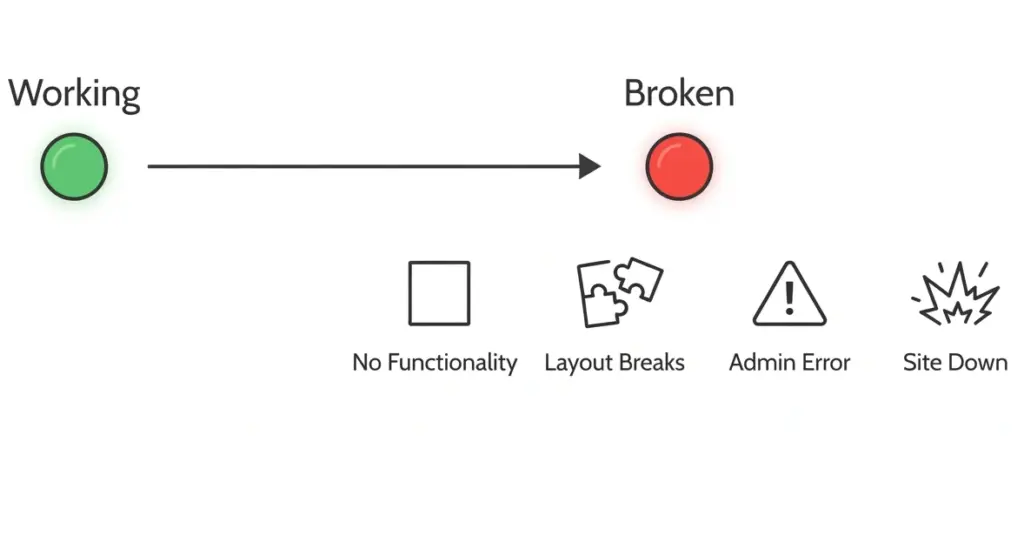
When a plugin “doesn’t work,” it can manifest in several ways: the plugin features don’t appear, the site layout breaks, the admin area shows errors, or the entire site goes down (white screen of death). Each symptom points to a different root cause, so smart troubleshooting starts with identifying what exactly is broken.
Common visible symptoms include:
- Plugin installed but no new functionality appears on the site.
- Buttons or features from the plugin are missing or partially rendered.
- Site becomes slow, shows PHP warnings, or returns 500 errors after activation.
- Admin area becomes inaccessible or displays critical error messages.
For small business owners and CTOs, the key is to avoid guessing and instead use a structured checklist to isolate the problem with minimal risk to live traffic.
Key Causes of Plugin Not Working in WordPress
Understanding why plugins fail helps you design robust setups and avoid breakage after updates.
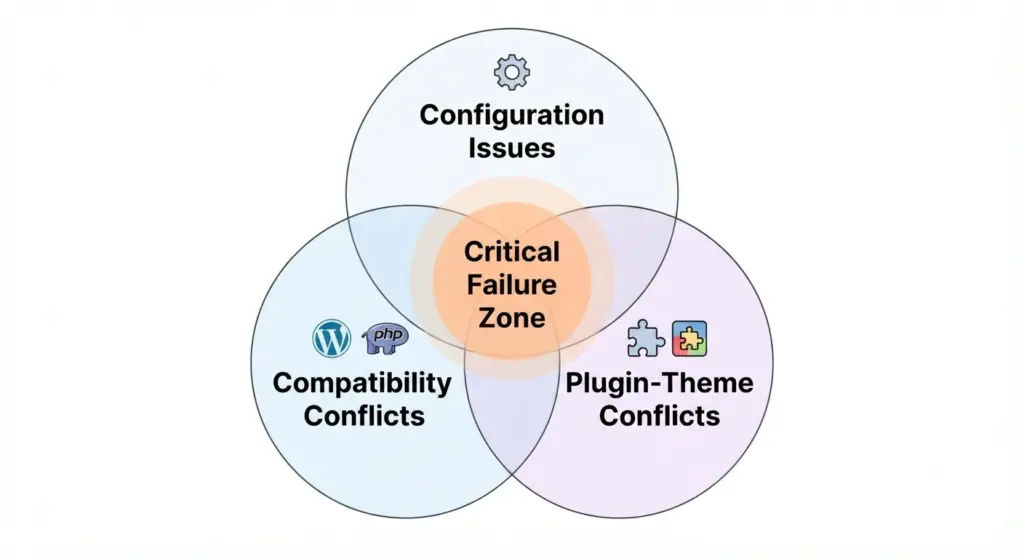
1. Activation, Licensing, and Configuration Issues
Surprisingly often, a plugin is simply not activated or not fully configured. Many premium plugins also require license validation or companion add-ons before their features go live.
Typical misconfigurations include:
- Plugin installed but not activated in Plugins → Installed Plugins.
- Missing license key, expired license, or domain not registered in the vendor dashboard.
- Required modules/add-ons not installed, so core plugin loads but features do not.
For e‑commerce managers, incomplete setup is a frequent cause of missing payment gateways, checkout fields, or tracking scripts.
2. Version and Compatibility Conflicts
Plugins are tightly coupled to specific WordPress, PHP, and theme versions. When any of these lag behind or jump ahead, previously stable plugins can break.
Critical compatibility factors:
- Outdated plugin trying to run on a newly updated WordPress core.
- Plugin requiring PHP 8.1+ while the server is still on PHP 7.x—or vice versa.
- Theme overriding core WordPress hooks or template structures the plugin depends on.
From an engineering perspective, version mismatches are one of the primary culprits behind “it stopped working after an update” incidents.
3. Plugin and Theme Conflicts
When multiple plugins try to manipulate the same hooks, shortcodes, or scripts, conflicts emerge. This often shows up as JavaScript errors on the front-end or fatal PHP errors in logs.
Typical conflict scenarios:
- Two SEO or caching plugins applying competing rules, breaking canonical tags or cache headers.
- Page builder plugin conflicting with a custom theme’s layouts or template loaders.
- Security plugin blocking AJAX calls required by forms, sliders, or dynamic widgets.
For agencies, reproducible conflict testing is crucial to build a stable, documented stack of “approved plugins” for client sites.
4. Caching, CDN, and Browser Artifacts
Sometimes the plugin is working—but you’re not seeing the changes because of aggressive caching. Caches can exist at several layers: browser, page cache plugin, server-level (e.g., Nginx, Varnish), and CDN.
Common cache-related pitfalls:
- Plugin settings saved, but front-end still shows old markup or styles.
- Admin bar or logged-in view looks fine, but anonymous users see broken layouts.
- Cached JavaScript or CSS prevents new assets from loading.
Clearing all relevant caches is a low-risk, high-impact first move whenever a plugin not working in WordPress is reported.
5. PHP Memory, Limits, and Server Configuration
Plugins can fail silently when the server runs out of memory or hits execution limits. On shared hosting, this is particularly common for heavy plugins (page builders, security suites, backup tools).
Typical server-side issues:
- Insufficient PHP memory limit causing fatal errors (e.g., out of memory) in logs.
- Low
max_execution_timeinterrupting long-running plugin tasks (imports, backups). - Disabled PHP extensions required by the plugin (e.g.,
curl,mbstring).
For CTOs, it’s essential to align hosting resources with plugin complexity, especially on high-traffic or data-heavy sites.
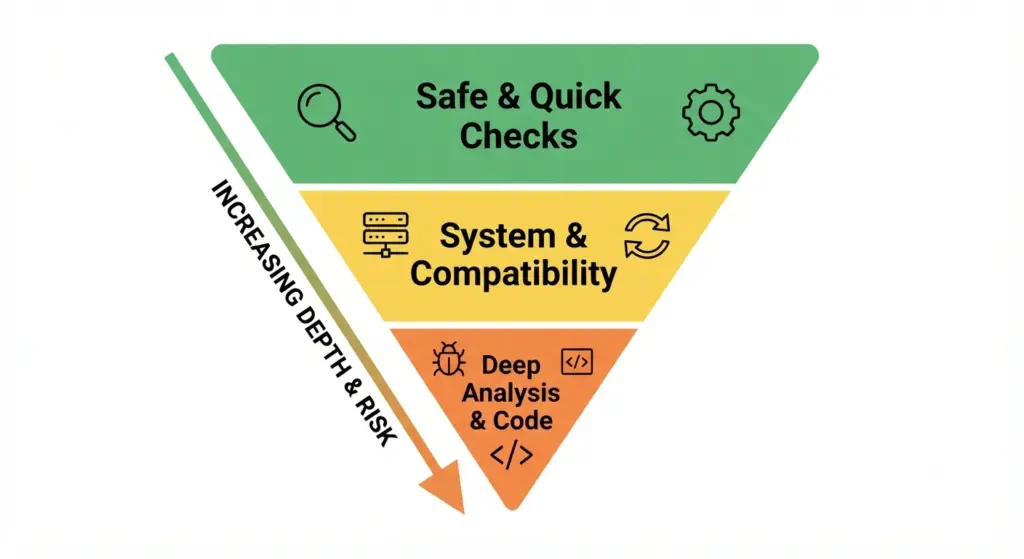
A Structured Troubleshooting Framework (Inverted Pyramid)
Start with safe, quick checks to rule out obvious causes before touching themes, code, or database.
Step 1: Define the Exact Failure
Before you fix anything, document:
- What the plugin should do (expected behavior).
- What it is doing now (actual behavior).
- When the issue started (after an update, migration, or new install).
This context helps avoid random changes and supports data‑driven root cause analysis later.
Step 2: Verify Activation, Setup, and Licensing
Check the simplest causes first:
- Go to Plugins → Installed Plugins and confirm the plugin is active.
- Open the plugin’s settings page and complete any onboarding wizard or required configuration.
- Confirm license status (valid, not expired, correct domain) if it’s a premium plugin.
At this stage, you can also ensure you’re using the official plugin ZIP, not a nulled or corrupted bundle, which often triggers “invalid header” errors.
Step 3: Clear All Caches
Before assuming “plugin not working in WordPress,” make sure you’re seeing the current state of your site.
Recommended sequence:
- Clear browser cache or test in an incognito window.
- Purge any page cache plugin (e.g., from its toolbar menu).
- Clear server cache (via hosting control panel) and CDN cache if applicable.
Only after this should you judge whether the plugin change is truly not taking effect.
Step 4: Update WordPress, Theme, and Plugin Safely
Outdated components are a top reason for plugin failures after major releases.
Safe update process:
- Take a full site backup (files + database) using a reliable backup tool or hosting backup.
- Update WordPress core first, then plugins, then your active theme.
- Re-test the plugin’s functionality after each update, not just at the end.
This step gives you a clear “before/after” for any update-induced breakage.
Step 5: Run Conflict Testing (Plugins and Theme)
If the plugin still doesn’t work, you need to isolate conflicts.
Recommended approach:
- Deactivate all other plugins, leaving only the problematic plugin active.
- Check if the plugin works now.
- If it does, reactivate other plugins one by one, testing after each activation to identify the conflicting plugin.
- If it still doesn’t work, switch temporarily to a default theme like Twenty Twenty‑Four or Twenty Twenty‑Six and test again.
For agencies, documenting conflicts in an internal matrix helps avoid repeating the same combinations across client projects.
Step 6: Check PHP Version, Memory, and Site Health
Next, validate the hosting environment against plugin requirements.
Key checks:
- Visit Tools → Site Health → Info → Server to review PHP version and limits (where available).
- Compare PHP version with the plugin’s declared minimum and tested versions.
- Increase PHP memory and timeout limits where appropriate, especially for resource-intensive plugins.
This step aligns the infrastructure with your plugin stack, reducing hidden runtime failures.
Step 7: Enable Debugging and Review Logs
When standard checks fail, you need visibility into underlying errors.
Typical debugging actions:
- Enable WordPress debug mode and logging via
wp-config.phpso PHP errors are written to a log instead of breaking the site. - Review logs for fatal error messages tied to the plugin (missing classes, functions, memory errors).
- Check browser console for JavaScript conflicts that may prevent plugin UI components from loading.
For technical teams, consistent logging and monitoring turn sporadic plugin issues into traceable incidents.
Step 8: Reinstall the Plugin or Roll Back
Sometimes plugin files are corrupted during upload, or a recent version introduces regressions.
Options at this stage:
- Delete and reinstall the plugin from a trusted source (WordPress.org or vendor account).
- Roll back to a previous stable version using version control or a plugin rollback tool.
- For mission‑critical sites, test new versions on staging before deploying to production.
This ensures you’re working with clean, known‑good code.
Step 9: Emergency Recovery if Locked Out
If a plugin not working in WordPress locks you out of the admin area, you must deactivate it at the file system level.
Typical recovery steps:
- Use FTP or a file manager to access
/wp-content/. - Rename the
pluginsfolder (e.g., toplugins-old) to deactivate all plugins instantly. - Log back in, rename the folder to
plugins, and reactivate plugins selectively from the admin.
For CTOs, having this emergency playbook documented avoids extended downtime during plugin-related outages.
Quick-Reference Table: Plugin Not Working in WordPress
| Scenario | Likely Cause | First Action |
|---|---|---|
| Plugin installed but no features visible | Not activated, incomplete setup, missing license | Confirm activation and complete configuration. |
| Site breaks immediately after activation | Plugin conflict or incompatible version | Deactivate plugin, check logs, run conflict test. |
| Changes not visible on front-end | Cache or CDN serving old content | Clear all caches and test in incognito. |
| Feature worked before, now broken | Recent update (core, plugin, theme) or PHP change | Review change history, and align versions. |
| Admin inaccessible after activation | Fatal error due to conflict or resource limits | Disable plugins via FTP and enable debugging. |
Strategic Best Practices for Businesses and CTOs
Beyond fixing one plugin not working in WordPress, you want to reduce the probability of future failures.
Standardize a Trusted Plugin Stack
Use a vetted list of plugins that are:
- Actively maintained and updated frequently.
- Compatible with your chosen theme and hosting environment.
- Already battle‑tested across multiple projects internally.
This reduces the number of unknowns in your ecosystem.
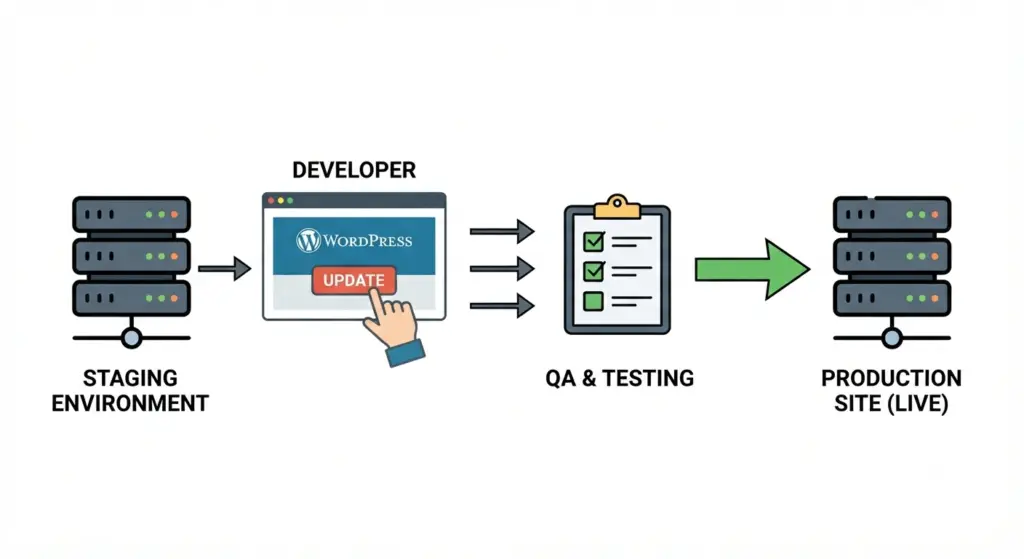
Always Use Staging Environments
Never test new plugins or major updates directly on production:
- Maintain a staging site that mirrors your live configuration.
- Install, configure, and stress‑test plugins there first.
- Promote changes to production only after verifying performance and compatibility.
This practice greatly decreases downtime and unexpected breakages.
Maintain Update and Backup Policies
Define clear operational policies:
- Scheduled updates for WordPress core, plugins, and themes.
- Backups before high‑risk changes (new plugins, major version updates).
- Rollback procedures documented for non‑technical stakeholders.
With these in place, “plugin not working in WordPress” becomes a manageable incident, not a business crisis.
FAQ: Plugin Not Working in WordPress
Q: Why is my plugin not working in WordPress after an update?
A: After core or plugin updates, version mismatches, deprecated functions, or theme overrides can cause previously stable plugins to fail. The best response is to check compatibility, clear caches, and run conflict testing on a staging environment before applying fixes to the live site.
Q: How do I safely test for plugin conflicts without breaking my site?
A: Start by deactivating all non‑essential plugins and switching to a default WordPress theme, then reactivate components one by one while testing the problematic feature. Document any combination that consistently re‑creates the issue so you can avoid it in future builds.
Q: What should I do if a plugin makes my WordPress admin area inaccessible?
A: Use FTP or your hosting file manager to rename the plugins folder, which deactivates all plugins and restores access to the dashboard. From there, you can reactivate plugins selectively, enable debugging, and identify the plugin responsible for the lockout.
Q: Can server limits cause a plugin not working in WordPress issue?
A: Yes, low PHP memory, short execution time, or missing PHP extensions frequently cause plugins to fail silently or trigger fatal errors. Reviewing server settings in your site health information and adjusting them to meet plugin requirements is essential for stable operation.
Q: Is it safe to reinstall a plugin to fix errors?
A: Reinstalling from an official source is a common and safe way to fix corrupted plugin files, as long as you take a backup first and reapply any custom settings afterwards. For mission‑critical sites, test the reinstall on staging before making changes in production.
If you’re dealing with a plugin not working in WordPress and need a systematic, low‑risk resolution—plus long‑term stability across your entire stack—it’s often faster to have an experienced technical team audit and fix the issue end‑to‑end. An agency that specializes in WordPress architecture, plugin conflicts, and performance can help you move from firefighting individual errors to running a predictable, well‑documented system.