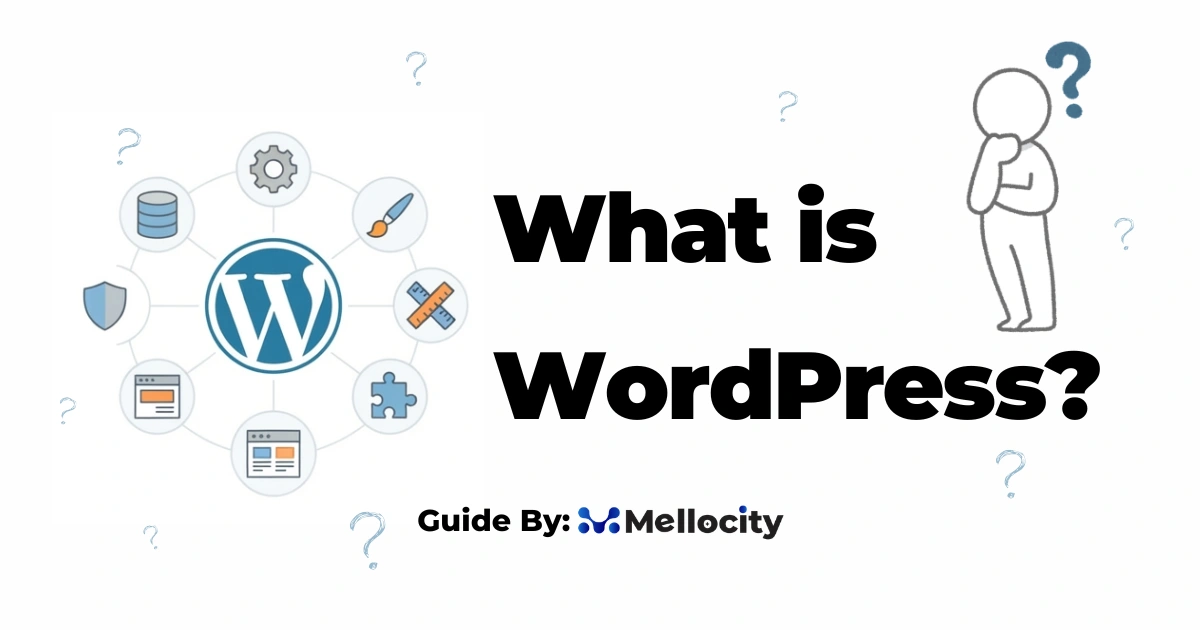
Local WordPress development means running a full WordPress site on your own computer so you can build, test, and iterate safely before you push changes to a live server.
Local WordPress Development :
Why develop locally? The short, practical list
- Risk-free experimentation: break things without taking the live site down.
- Fast iteration: edits and page reloads are instant because there’s no network round-trip.
- Offline work: build anywhere , planes, trains, cafés, or during outages.
- Real debugging: see PHP errors, use xDebug and WP_DEBUG safely.
- Reproducible environments: match production PHP, database, and server settings easily.
Why local development :
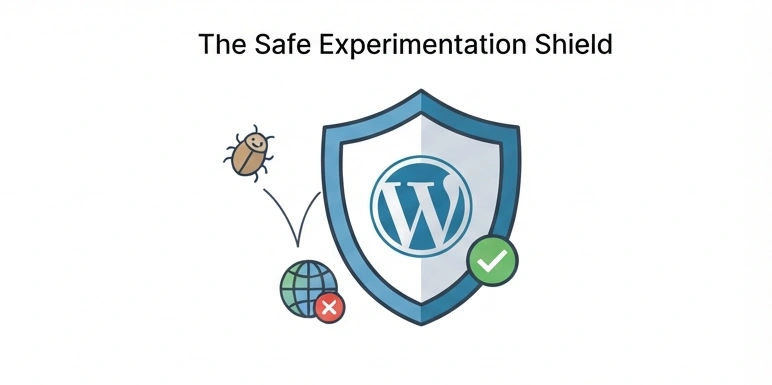
Working directly on a production server is like performing surgery in a busy stadium, unforgiving. Local development gives you a staging ground: an isolated, fully controllable copy of your site where you can try new themes, upgrade PHP, test plugin compatibility, and run automated tests. Here’s how that plays out in practice.
- Avoiding live-site disasters Imagine updating a plugin that conflicts with your theme and crashes critical pages during a product launch. Locally, you can reproduce that exact upgrade, catch the conflict, fix it, and only then push to production. That simple workflow prevents lost revenue and client panic.
- Faster development, fewer distractions On a local machine you save time on every single code-test loop. Small changes that used to require a deploy and a refresh now reflect instantly, so you ship features faster. Plus, there’s no distraction from monitoring uptime or dealing with live analytics noise while you iterate.
- Full control over environment and dependencies Different hosts ship different PHP versions, extensions, and server configurations. Local environments let you match those specifics (PHP 8.0 vs 8.3, nginx vs Apache) so your staging and production behave the same.
What is required to run WordPress locally?
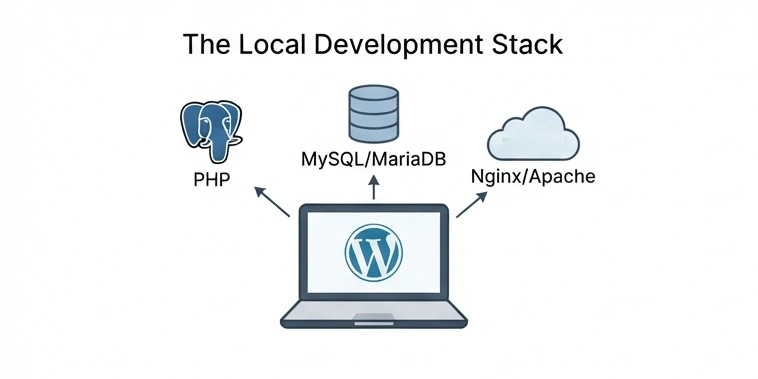
WordPress needs two core things: PHP and a database server (MySQL or MariaDB). It also needs a web server (Apache or nginx) to serve requests. Locally, you recreate this stack so WordPress can run exactly like it does on a host.
Stack components explained
- PHP: WordPress core and themes/plugins are PHP , choose the same major version as production.
- MySQL / MariaDB: stores posts, settings, user accounts and serialized data.
- Apache / Nginx: web server that serves PHP through PHP-FPM or mod_php.
- Optional extras: Redis or Memcached for caching, Elasticsearch for advanced search, Mailhog for capturing outgoing email in dev.
Why matching the stack matters Serialized data and subtle PHP differences can break migrations if dev and prod differ. For example, PHP 8 introduced stricter type warnings that didn’t exist in PHP 7.4 , a plugin may throw fatal errors only on production if your local environment is mismatched.
Best local development tools :
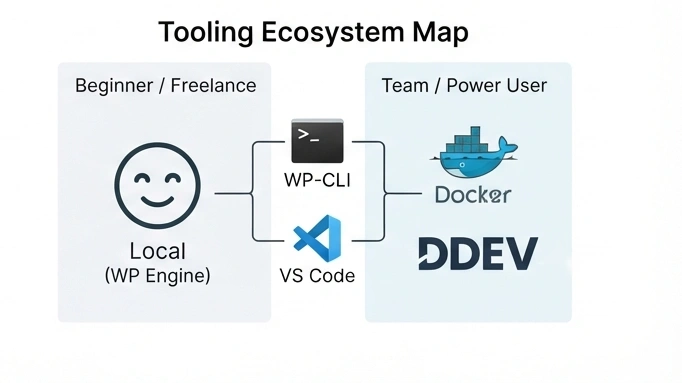
Tooling matured a lot. Pick a tool that matches your skill level and project needs.
Local (by WP Engine) :
- Who it’s for: beginners, freelancers, agencies managing many small sites.
- Why use it: GUI, one-click site creation, “Live Links” for temporary sharing, SSL trust built-in, simple environment switching (PHP versions).
- Practical tip: use Local for quick prototyping and client demos. When you need advanced server parity, move to containerized tools.
Docker + DDEV (or Lando) :
- Who it’s for: teams, power users, complex projects.
- Why use it: exact match to production via containers, repeatable builds, easy CI/CD integration.
- Practical tip: store your docker-compose and configuration in the repo so every developer spins up the exact same environment.
WP-CLI :
- Who it’s for: everyone who wants speed and automation.
- Why use it: install core, plugins, themes, run search-replace on the DB, import/export, scripting tasks.
- Practical tip: put common WP-CLI commands into a makefile or npm task so teammates have the same one-liners.
VS Code + WordPress tooling :
- Who it’s for: most developers.
- Why use it: extensions like PHP Intelephense, phpcs integration, xDebug support and Git integration make development faster and more reliable.
- Practical tip: share your recommended extensions and settings via an .editorconfig and in-repo devcontainer when using Docker.
Other useful tools
- TablePlus, Sequel Pro, or phpMyAdmin: direct DB access for quick fixes.
- Mailhog or MailCatcher: intercept and inspect outgoing mail during dev.
- Blackfire / Xdebug + Tideways: profiling and performance tuning locally.
- Design tools: Figma for mockups and design handoffs.
Set up a local WordPress site step-by-step :
Local (GUI) and Docker/DDEV (containerized).
Quick setup with Local (by WP Engine)
- Download the installer from the official site and install.
- Create a New Site → give it a name (e.g., mysite.local).
- Choose environment: Preferred (quick) or Custom (pick PHP, web server, DB).
- Set admin username/password and wait for Local to provision the site.
- Click “WP Admin” to open the dashboard and log in.
- Trust the SSL certificate (Local shows a trust button) to enable HTTPS on the local site. Practical tip: use Local’s “Live Links” only for short demos; don’t use them to host client content permanently.
More robust setup with Docker + DDEV
- Install Docker Desktop.
- Install DDEV (or Lando) via package manager or direct download.
- In your project directory run ddev config , follow prompts to set project type to wordpress and pick a docroot.
- Run ddev start to spin up containers (web server, db, php).
- Use ddev launch or ddev composer create to install WordPress; or use WP-CLI inside the container: ddev wp core download && ddev wp core install. Practical tip: commit .ddev/config.yaml to your repository so team members share environment settings.
Day-to-day local workflow
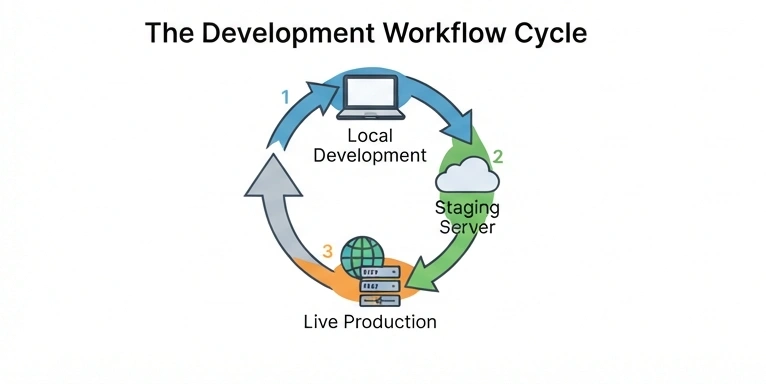
A smooth workflow reduces errors and speeds delivery. Here’s a practical workflow many professionals use.
Branch-based development with Git
- Create a feature branch for every new task (feature/my-login-widget).
- Develop locally, commit early and often.
- Push to remote (GitHub/GitLab). Use PRs for code review.
- Merge to main only after tests pass and QA verifies on staging.
Database and media handling
- Avoid shipping the production DB for small tasks. Instead use a sanitized DB export for local testing.
- Store media in cloud for large sites; use symlinks or scripted imports to prevent huge repo sizes.
- Use WP-CLI to sync selected tables: ddev wp db export , strip=wp_postmeta:… (or use plugins that support selective export).
Debugging and error tracking
- Enable WP_DEBUG, WP_DEBUG_LOG, and SCRIPT_DEBUG in wp-config.php for development.
- Use xDebug with breakpoints for complex logic issues.
- Log to local files and use a tool like Log Viewer to read logs in the browser.
Deploying local changes to live (migration and deployment)
Going from local to live is where many mistakes happen. use reliable, repeatable methods.
Use migration plugins for one-off pushes
- All-in-One WP Migration, Duplicator, and WP Migrate DB Pro can package files and DB and handle URL rewrites.
- Pros: fast and simple.
- Cons: not ideal for continuous deployment or large sites with huge media folders.
Use Git + build pipeline for code-only changes
- Keep themes and plugins in Git. Deploy code via SSH, Git hooks, or a CI/CD pipeline (GitHub Actions, GitLab CI).
- Maintain a clear separation: code in the repo, media and uploads in cloud storage (S3) or via a separate sync process.
Staging-first deployments
- Push local changes to staging first.
- Run basic acceptance tests and manual QA on staging.
- Schedule a maintenance window for production or use zero-downtime deploys where possible.
Handling serialized data and search-replace
- Never edit serialized data manually. Use WP-CLI’s search-replace or tools that understand PHP serialization.
- Example: ddev wp search-replace ‘http://mysite.local’ ‘https://example.com’ –skip-columns=guid , recurse-objects.
Common problems and how to fix them
Here are real issues you’ll meet and practical fixes.
- Environment mismatch (PHP, extensions) Problem: Code works locally but fails on production due to PHP differences. Fixes: Match PHP minor versions in local tools or create a staging server that mirrors production. Use Docker to match extensions exactly.
- Large DB import/export fails Problem: Import times out or fails on huge DBs. Fixes: Export a trimmed or sanitized DB, exclude large tables, or import via command line (wp db import) instead of phpMyAdmin.
- SSL and mixed-content issues Problem: Local site uses http and JS APIs require https, or mixed-content errors block assets. Fixes: Use the local tool’s SSL trust feature; update local URLs to https; ensure local hostnames are trusted in the browser.
- Missing emails in dev Problem: Contact forms aren’t sending because SMTP is disabled locally. Fixes: Use Mailhog or Mailtrap to capture outgoing mail locally and route SMTP through a test mailbox.
- File permission errors on deployment Problem: Uploaded files inaccessible after deploy. Fixes: Ensure correct ownership and permissions on the server; implement scripts to set perms after deployment; avoid committing uploaded files to Git.
Performance and large-site strategies
Local machines aren’t data centers. But you can still profile and tune locally effectively.
Profiling locally
- Use Xdebug to generate traces and a profiler like KCacheGrind or webgrind to analyze slow functions.
- Use Blackfire or Tideways (if available) for deep performance traces.
Caching and search parity
- Mirror caching stacks locally where possible: Redis or Memcached in Docker, and Elasticsearch for search-heavy sites.
- For small teams, you can stub expensive services with lightweight alternatives during development, but ensure full integration tests run on staging.
Media handling for big sites
- Offload media storage to S3 or a CDN. Use tools to create low-res placeholders locally and sync only required media for feature testing.
Professional practices for teams
If you work with others, certain practices save time and stress.
Shareable dev environments
- Commit environment config (.ddev, docker-compose, or Local site export) so teammates get the same setup.
- Use devcontainers or GitHub Codespaces to provide a consistent environment without heavy local installs.
Document common tasks
- Maintain README.md with setup steps, how to run migrations, and common WP-CLI commands.
- Provide a checklist: enable WP_DEBUG, run unit tests, run linter, confirm no hard-coded URLs.
Automate repetitive tasks
- Add npm scripts or Makefile tasks for building assets, running linters, and creating DB snapshots.
- Use GitHub Actions to run unit and integration tests on pull requests.
Security considerations for local development
Local development reduces public exposure, but it’s not a blank check.
Protect sensitive data
- Never commit production credentials. Use .env files and a secrets manager.
- When importing production DBs to local, sanitize passwords, API keys, and PII.
Avoid exposing local services
- Avoid defaulting to permanent public tunneling (e.g., ngrok or Local’s Live Links) for development secrets. Use them briefly and revoke links when done.
Keep software up to date
- Update local tooling and WordPress core to benefit from security fixes , but always test updates locally before pushing live.
Advanced topics , testing, CI, and automated deployments
Once you’re comfortable with a local workflow, add automation.
Unit and integration testing
- Use PHPUnit for PHP unit tests and the WordPress testing framework for integration tests.
- Automate tests to run on every PR via your CI provider.
Visual regression testing
- Tools like Percy or BackstopJS can catch layout regressions. Run them against staging to prevent visual breakages.
Continuous deployment
- Link Git branches to deployment targets: main -> production, develop -> staging.
- Use zero-downtime strategies (atomic deploys, symlink swaps) to avoid downtime during site updates.
Migrating from local to remote :
Before you push anything live, follow a checklist to avoid downtime and surprises.
Pre-deploy checklist
- Confirm PHP and extension compatibility.
- Run WP-CLI search-replace for URLs with serialization-safe tools.
- Export/import media if needed or ensure CDN sync is ready.
- Run tests (unit, integration, and visual).
- Disable caching layers before the first migration and re-enable after verifying.
Post-deploy checklist
- Clear caches (object, page, CDN).
- Test core user journeys (login, checkout, form submissions).
- Check error logs for warnings or notices.
- Run a smoke test suite or manually verify critical pages.
When local isn’t enough , alternatives and hybrids
There are times local alone doesn’t cut it. Large, highly interactive platforms or integrations with third-party services may require full remote testing.
Staging and pre-production servers
- Use a staging host to run production-like tests for performance, security scans, and third-party integrations (payment gateways, analytics).
- Mirror your production data (sanitized) when necessary for accurate testing.
Cloud-based dev environments
- Services like GitHub Codespaces or remote dev boxes provide cloud-powered environments that match production more closely and avoid local hardware limits.
Case studies :
- Freelancer: quick prototype and client iteration A freelancer uses Local to build a design mockup, shares a Live Link with a client for feedback, iterates locally based on comments, then uses All-in-One WP Migration to push final site to a managed host.
- Agency: team development and CI/CD An agency keeps themes and custom plugins in Git, uses DDEV for local parity, runs unit tests and visual regression on PRs, and deploys via GitLab CI to staging before a production release.
- Enterprise: complex integrations and performance testing An enterprise project uses Docker-based local environments to mimic production (elastic search, redis), runs load tests on an identical pre-prod environment, and uses a formal change management process for deployments.
Tips :
- Use WP-CLI aliases to run commands across local, staging, and production with the same syntax.
- Keep uploads out of Git , use rsync or S3 sync scripts.
- Maintain a lightweight sample database for developers that includes example posts, users, and plugin configurations without PII.
- Use environment variables for secrets and database credentials.
- Use a single standardized hostname format (e.g., project.local or project.test) to avoid confusion.
Final thoughts :
Local WordPress development is not an optional nicety, it should be part of your default workflow. Whether you’re building a personal blog, managing client sites, or architecting enterprise platforms, a local environment saves time, reduces risk, and makes you a better developer.
Start simple: pick a tool (Local if you prefer GUI, DDEV if you like containers), set up a reproducible environment, add WP-CLI to your toolbox, and make Git part of every feature you build. Then grow into more advanced practices: CI, staging, testing, and automated deployments.