
Section-aware comparison
When one section grows or a new one is added, only that section is marked — the pages line up again below it, so one banner doesn’t flag the whole page.
Chrome Extension Publishing soon
Compare production and staging page by page. See every layout shift in red.
3
Compare views
1440px
Default viewport
50
Pages per scan (default)
0
Bytes uploaded
Check staging against production before it goes live.
Catch layout breaks from a theme, plugin or page-builder update.
Confirm the site looks the same after a move or a change of host.
Review a redesign page by page instead of clicking around.
Find broken links and images, and see which ones are new on staging.
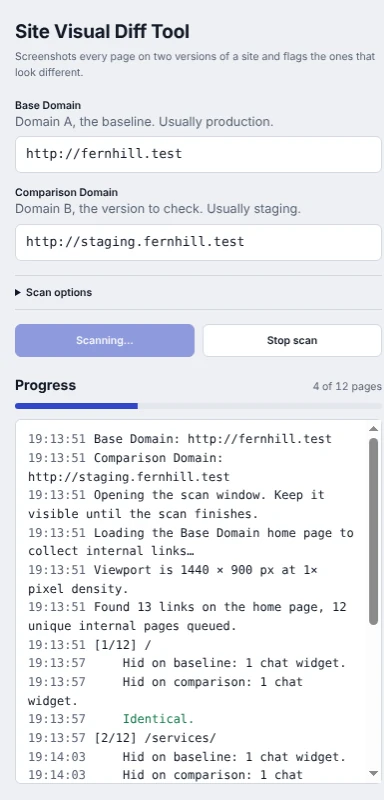
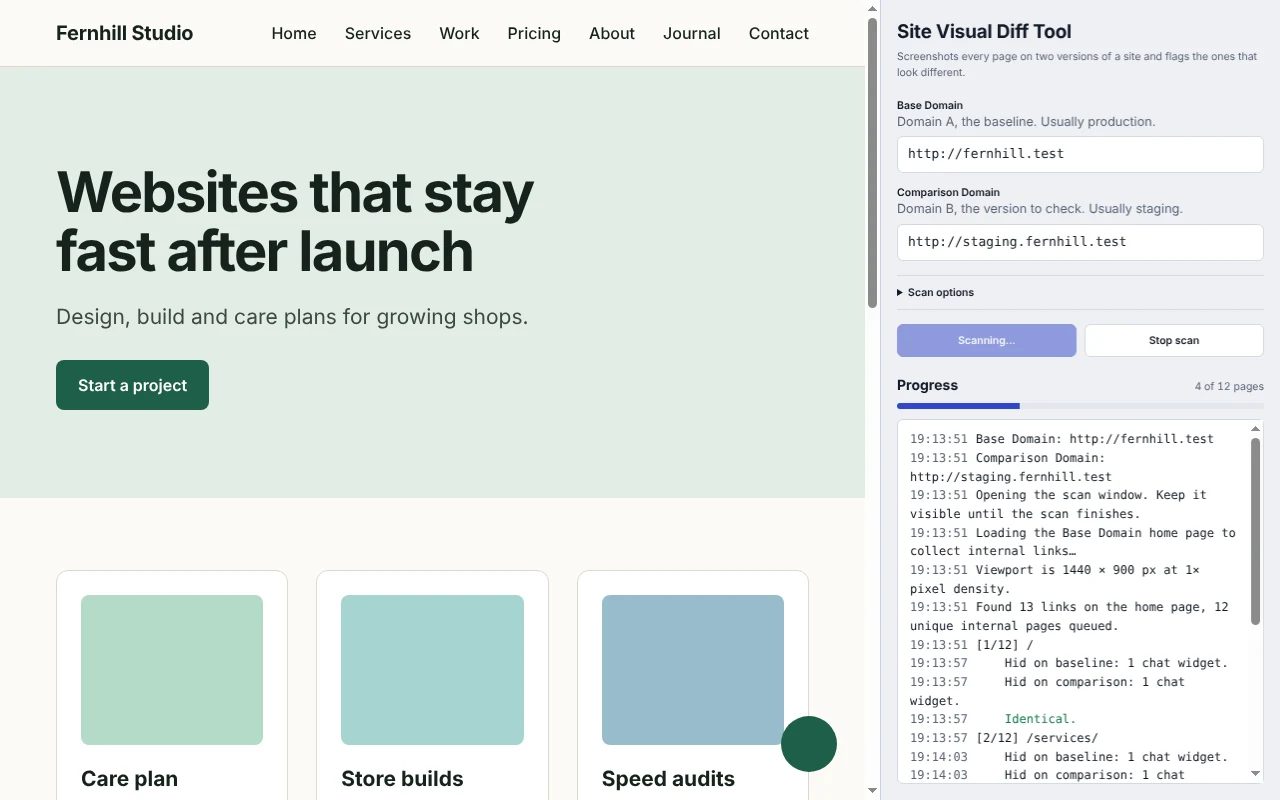
Open the side panel, add a Base Domain (usually production) and a Comparison Domain (usually staging), and start a deep scan. It opens each page on both domains, waits for images, hides popups and captures full-page screenshots while a live log shows progress.
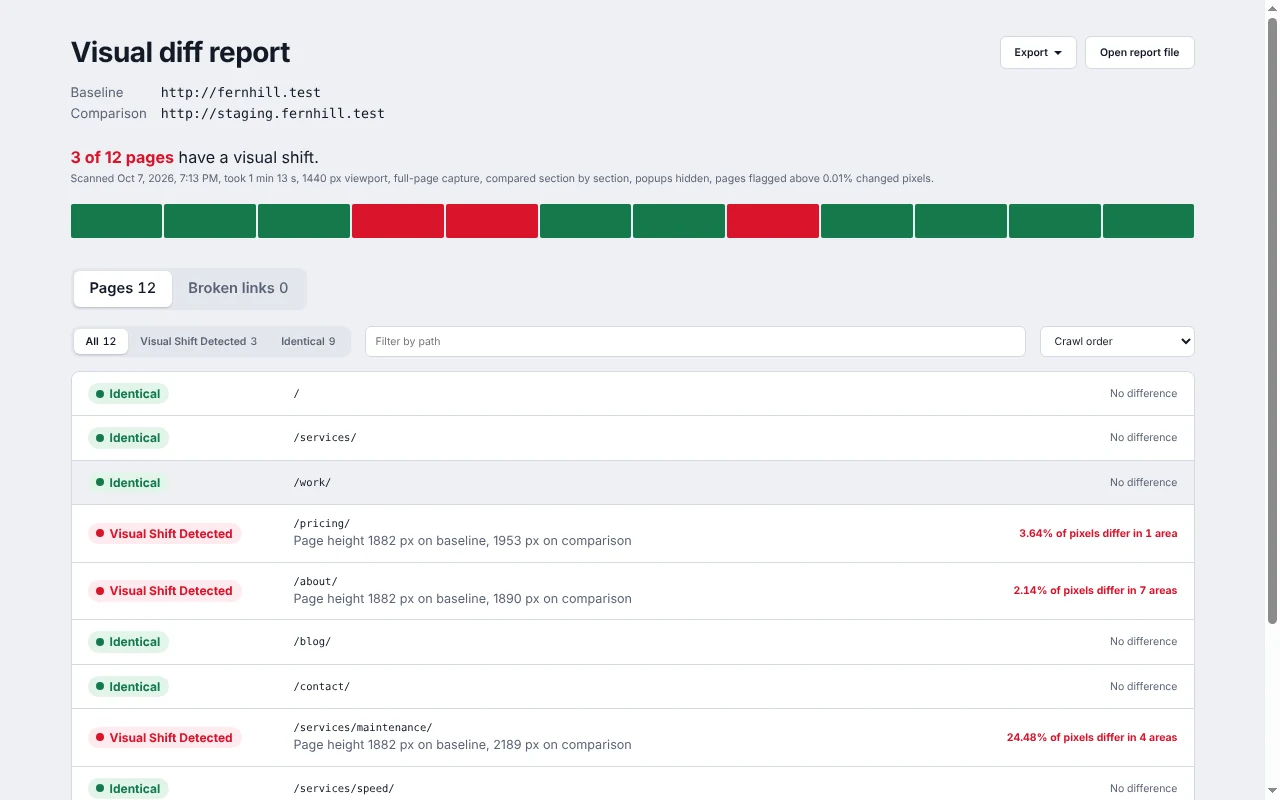
When the scan finishes, every page is listed as Identical or Visual Shift Detected with the share of pixels that changed — plus the broken links found on both sites.
Open a flagged page to see baseline, comparison and diff side by side, or drag the slider between them. Export the report for a colleague.
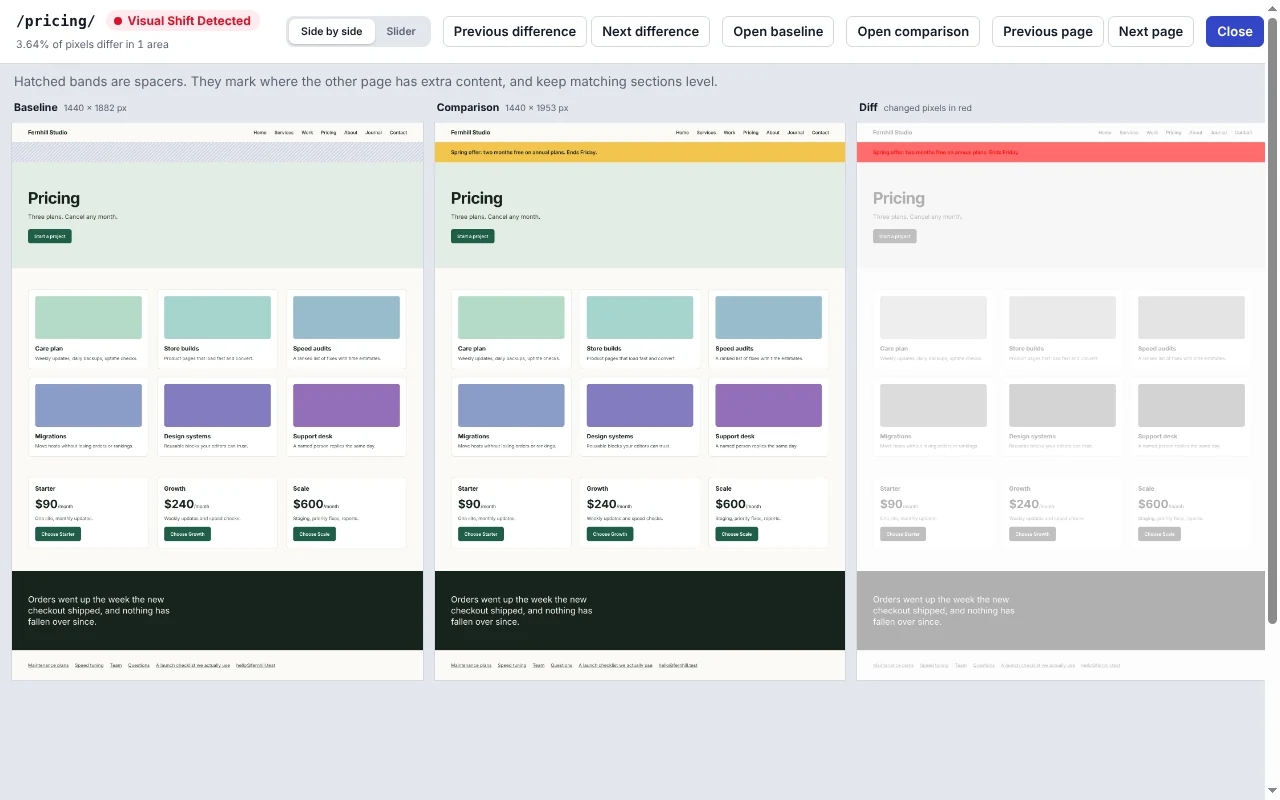
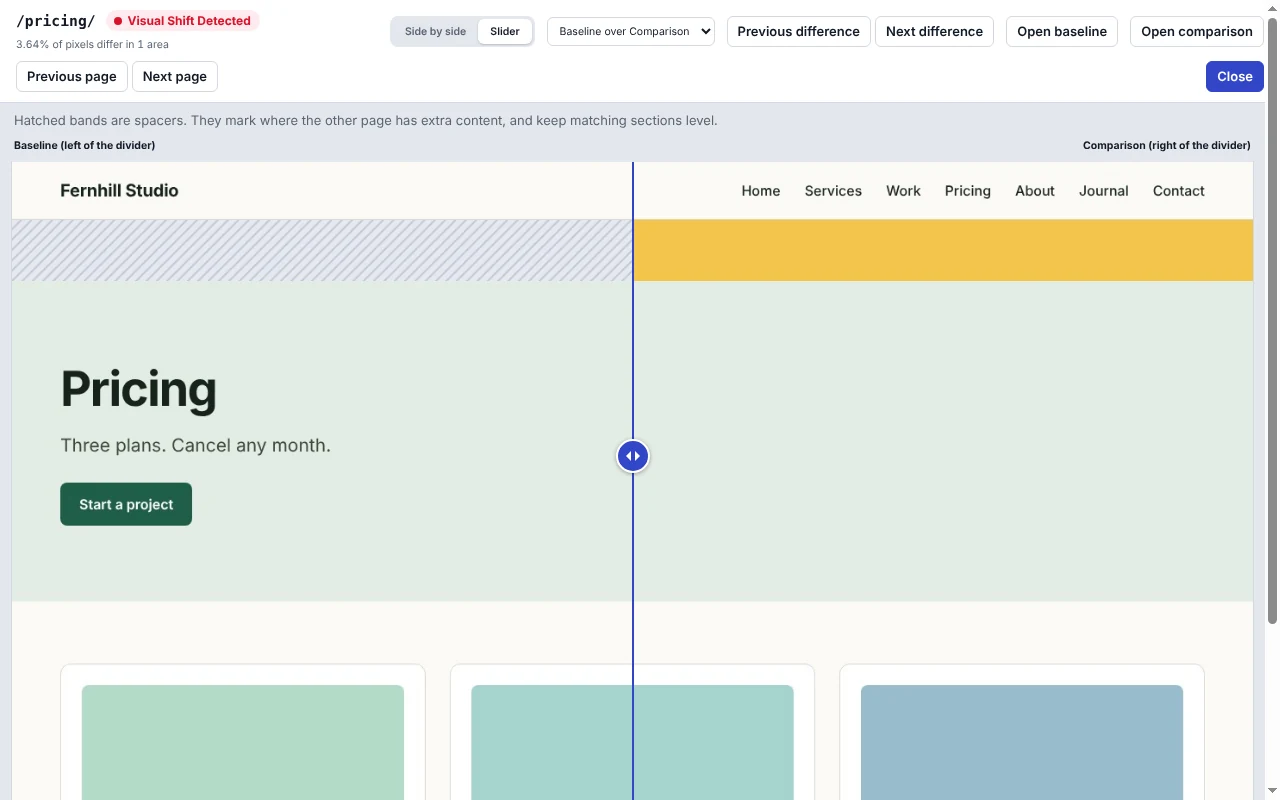
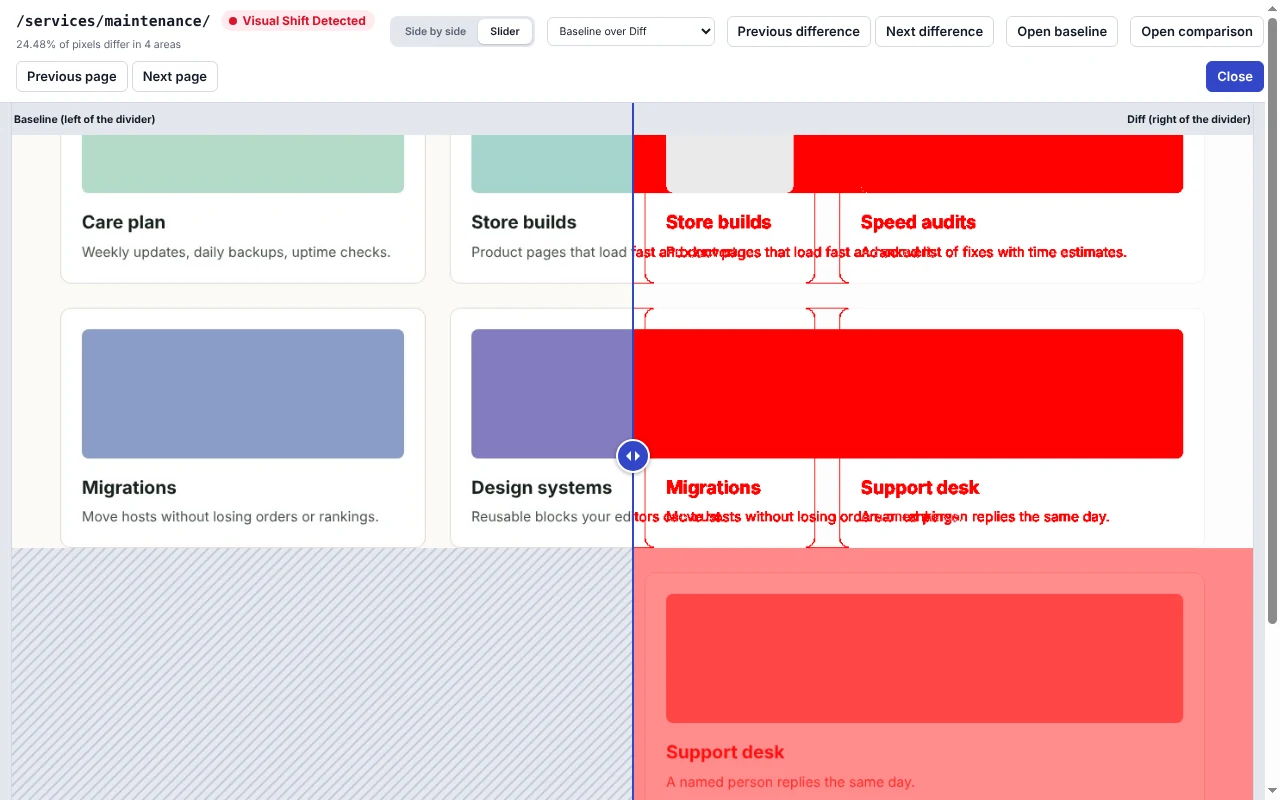
When one section grows or a new one is added, only that section is marked — the pages line up again below it, so one banner doesn’t flag the whole page.
Stitched from scrolled captures, or first screen only for faster scans.
Side by side, a drag slider, or the diff image with changed pixels in bright red.
Popups, cookie banners and chat widgets are hidden with CSS before each screenshot. It never clicks Accept for you.
Internal links, external links and images on both sites. Links that refuse automated checks are listed as “could not verify”, not broken.
A report file a colleague can open in the extension, plus CSV files for pages and broken links.
Filters, path search, sorting by largest difference, and notes for pages that error on the comparison site or differ in height.
Only the requests you ask for. Screenshots and results stay in your browser and are replaced by the next scan. There is no Mellocity server on the other end.
Read the privacy policyYour browser
Local storage
ScreenshotsResultsSettingsTune each scan from the side panel.
Chrome lists these when you install. Here’s what each one is used for.
tabsscriptingstorageunlimitedStoragesidePanel<all_urls>Yes. There is no paid plan and no account.
No. Everything runs in your browser. Screenshots and results are stored locally on your computer and replaced by the next scan. There are no servers, no account and no analytics.
It compares the two full-page screenshots section by section and flags the page when the share of changed pixels is above the sensitivity you set.
Yes. Export creates a report file a colleague can open in the extension, plus CSV files for pages and broken links. Share it only with people who may see those pages.
Google Chrome 116 or newer, on any desktop operating system.
Tips, guides, and updates from the Mellocity team.
top interactive product configurator top interactive product configurator – automatically generated SEO helper content for this page. Services related to top interactive…
how to speed up wordpress site how to speed up wordpress site – automatically generated SEO helper content for this page. Services…
wordpress.com vs wordpress.org wordpress.com vs wordpress.org – automatically generated SEO helper content for this page. Services related to wordpress.com vs wordpress.org External…
Partner with us for digital solutions that drive results.